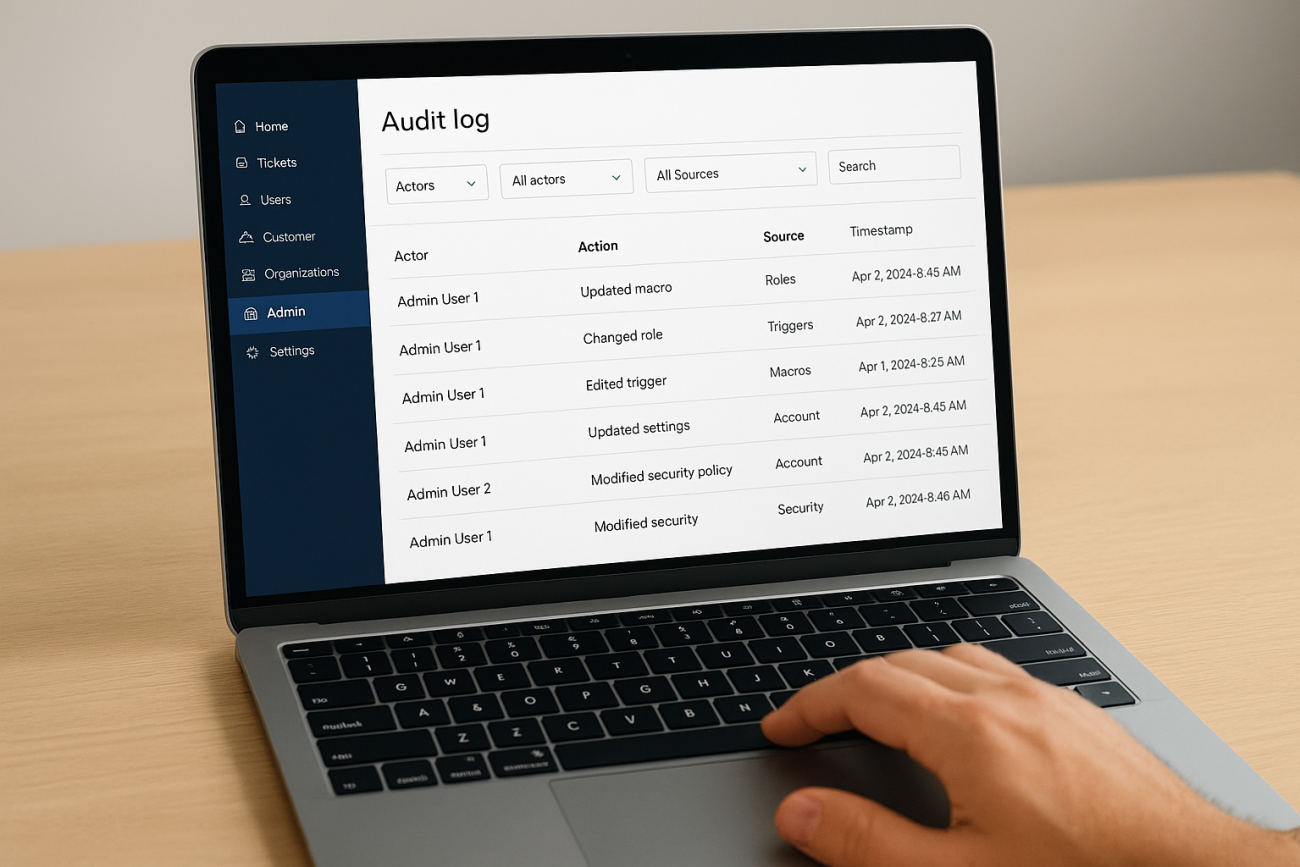
Something changed in your Zendesk account and you need to know who did it, when, and why. That’s exactly what the Zendesk audit log is built for. It’s the record that shows every meaningful action taken across your account, from role changes to trigger edits to ticket field updates, and it becomes essential the moment you’re troubleshooting a broken workflow or answering to an auditor.
This article breaks down what the audit log actually tracks, where to find it in the Admin Center, and how to pull entries through the API when you need more than the built-in filters offer. You’ll also see the practical limits, like retention windows and what doesn’t get logged, so you’re not caught off guard during a compliance review.
We work with compliance officers and training managers every day inside Axis LMS, where tracking who changed what matters just as much for course records and certifications as it does for your support desk. That experience shapes how we approach audit trails here: less theory, more of what you actually need to check first when something looks off.
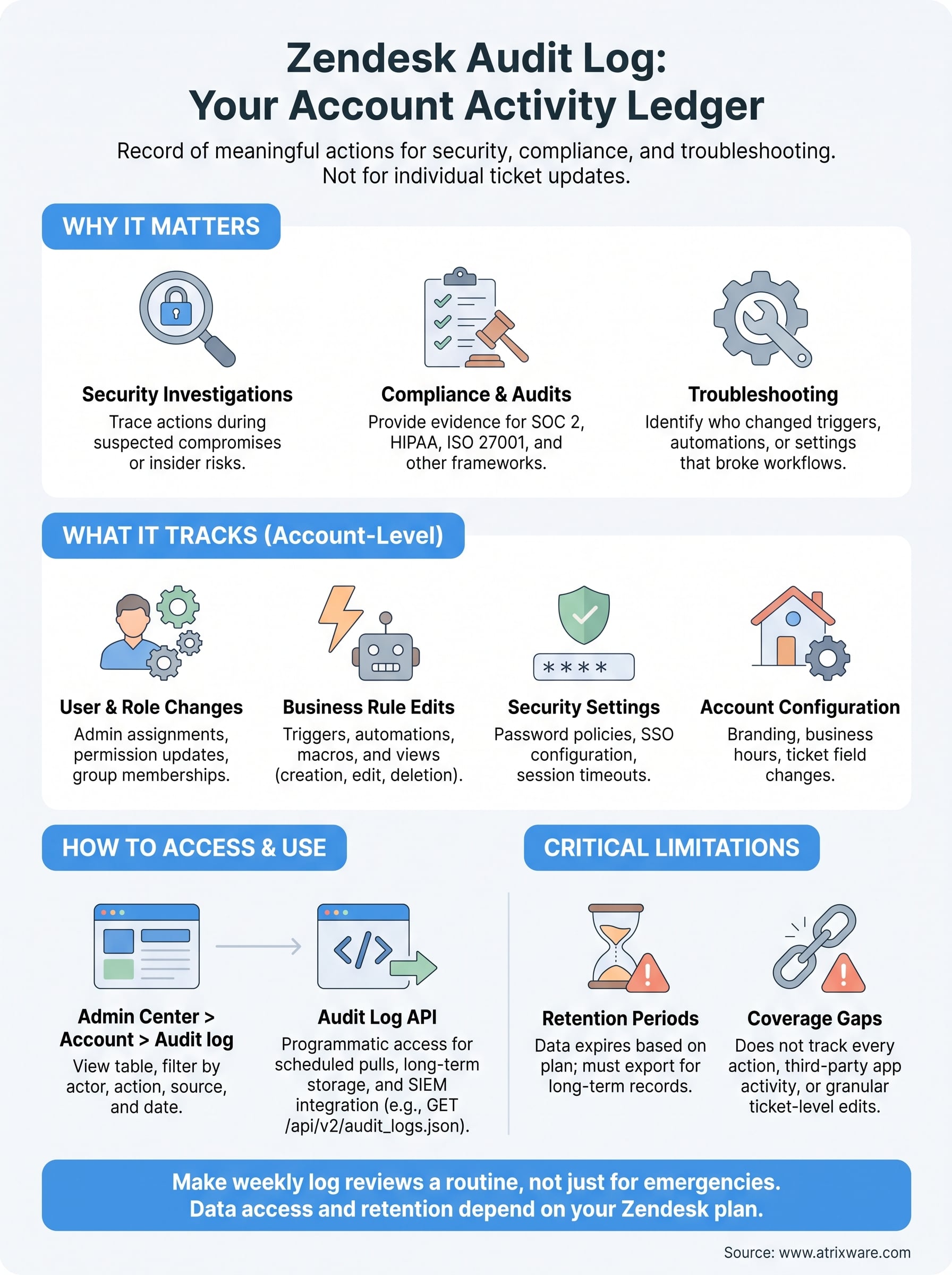
Why the Zendesk audit log matters for security and compliance
Accounts drift over time. Someone adds a new admin during a busy week, a trigger gets edited to fix one ticket and quietly breaks three others, or a departing employee’s permissions never get revoked. None of these show up on their own. The audit log is what lets you go back and reconstruct exactly what happened, who did it, and when, without relying on someone’s memory of a Slack message from three weeks ago.
Security teams lean on this record the most. If you suspect a compromised account, the audit log shows you the actions taken under that login: role changes, macro edits, business rule modifications, and more. You’re not guessing whether an intrusion caused damage. You can see the timestamped trail and scope your response accordingly. Zendesk itself points to this kind of activity tracking as a core part of account governance, and it lines up with what the Center for Internet Security recommends for any SaaS platform: maintain a verifiable record of administrative changes so incidents can be investigated rather than assumed.
If you can’t show who changed what and when, you can’t prove your account is secure, and you can’t pass an audit either.
Compliance is the other half of this. If your organization handles regulated data or reports to frameworks like SOC 2, HIPAA, or ISO 27001, auditors will ask for evidence that access controls and configuration changes are monitored, not just that policies exist on paper. The audit log is that evidence. Without it, you’re left explaining processes verbally, which auditors generally don’t accept as proof of anything.
What happens without a reliable log
Skip this discipline and you end up troubleshooting blind. A support manager notices tickets routing to the wrong group and has no way to confirm whether a trigger was edited, a business rule was disabled, or a user’s role changed last Tuesday. Every incident turns into a guessing exercise instead of a five-minute lookup.
Common scenarios where the log earns its keep
- Insider risk: an employee downloads or exports ticket data before leaving, and you need proof of what they accessed.
- Vendor audits: a client’s security team asks for evidence of access reviews on your support platform.
- Configuration disputes: two admins disagree about who changed a routing rule, and the log settles it in seconds.
- Regulatory reviews: auditors request a documented history of permission changes tied to specific accounts.
None of these situations are rare. They’re the normal cost of running a support operation with more than one admin. Treating the audit log as a routine check, not an emergency tool you dig up only when something breaks, is what separates teams that pass compliance reviews smoothly from teams that scramble to reconstruct history after the fact.
How to access and view the Zendesk audit log
Getting to the audit log takes a few clicks, but only if you have the right permissions. Admin access is required, and on some plans the log itself is gated behind Enterprise-level subscriptions. Check your plan first, because building a whole troubleshooting workflow around a feature you can’t actually open wastes time.
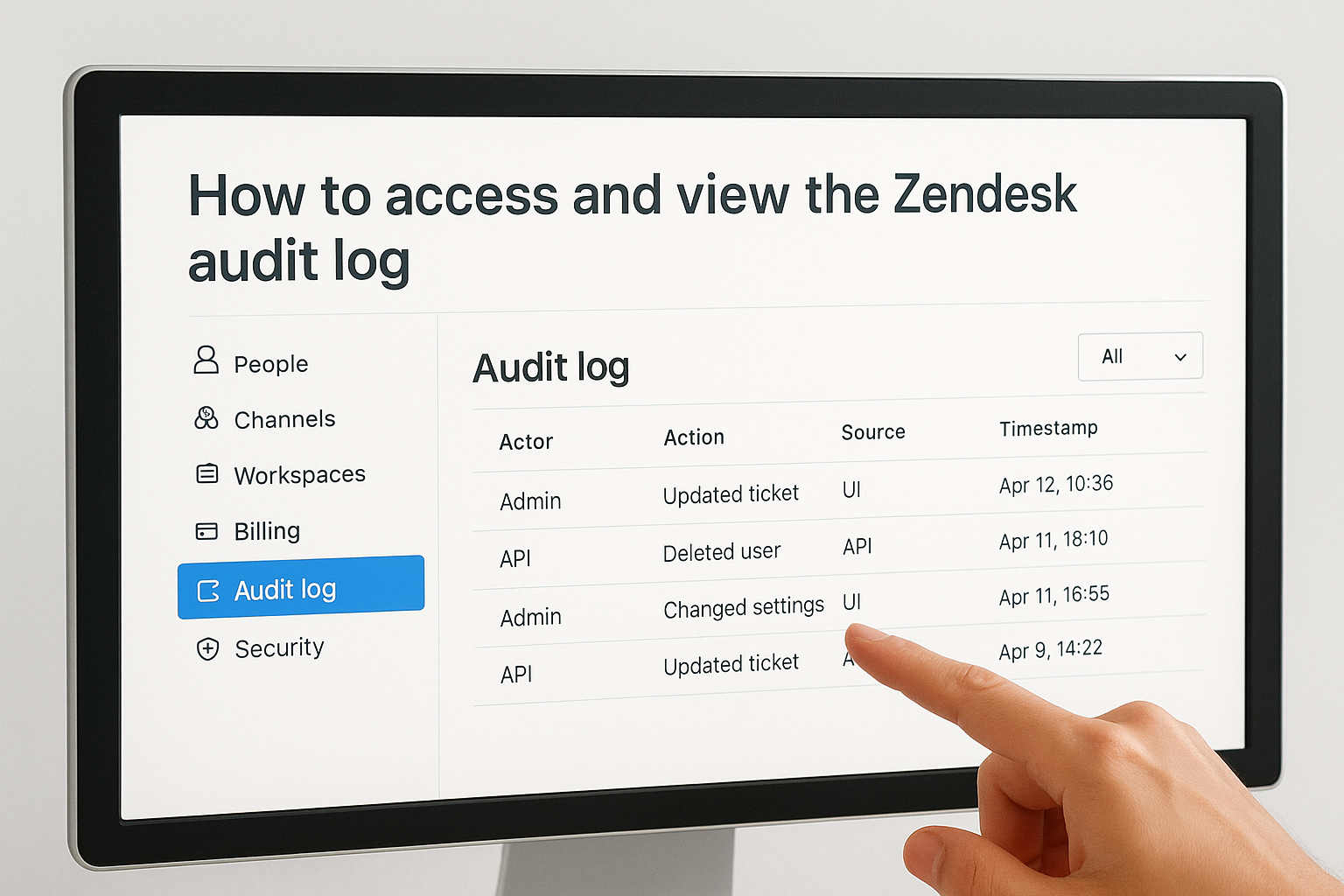
Here’s the path most admins use:
- Log into Admin Center.
- Go to Account in the sidebar, then select Audit log.
- Review the table of entries, showing actor, action, source, and timestamp by default.
- Use the built-in filters to narrow by date range, actor, or action type.
- Click into an individual entry to see additional detail, like the specific field or setting that changed.
The audit log is only useful if the people who need it can actually get to it, so confirm access before you need it in a crisis.
Once you’re in, the filtering options matter more than they first appear. You can filter by specific admin, which is the fastest way to answer "what did this person touch last month." You can also filter by source, which separates changes made through the UI from changes pushed through the API, a distinction that matters when you’re troubleshooting an integration rather than a person.
Exporting is where things get more limited. Zendesk doesn’t offer a one-click export button on every plan, so if you need the data in a spreadsheet or a separate reporting tool, you’re often better off pulling it through the API, which we cover in a later section. For quick lookups, though, the on-screen table and filters cover most day-to-day needs without any extra setup.
One habit worth building early: check the audit log on a schedule, not just when something breaks. A five-minute weekly scan catches unusual admin activity long before it becomes a real incident.
What the audit log tracks, from settings to tickets
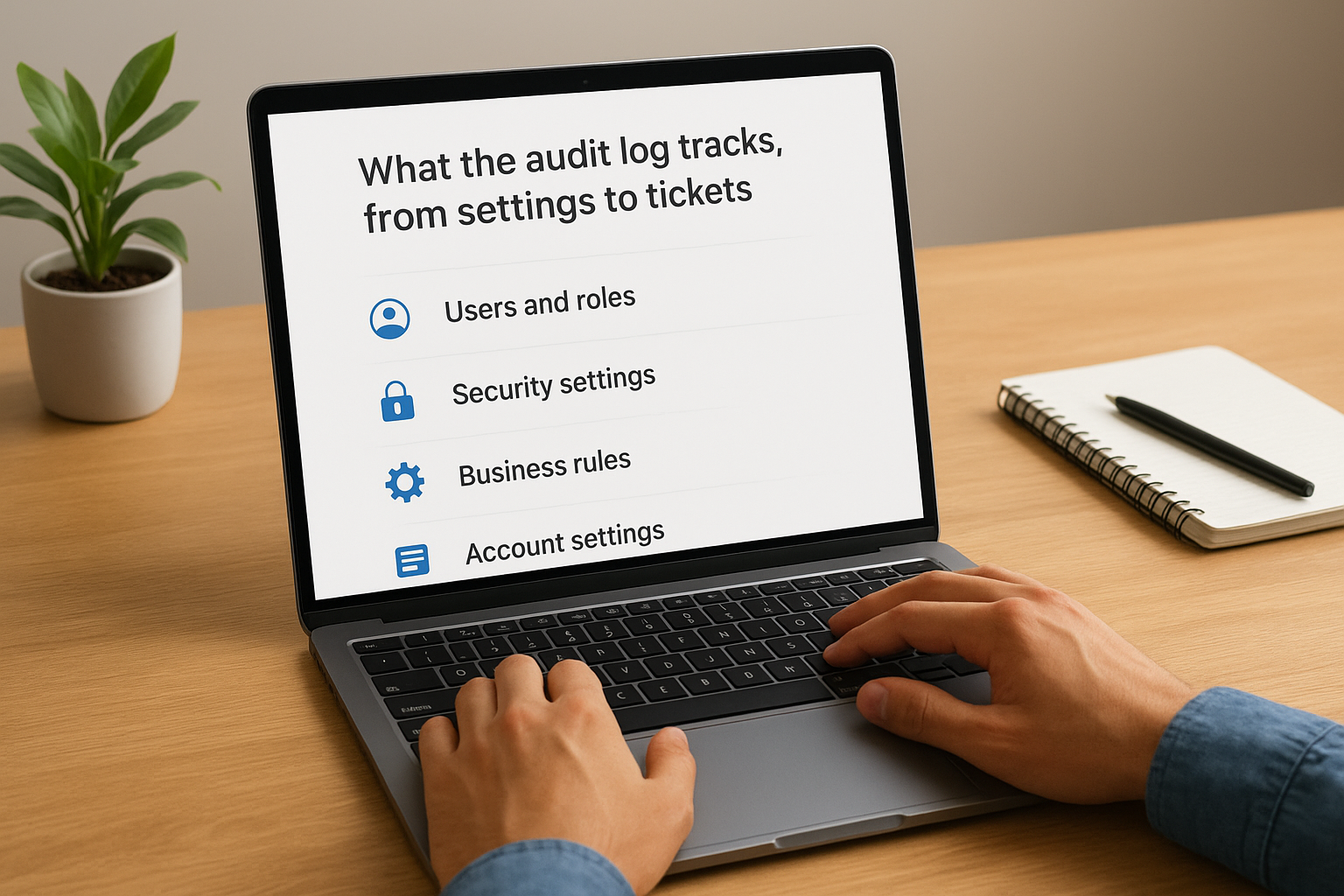
Every meaningful change inside Zendesk falls into a handful of categories, and knowing them upfront saves you from hunting through the wrong filter. Broadly, the audit log covers user and role changes, business rule edits, security settings, and account-level configuration. It does not track every ticket update a support agent makes, so don’t expect it to replace your normal ticket history for day-to-day support work.
Account and permission changes
Admin activity gets the most detailed coverage. Adding or removing a user, changing someone’s role, updating group memberships, and modifying security policies like session timeouts or password rules all land in the log. This is the section most useful for security investigations, since it shows exactly who gained or lost access and when.
Business rules and workflow edits
Triggers, automations, macros, and views all generate entries when they’re created, edited, or deleted. If a ticket suddenly routes to the wrong team, this is where you check first.
When a workflow breaks and nobody admits to touching it, the audit log is the only unbiased witness you have.
| Category | Example entries logged |
|---|---|
| Users and roles | Role changes, new admins, deactivated agents |
| Security settings | Password policy edits, SSO configuration changes |
| Business rules | Trigger, automation, and macro edits |
| Account settings | Branding changes, business hours updates |
| Integrations | API token creation, app installs |
Ticket data works differently. Individual field updates on a single ticket aren’t the audit log’s job, that’s what ticket audits and events are for. What the account-level log does capture is structural: a custom field added to the ticket form, a status category renamed, or a form deactivated across the board. Think of it as the record of changes to the system that generates tickets, not a play-by-play of every ticket moving through it.
Using the Zendesk Audit Log API for deeper monitoring
The on-screen table works fine for spot checks, but it breaks down once you need history beyond a few months, or you want audit data feeding into a SIEM tool instead of a browser tab. That’s where the Zendesk Audit Log API comes in. It gives you programmatic access to the same entries you’d see in Admin Center, but in a format you can pull on a schedule, store long-term, and cross-reference against other systems.
Querying the API follows a predictable pattern. You send a GET request to the audit_logs endpoint, and you can filter results by actor ID, source, action type, or a date range, the same filters available in the UI, just scriptable. Pagination matters here, since large accounts generate thousands of entries a month and Zendesk caps how many come back per request.
If your compliance process depends on manually clicking through pages in Admin Center every quarter, you’re one missed export away from a gap in your records.
A basic request example
GET /api/v2/audit_logs.json?filter[source_type]=trigger&filter[created_at]=2026-06-01T00:00:00Z
Authorization: Bearer {api_token}
This pulls every logged change tied to triggers starting from a specific date, which is useful when you’re isolating a workflow issue that started on a known day rather than scrolling through unrelated entries.
Why teams automate this
Most teams that rely on the API aren’t doing it for one-off lookups. They’re building a repeatable process:
- Scheduled pulls that archive audit data outside Zendesk for retention beyond the platform’s built-in window.
- Automated alerts triggered when a specific action type appears, like a new admin role assignment.
- Centralized logging that combines Zendesk audit data with logs from other business systems for a single compliance view.
Zendesk’s own developer documentation covers authentication and rate limits in detail, and it’s worth reading closely before you build anything that runs unattended, since hitting rate limits mid-export can leave gaps you won’t notice until an auditor asks for a date range you don’t have.
Limitations to know before you rely on audit logs
The audit log is useful, but it’s not a complete history of everything that ever happened in your account. Retention limits are the first thing that trips people up. Zendesk retains audit log data for a set window depending on your plan, and once that window closes, the entries are gone unless you’ve already exported them. If your compliance framework requires records going back years, you can’t rely on Zendesk to store that for you indefinitely.
An audit log you didn’t back up before the retention window closed might as well not exist.
Coverage gaps matter just as much as retention. Not every action generates an entry. Some third-party app activity, certain bulk operations, and granular ticket-level edits fall outside what the account audit log captures. If you’re troubleshooting a specific ticket’s history rather than an account-wide configuration change, you’ll need ticket audits or events instead, not the account audit log covered here.
Plan restrictions and access gaps
Access itself is gated. Full audit log functionality, especially longer retention and API access, often sits behind Enterprise-tier plans. Teams on lower plans may see a stripped-down version or none at all, which means your troubleshooting workflow needs to account for what your specific subscription actually includes, not what the feature is theoretically capable of.
Human error still slips through
Assuming the log will catch every mistake is where teams get burned. If an admin makes a change outside a logged action type, or a script runs under a shared token instead of an individual account, the trail gets murkier. Pair the audit log with clear internal policies on who holds admin access and how changes get approved, so the record you’re checking actually reflects individual accountability rather than a shared login covering for multiple people.
Making audit logs part of your routine
The Zendesk audit log only pays off if you actually check it before something breaks, not after. Build a weekly scan into your routine, export data before retention windows close, and treat the API as your long-term memory once the built-in table stops covering the timeframe you need. Get those habits in place and troubleshooting stops being guesswork. You’ll know who changed what, when, and why, which is exactly what auditors and your own team need to hear.
Governance habits like this carry over well beyond your support desk. If you’re evaluating how your organization tracks changes across training records, certifications, and compliance evidence too, it’s worth seeing how a purpose-built system handles that same accountability. Take the LMS readiness quiz to see where your current setup stands and what to tighten next.
