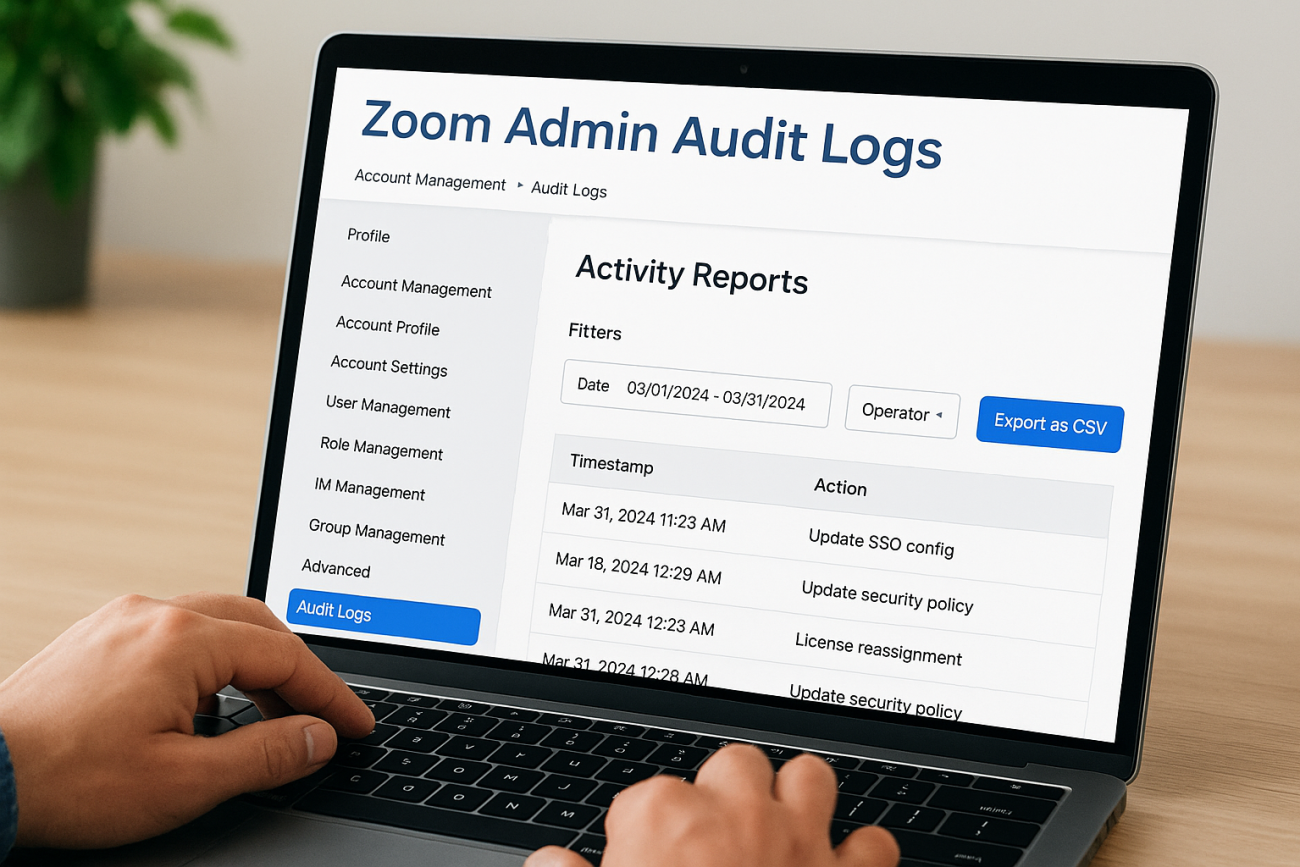
If your organization uses Zoom for virtual training sessions, every admin action, role changes, license reassignments, security setting updates, gets recorded. Zoom admin audit logs give you a detailed trail of who changed what, when, and from where. That matters when you’re managing training operations at scale, troubleshooting unexpected configuration changes, or preparing for a compliance review.
At Atrixware, our Axis LMS integrates with virtual classroom tools like Zoom to power corporate training programs. We’ve seen firsthand how critical it is for admins to maintain clear visibility into account-level changes, especially when multiple people manage the same Zoom environment. Without that visibility, small misconfigurations can quietly derail training delivery.
This guide walks you through how to access, filter, and export your Zoom admin activity logs step by step, whether you’re using the Zoom web portal or the API.
What Zoom admin audit logs include and miss
Before you spend time pulling reports, it helps to know exactly what data Zoom admin audit logs capture and where those logs fall short. Zoom records admin-level events at the account layer, so you get a clear picture of configuration changes made by administrators, not general meeting activity.
What the logs capture
The activity log in Zoom’s admin portal tracks a specific set of account-level actions. Every entry includes a timestamp, the admin’s email address, the type of action taken, and the IP address of the device used. Here’s what you’ll typically find:
| Log Category | Examples |
|---|---|
| User management | Role assignments, license changes, user activation/deactivation |
| Account settings | Security policy updates, recording defaults, authentication changes |
| Meeting and webinar settings | Waiting room toggles, passcode enforcement, registration settings |
| SSO and integration changes | OAuth app approvals, SAML configuration edits |
| Billing and plan changes | Seat additions, plan upgrades, add-on purchases |
Zoom stores admin activity logs for up to 12 months, so plan your export schedule accordingly if you need longer retention for compliance purposes.
What the logs don’t cover
Zoom’s admin logs are not a full audit of everything that happens inside your account. They do not record in-meeting behavior, such as who shared their screen, what was said, or whether a participant was removed. You also won’t find end-user setting changes here, those live in separate user-level reports. If you need to audit individual meeting activity, you’ll need to pull meeting reports or cloud recording access logs separately. Knowing this boundary upfront prevents you from looking for data in the wrong place.
Before you start
Before you pull any zoom admin audit logs, confirm you have the right account access. Zoom restricts activity log visibility to specific roles, so logging in with a standard user account won’t get you to the data you need. Taking two minutes to verify your setup now saves you from hitting a dead end mid-process.
Permissions and account requirements
You need to be logged in as an account owner or admin to access the activity logs in Zoom’s web portal. If your role is set to something lower, like a custom admin role with limited permissions, you may see a restricted dashboard or no log access at all.
Ask your Zoom account owner to verify your role assignment before you begin, especially if your organization uses custom admin roles with granular permission controls.
To access and export audit logs, make sure you have the following in place:
- Account type: Pro, Business, Education, or Enterprise (free accounts do not include admin activity logs)
- Role: Account owner or admin with "Account Management" permissions enabled
- API access: If using the API route, you need a Server-to-Server OAuth app with the
account:read:adminscope configured
Step 1. Open admin activity logs in the Zoom web portal
Log into the Zoom web portal at zoom.us with your admin credentials. Once you’re in, the path to your zoom admin audit logs is straightforward, but the menu label catches first-time users off guard because Zoom places it under "Account Management" rather than a dedicated "Audit" section.
Navigate to the activity log
From your admin dashboard, follow these steps to reach the log:
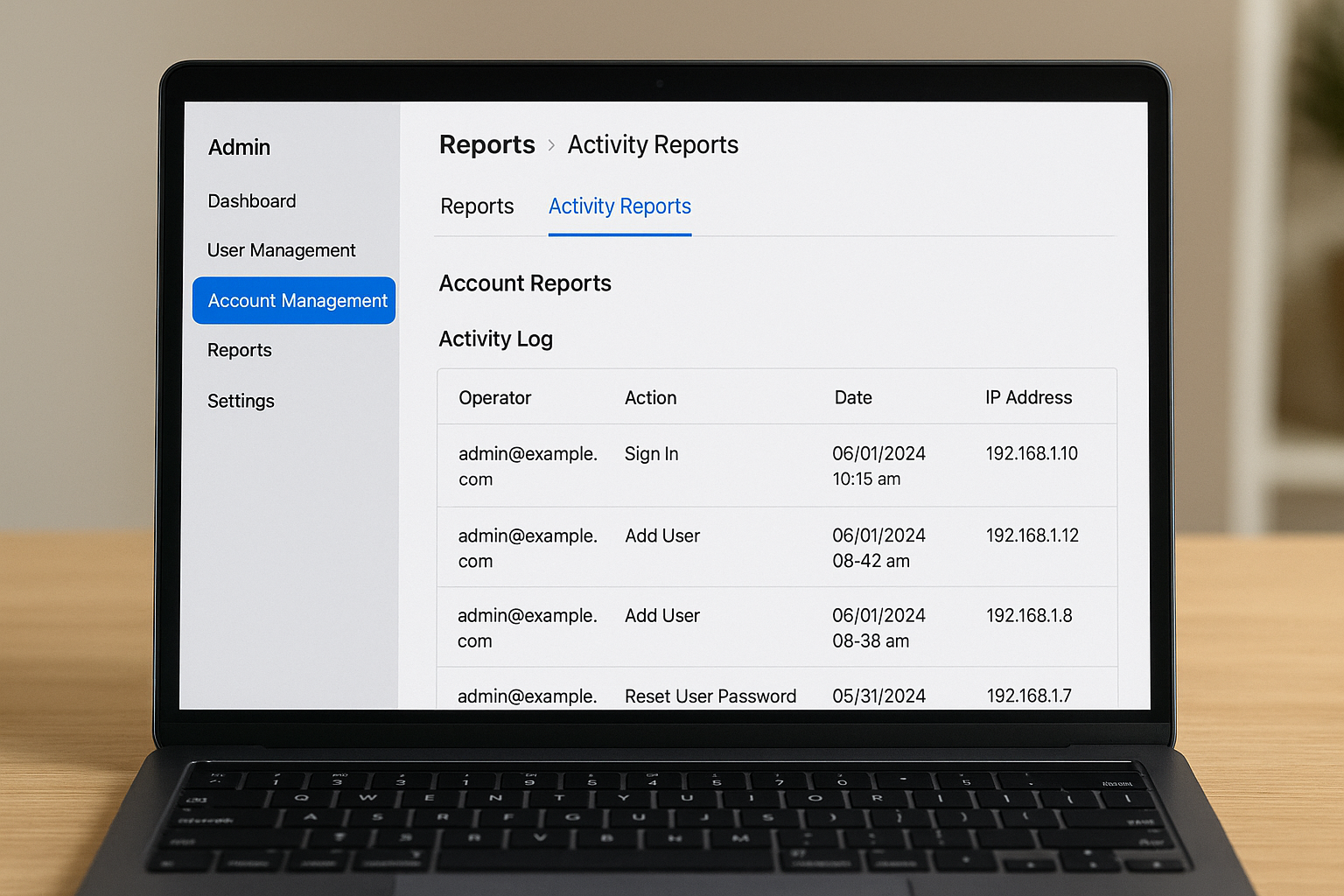
- Click Account Management in the left sidebar
- Select Reports
- Click the Activity Reports tab at the top of the page
- Under "Account Reports," select Activity Log
Zoom may take a few seconds to populate results if your account has a high volume of admin actions recorded across the past 12 months.
What you see on the activity log page
Your activity log table loads with the most recent admin actions listed first. Each row displays the operator email address, the action performed, the date and time, and the originating IP address. You can scroll through entries directly in the portal, but with busy accounts you’ll likely have hundreds of rows to work through. That’s where filtering and exporting, covered in the next step, become essential for getting to the data you actually need.
Step 2. Filter results and export to CSV
The raw activity log loads everything at once, which makes it hard to isolate specific events. Zoom gives you date range and operator filters to narrow results before you export, so use them before downloading anything.
Filter by date range and operator
Set your date range using the calendar fields at the top of the Activity Log page. Zoom limits each query to a maximum of one month per pull, so if you need three months of data, you’ll run three separate exports. To target a specific admin’s actions, enter their email address in the operator filter field and apply the search.
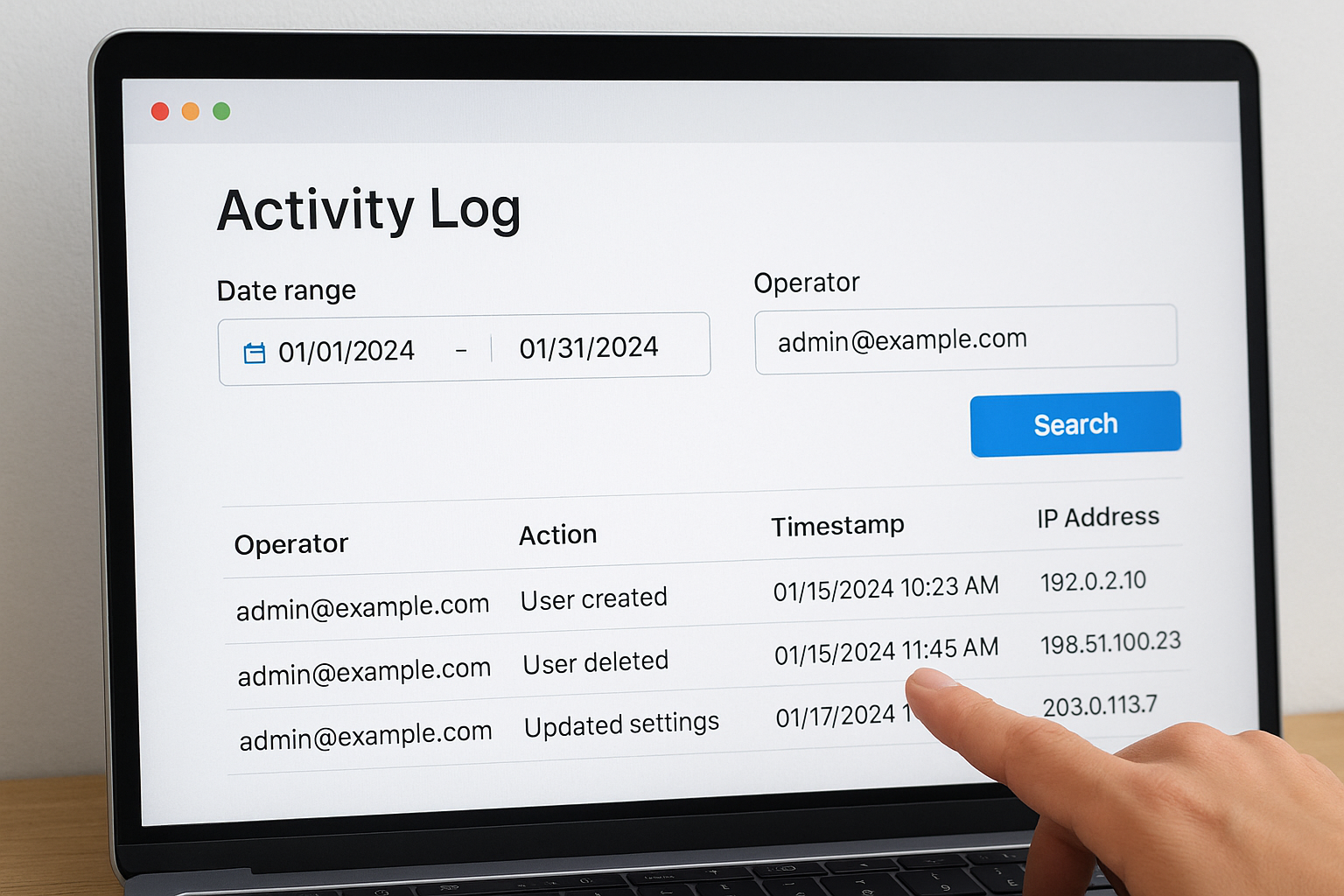
If you’re investigating a specific incident, filter to a narrow 48-72 hour window around the event to reduce noise in your results.
Export the log to CSV
Once your filters are set and the table reflects the data you want, click the Export button in the upper-right corner of the Activity Log page. Zoom generates a CSV file that downloads directly to your browser. Each row in the file maps to one admin action and includes the operator email, action type, timestamp, and IP address, giving you a clean dataset ready for review or long-term storage.
Step 3. Pull audit logs with the Zoom API
The Zoom web portal works for one-off reviews, but if you need to automate log collection or push audit data into an external compliance system, the API gives you a cleaner path. Zoom’s operationlogs endpoint lets you pull zoom admin audit logs programmatically on a recurring schedule without manual exports.
Set up your Server-to-Server OAuth app
Before making any requests, you need a Server-to-Server OAuth app created in the Zoom App Marketplace. Assign it the account:read:admin scope to grant access to the operation logs endpoint. Once your app is approved, generate your access token using your account ID, client ID, and client secret.
Store your access token securely and rotate it on a regular basis, especially in environments where multiple developers share credentials.
Make the API request
Send a GET request to the operation logs endpoint with your date range as query parameters:
GET https://api.zoom.us/v2/report/operationlogs
?from=2026-05-01&to=2026-05-31
Authorization: Bearer {your_access_token}
The response returns a JSON array of log entries, each containing the operator email, action type, timestamp, and IP address. Parse the JSON and write results to your data store or reporting pipeline to build a durable audit trail that extends beyond Zoom’s 12-month portal retention.
Next steps
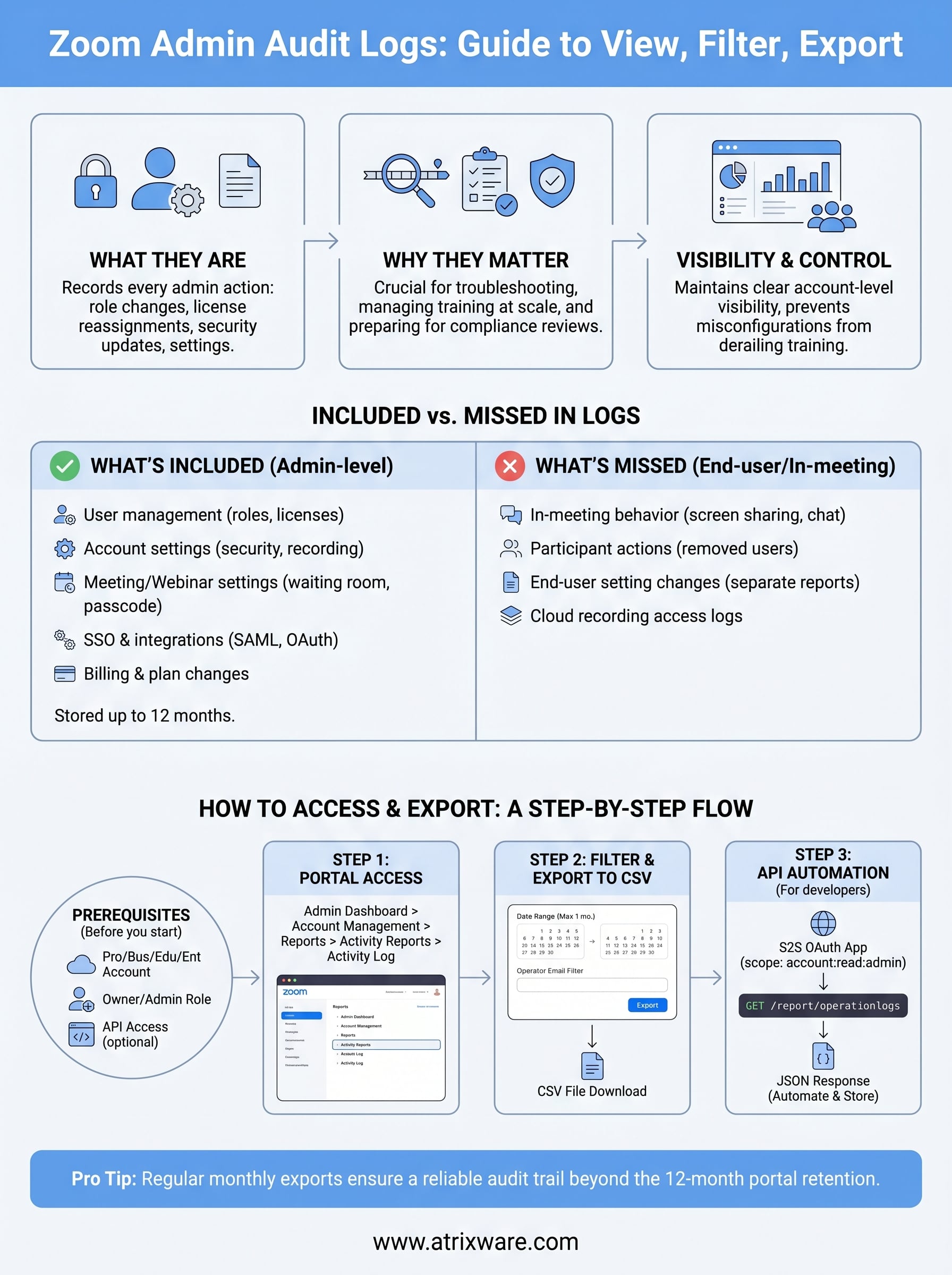
You now have a complete process for accessing, filtering, and exporting zoom admin audit logs through both the web portal and the API. Keeping a regular export schedule, monthly at minimum, gives you a reliable audit trail before you need it rather than scrambling when a compliance review or incident investigation lands on your desk.
If your training programs run through Zoom, consider how your LMS handles the broader picture. Axis LMS connects with virtual classroom tools to centralize training delivery, reporting, and compliance tracking in one place, so you’re not piecing together data from multiple disconnected systems. Clear visibility into both your LMS activity and your Zoom admin changes gives your team the full context needed to manage corporate training with confidence.
Ready to see how a dedicated LMS fits your organization? Take the LMS readiness quiz to find out where you stand.
