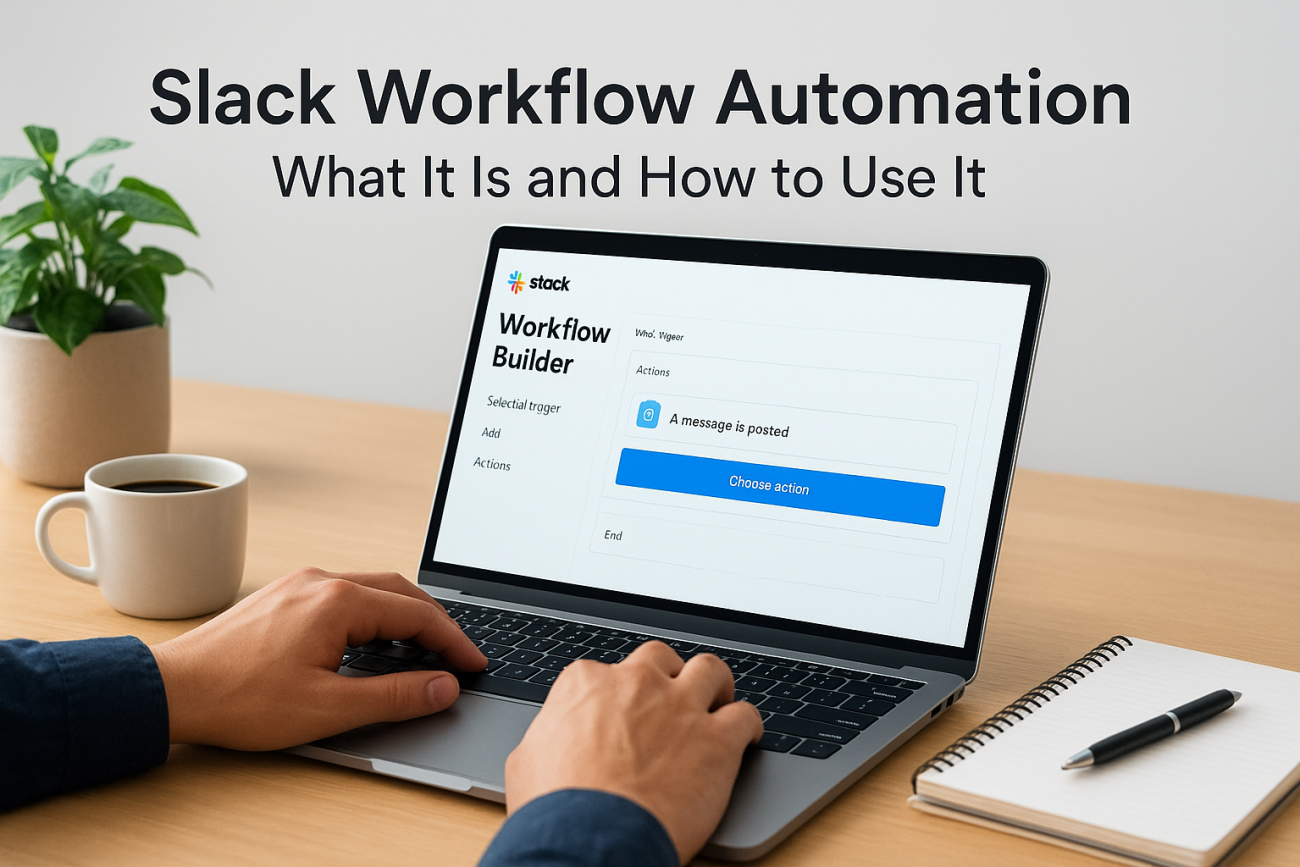
If your team spends half its day pinging the same reminders, forwarding the same forms, or manually notifying people when a task moves forward, Slack workflow automation is the fix. It lets you build simple, rule-based sequences inside Slack that trigger on their own, so a channel post, a form submission, or a new emoji reaction can kick off the next step without anyone lifting a finger.
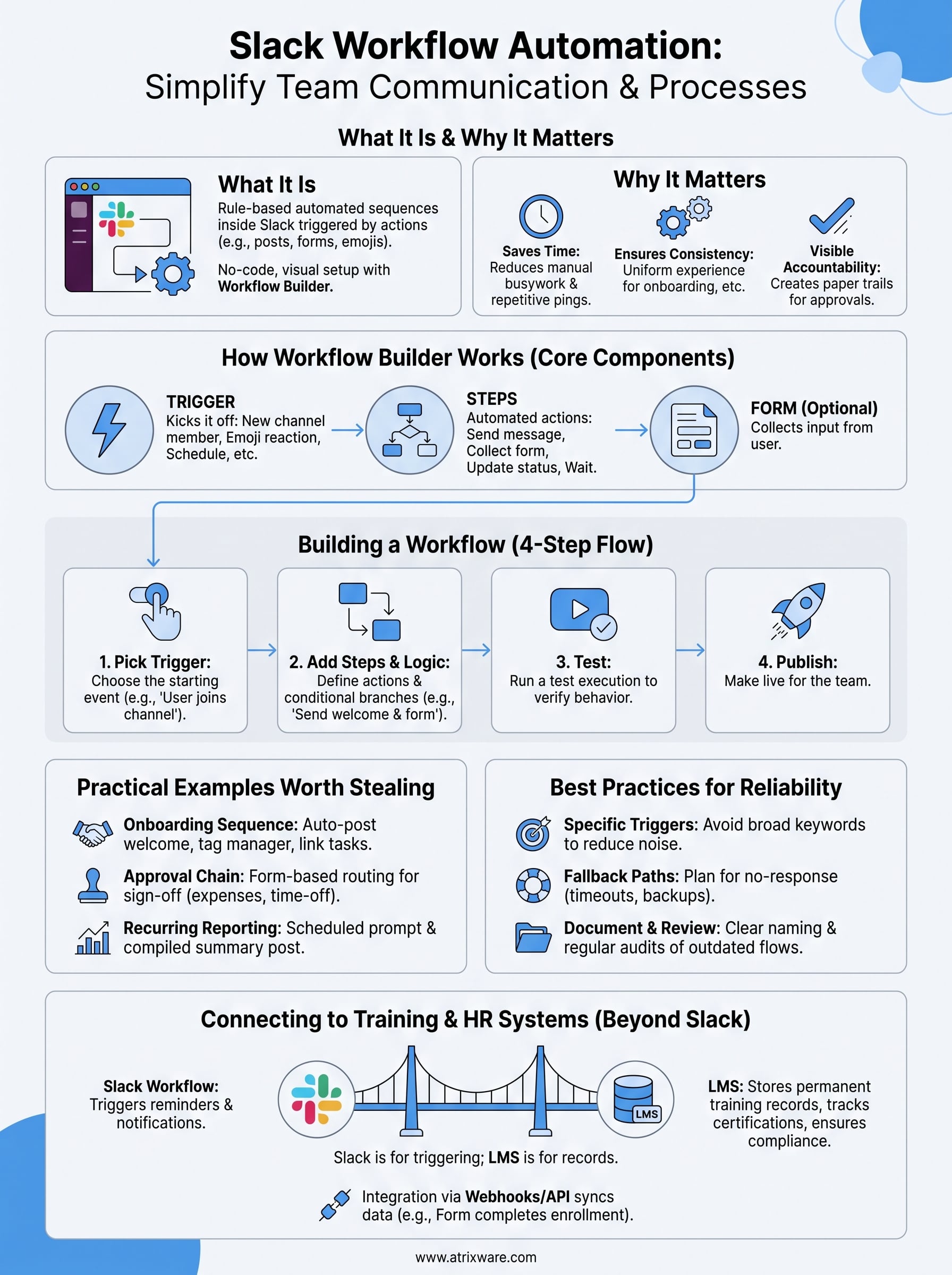
At its core, this means using Slack’s built-in Workflow Builder to create automated steps, like sending a message, collecting form responses, or updating a status, triggered by an action someone takes in your workspace. No code required, just a visual, drag-and-drop setup that any admin or team lead can configure in minutes.
In this article, we’ll break down exactly what Slack workflow automation covers, walk through how Workflow Builder works step by step, and show you practical examples you can copy for onboarding, approvals, and reporting. And if your team’s automation needs extend beyond Slack into full training and compliance workflows, we’ll touch on how that connects to broader learning management setups too.
Why Slack workflow automation matters for your team
Manual coordination is expensive, even when nobody notices the cost. Every time someone types out the same onboarding checklist, chases a manager for approval, or manually posts a weekly status update, that’s time pulled away from actual work. Slack workflow automation removes that friction by handling the repetitive, predictable parts of team communication so people can focus on decisions instead of data entry.
The hidden cost of manual busywork
Teams rarely track how much time gets lost to small, repeated tasks, but it adds up fast. A five-minute reminder sent 20 times a week is over an hour and a half of pure overhead, and that’s before you count the delays when someone forgets to send it at all. Automated triggers close that gap because they fire the moment a condition is met, whether that’s a form submission, a channel message, or a scheduled time, with zero chance of being forgotten.
Every manual reminder you automate is time your team gets back for work that actually moves the business forward.
Where automation pays off fastest
Not every process needs a workflow, but some deliver an outsized return the moment you automate them. Onboarding, approvals, incident escalation, and recurring status reports are the classic starting points because they’re repetitive, rule-based, and touch multiple people. High-frequency processes like these are exactly what Workflow Builder was designed for, since the logic rarely changes even though the people involved do.
| Manual process | Typical delay | Automated equivalent |
|---|---|---|
| New hire welcome message | Hours, if remembered | Instant, triggered on channel join |
| Expense approval routing | 1-2 days | Minutes, routed by form submission |
| Weekly status collection | Chased via DM | Scheduled prompt, auto-compiled |
| IT ticket escalation | Depends on who’s online | Immediate, rule-based routing |
Consistency you can’t get from people alone
Beyond speed, automation gives you process consistency that manual work can’t match. When a human sends the onboarding message, wording drifts, steps get skipped, and quality depends on who’s covering that day. When a workflow sends it, every new hire gets the exact same experience, every time, with the same links and the same tone. That consistency matters more than it sounds like it should, especially for compliance-adjacent processes where you need proof that a step actually happened.
Fewer dropped balls, more visible accountability
Slack workflows also create a paper trail that manual pings never do. Because each triggered action logs who did what and when, managers can see exactly where a request sits without asking around. This matters most in approval chains, where a task can otherwise sit unnoticed in someone’s inbox for days. Instead of relying on memory or goodwill, the workflow itself tracks progress and nudges the next person automatically.
Given how quickly these gains compound, it’s no surprise that companies of every size treat Slack automation as a baseline expectation rather than a nice-to-have. According to Slack’s own product documentation, Workflow Builder was built specifically to let non-technical users automate these routine sequences without writing code, which is exactly why adoption has spread so fast across HR, IT, and operations teams alike. The next question is how you actually build one.
How to build a workflow in Slack
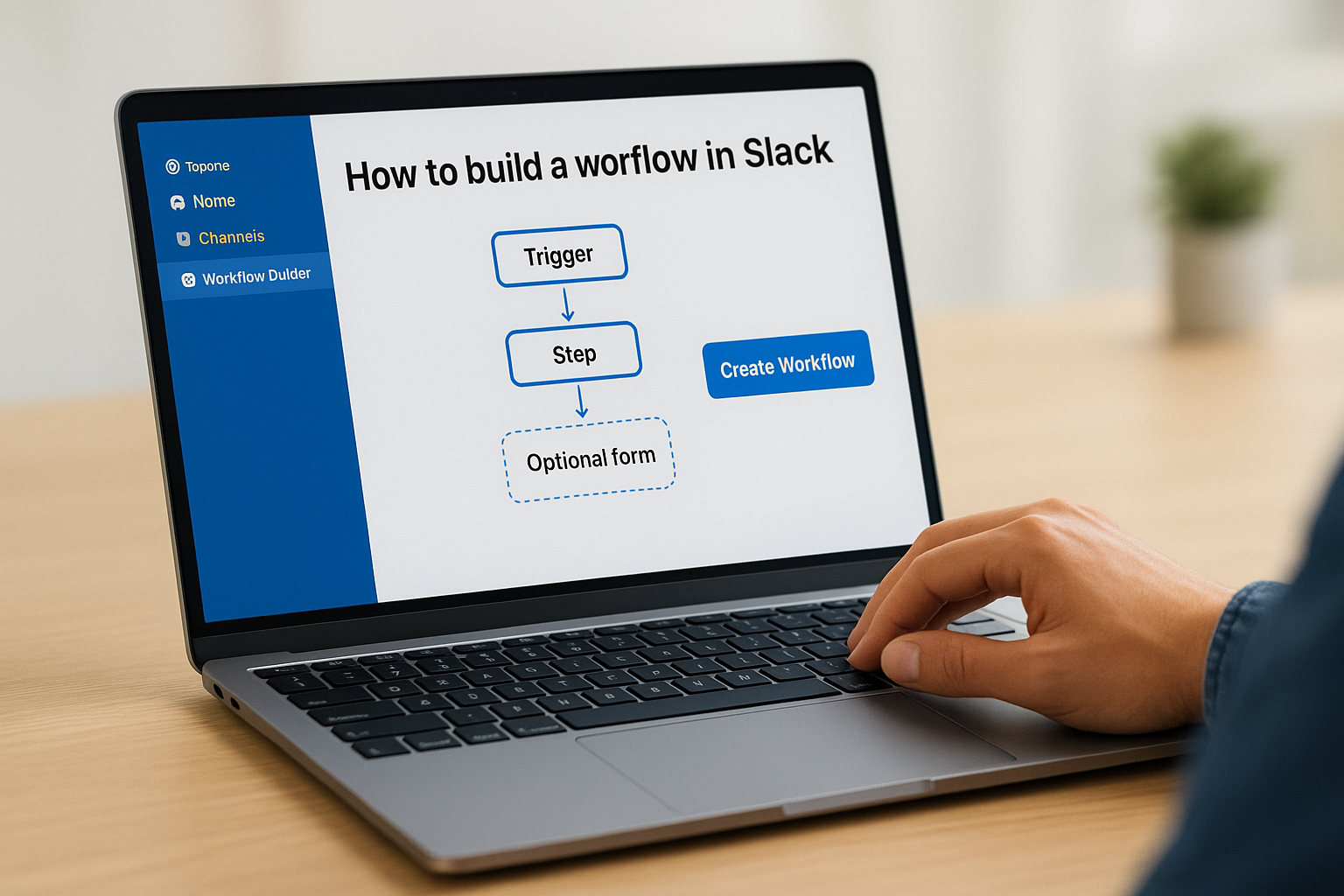
Opening Workflow Builder feels less like coding and more like assembling a flowchart. You’ll find it under your workspace name in Slack, listed as Workflow Builder in the admin menu, and from there you click "Create Workflow" to start a blank canvas. Every workflow follows the same basic shape: a trigger that starts it, one or more steps that run automatically, and an optional form that collects input from whoever kicks it off.
Picking the right trigger
Start by deciding what should set the workflow in motion. Slack gives you a handful of trigger types to choose from, including a channel message containing a keyword, someone clicking a shortcut, a new person joining a channel, an emoji reaction, or a recurring schedule. Choosing the wrong trigger is the most common setup mistake, since a workflow tied to "anyone reacting with a checkmark" behaves very differently than one tied to "a form submission from managers only."
Building out the steps
Once the trigger is set, you add the actual actions Slack should take. This is where most of the real design work happens.
- Send a message to a channel, group, or specific person
- Collect information through a custom form
- Add or remove someone from a channel
- Update a value using a connected app or webhook
- Wait for a set amount of time before continuing
Each step runs in the order you place it, and you can add conditional branches so the workflow behaves differently depending on the form response. This branching logic is what turns a simple reminder into something closer to a mini approval process.
A workflow is only as reliable as its trigger, so get that one decision right before you touch anything else.
Testing before you publish
Testing matters more than people expect, because a workflow that fires incorrectly in a shared channel is worse than no automation at all. Slack lets you run a test execution before publishing, which walks through each step exactly as end users would experience it. Publishing then makes the workflow live for everyone with access to that trigger, and you can always pause or edit it later without losing your setup.
Slack workflow automation examples worth stealing
Seeing a workflow described on paper only gets you so far. What actually convinces most teams to adopt Workflow Builder is watching a real example run once and realizing how much manual work it just erased. Below are a few patterns pulled straight from how HR, IT, and operations teams already use Slack workflow automation in production.
New hire onboarding sequence
When a new employee joins the general channel, a workflow can automatically post a welcome message, tag their manager, and drop a link to a checklist of first-week tasks. Because the trigger is "user joins channel," nobody has to remember to run it manually, and every hire gets the identical experience regardless of who’s covering HR that week.
The best workflows are the ones nobody has to remember to run.
Manager approval chain
A form-triggered workflow works well for anything that needs sign-off, like expense requests or time-off approvals. The requester fills out a short form, the workflow routes it to the right manager based on their answer, and a decision message posts back automatically once approved or denied. This removes the awkward follow-up DM asking "did you see my request?"
Recurring status and reporting prompts
Instead of chasing weekly updates, a scheduled trigger can prompt each team member with a short form every Friday morning, then compile the responses into a single summary post for leadership. Typical steps look like this:
- Trigger fires on a recurring schedule (e.g., every Friday at 9am)
- Form collects three fields: wins, blockers, priorities for next week
- Workflow posts a compiled summary to the leadership channel
- Optional branch flags any response containing the word "blocked" for follow-up
Incident and IT ticket escalation
For support teams, a keyword-triggered workflow can watch a channel for phrases like "production down" and immediately alert the on-call engineer, log the timestamp, and open a form to capture details. Escalation happens in seconds instead of whenever someone happens to notice the message.
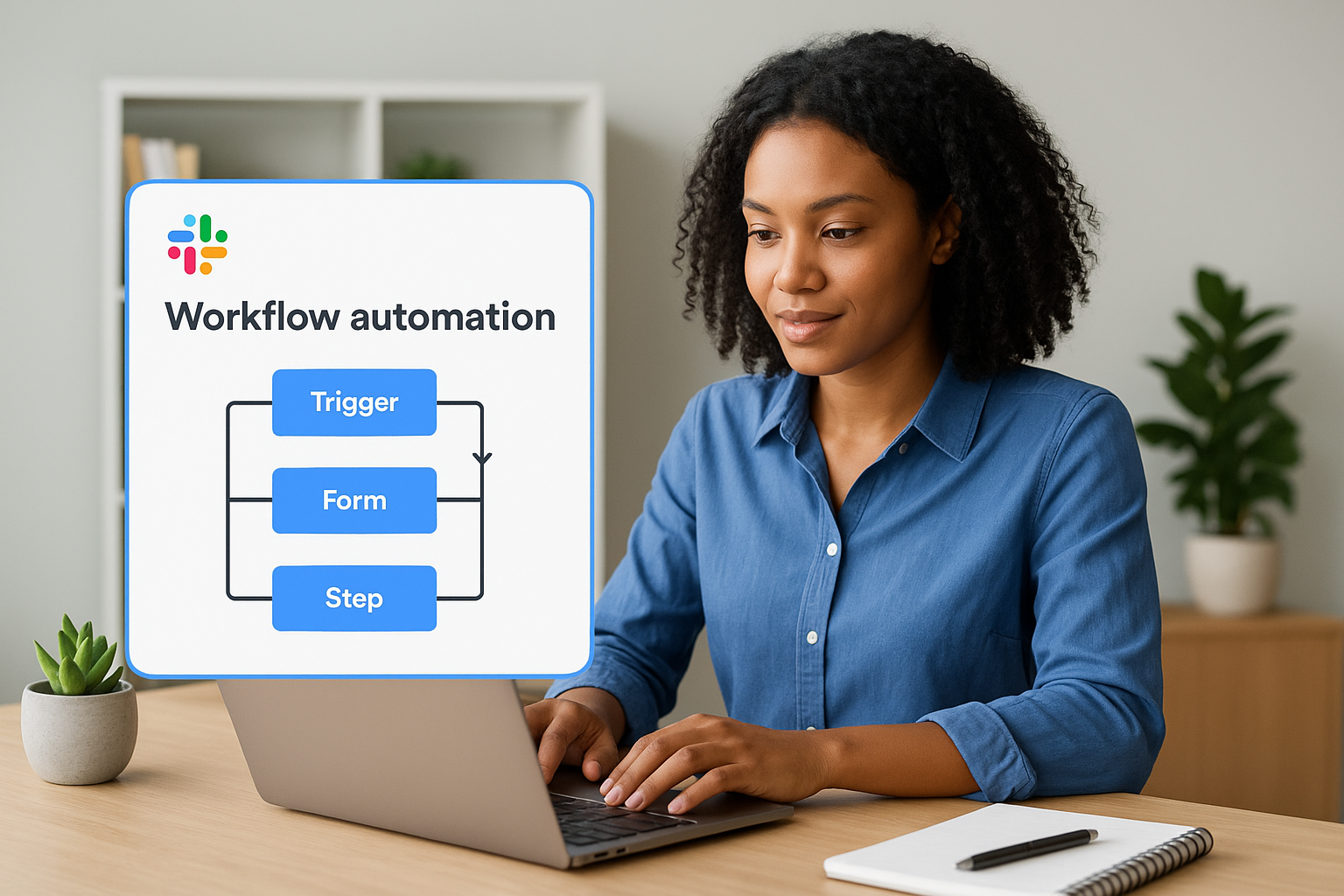
Each of these examples shares the same shape: a trigger, a form, and a set of steps that fire without human memory involved. Once you’ve built one, the rest start to feel obvious.
Best practices for designing reliable workflows
A workflow that breaks on its third run does more damage than the manual process it replaced, because now people distrust the automation and go back to doing things by hand anyway. Slack workflow automation only earns its keep when it holds up under real conditions, not just the happy path you tested once.
Keep triggers narrow and specific
Broad triggers cause most of the chaos you’ll see in production. A keyword trigger set to fire on any message containing "approved" will catch casual chatter, not just the form responses you meant to catch. Scoping your trigger tightly, to a specific channel, a specific form, or a specific emoji, cuts down false starts dramatically.
A workflow that fires too often is just noise with extra steps.
Build in fallback paths
Every approval or escalation workflow needs a plan for when nobody responds. Without one, a request can sit invisible in a queue while the requester assumes it’s being handled. Consider these guardrails before you publish:
- Add a timeout step that reminds the approver after 24 hours
- Route to a backup approver if the primary hasn’t acted
- Log every step to a channel admins can audit later
- Send the requester a confirmation the moment their form submits
Name and document everything
Workflows multiply fast once teams see the first one work, and an unnamed pile of automations becomes unmanageable within a few months. Naming each workflow clearly, and noting its trigger and purpose in a shared doc, saves whoever inherits admin access from having to reverse-engineer your logic later. This documentation habit matters more than it seems like it should, especially once several people have edit access.
Review and retire what’s outdated
Processes change, but workflows don’t update themselves when a manager leaves or a form field becomes irrelevant. Set a recurring reminder, quarterly works well, to review active workflows and confirm the routing still matches your actual org chart. Retiring an unused workflow is just as important as building a new one, since a stale automation that fires against outdated logic causes more confusion than having no automation at all.
Connecting Slack workflows to your training and HR systems
Workflow Builder handles messages, forms, and simple approvals well, but it was never built to store training records, track certification expirations, or prove compliance to an auditor. Once a workflow needs to update a learner’s transcript or trigger a re-certification reminder six months from now, you’ve hit the edge of what Slack can do on its own. That’s the point where Slack workflow automation needs to hand off to a system built for it, like a learning management system that already tracks completions, due dates, and audit trails.
Where Slack workflows hit their ceiling
Slack workflows are stateless by design. They fire, run their steps, and finish, without keeping a persistent record of who completed what training or when a certification expires. A learning management system solves that gap because it’s built to hold that history indefinitely and surface it in reports whenever compliance officers or auditors ask for proof. Trying to recreate that inside Slack means bolting spreadsheets onto a chat tool, which fails the first time someone forgets to update one.
Slack is great at triggering the reminder, but your LMS is what proves the training actually happened.
Bridging the two systems
The practical fix is connecting Slack’s triggers to your LMS through webhooks or a REST API, so a single event updates both systems at once. A few patterns work reliably in production:
- A Slack form submission creates or updates a learner’s enrollment record in the LMS
- A completed course in the LMS fires a webhook that posts a congratulations message in Slack
- A certification nearing expiration triggers both an LMS notification and a Slack reminder to the manager
- New hires added through HR sync (ADP, BambooHR, Zoho) automatically get enrolled and welcomed via Slack
Keeping HR and compliance data in sync
Organizations already syncing HR platforms with their LMS get the most value here, because the same employee record that triggers a Slack welcome message can also assign onboarding courses automatically. SSO and API integrations mean nobody manually re-enters employee data in three different systems, which is exactly the kind of redundant work workflow automation exists to eliminate in the first place. Once that connection exists, Slack becomes the notification layer sitting on top of the system that actually owns the training record.
Bringing it all together
Slack workflow automation earns its place the moment you stop manually chasing reminders and start letting triggers do that work. Workflow Builder handles the messages, forms, and approvals well, but it stops short of anything that needs a permanent record, like training completions or certification deadlines. That’s the line between a chat automation and a real compliance system, and it’s worth knowing where it sits before you build your process around Slack alone.
If your team’s workflows are starting to bump into that ceiling, that gap, whether it’s onboarding, re-certification, or audit tracking, it’s worth seeing how an LMS closes it. Axis LMS connects directly to the HR and communication tools you already use, so Slack keeps sending the reminders while your training records stay accurate on their own. Take the LMS readiness quiz to see exactly where your team stands.
