Every change an admin makes in Salesforce, from modifying user permissions to updating security settings, gets recorded. The Salesforce Setup Audit Trail is the built-in feature that captures these modifications, giving you a detailed log of who changed what, when, and where across your org’s configuration.
If your organization connects Salesforce with other platforms, like syncing user data with a training system such as Axis LMS from Atrixware, understanding this audit trail becomes even more important. SSO configurations, permission changes, and integration settings all flow through Setup, and any unintended modification can break critical workflows or create compliance gaps in your training and reporting pipelines.
This article breaks down exactly what the Setup Audit Trail tracks, how to access and read it, and practical ways to use it for troubleshooting, compliance documentation, and tighter administrative oversight across your Salesforce environment.
Why Setup Audit Trail matters for Salesforce admins
Salesforce orgs accumulate changes fast, and they often involve multiple admins working across overlapping responsibilities. When something breaks or a security policy gets violated, you need to know exactly who made the change and when. The Salesforce Setup Audit Trail gives admins a clear record of every configuration modification, so you can trace problems back to their source instead of guessing.
Accountability when multiple admins share access
Most production orgs have more than one admin, and that creates real risk. Without a reliable log, a permission change or profile update can go unnoticed for weeks, leading to access issues, broken integrations, or data exposure that’s difficult to trace. The audit trail solves this by assigning every action to a specific user with a precise timestamp, giving you a direct line from a problem back to its cause and to the person responsible.
When an integration like an SSO configuration or a CRM-to-LMS sync breaks unexpectedly, the Setup Audit Trail is often the fastest way to identify whether an admin change triggered it.
Compliance documentation and regulatory requirements
Regulated industries need more than good intentions when an auditor arrives. GDPR, HIPAA, and similar regulatory frameworks often require organizations to demonstrate that access controls and system configurations are actively monitored on a consistent basis. The audit trail gives you a structured, exportable record of administrative actions that directly supports these documentation requirements.
Security reviewers and compliance officers can use the trail to confirm that sensitive settings, such as password policies, login IP restrictions, and field-level security configurations, have not been changed outside approved change windows. That kind of timestamped evidence protects your organization when internal teams or external auditors need proof of proper administrative oversight.
What Setup Audit Trail tracks and what it misses
The Salesforce Setup Audit Trail logs changes made in the Setup menu, giving you visibility into the administrative layer of your org. Configuration changes are recorded with the user’s name, the date and time, and a description of what changed.

What it tracks
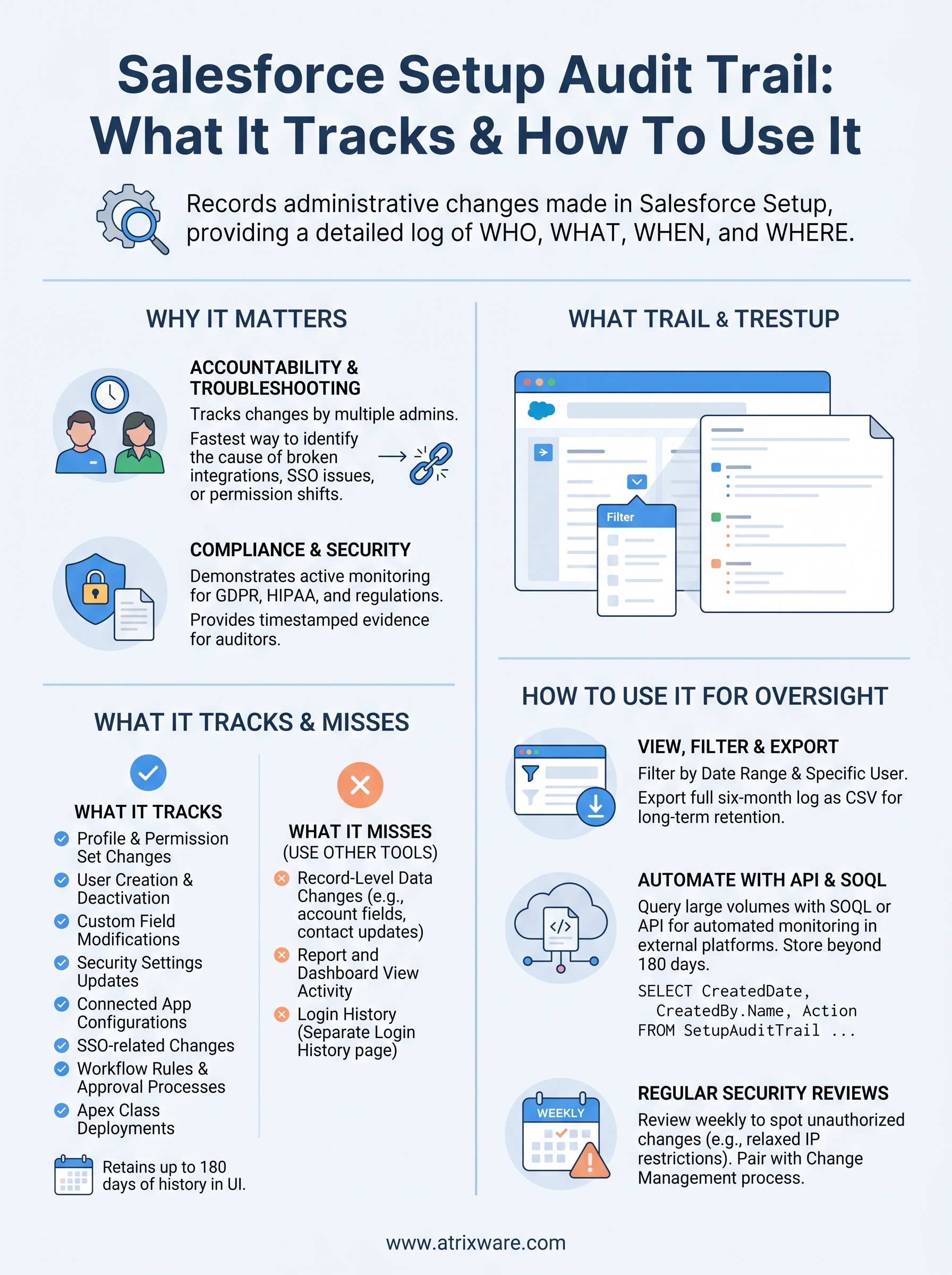
You’ll find a broad range of administrative actions in the log, including profile and permission set changes, user creation and deactivation, custom field modifications, security settings updates, connected app configurations, and SSO-related changes. Workflow rules, approval processes, and Apex class deployments are also captured, making it a comprehensive record of your org’s structural modifications.
The trail retains up to 180 days of history in the UI, but you can download a full six-month log as a CSV file for longer-term record-keeping.
What it misses
Record-level data changes, such as edits to account fields, contact updates, or opportunity stage modifications, are not captured here. Those changes fall under field history tracking and event monitoring, which are separate Salesforce features. Common gaps include:
- Changes to individual records
- Report and dashboard view activity
- Login history, which is tracked separately under the Login History page
How to view, filter, and export Setup Audit Trail
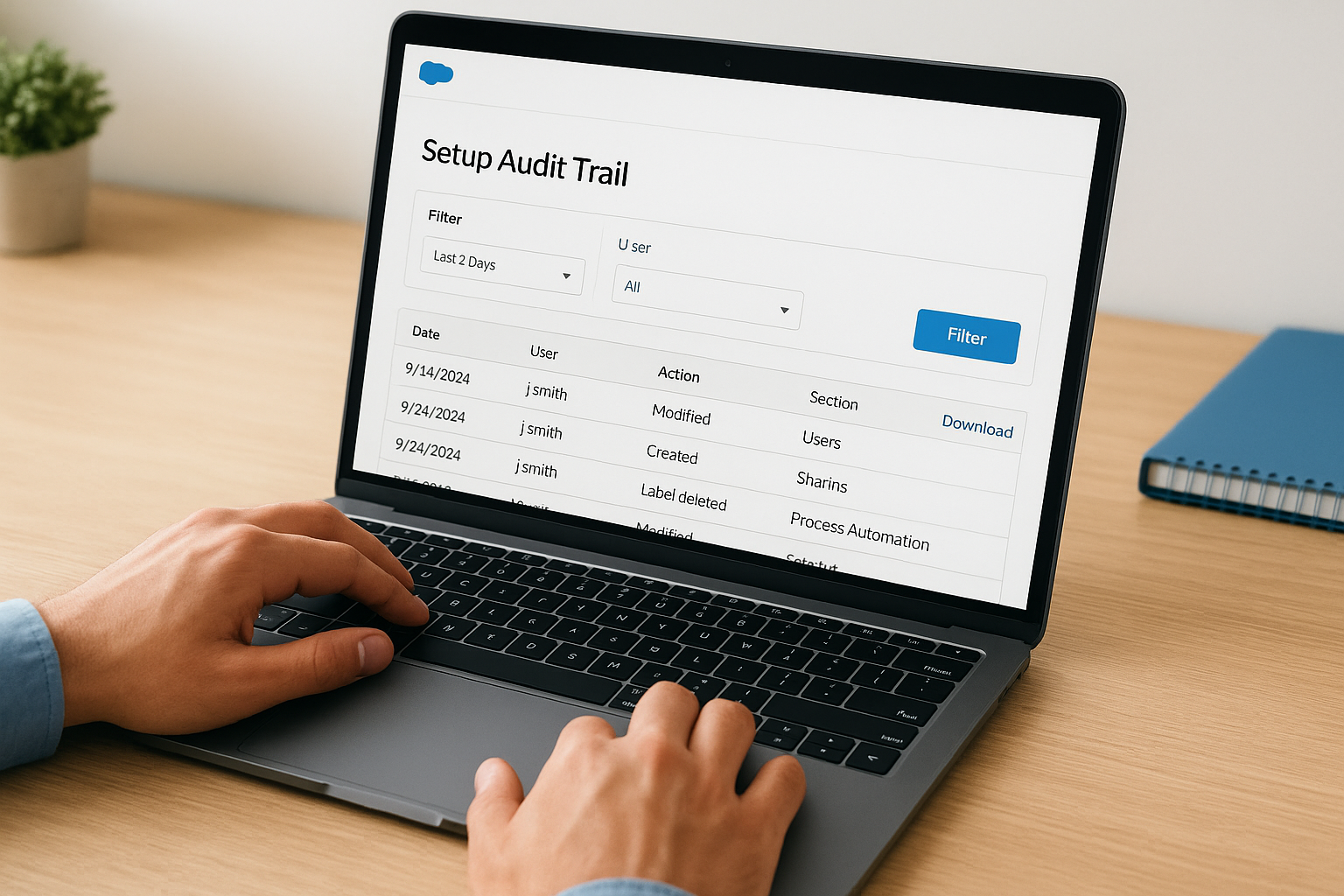
Accessing the salesforce setup audit trail takes only a few clicks from any admin account. In Salesforce, navigate to Setup, then type "View Setup Audit Trail" into the Quick Find box. The page loads the last 20 entries by default, displaying the date, the user who made the change, the action taken, and the section of Setup affected.
Filtering by date and user
Your audit trail page includes built-in filters that let you narrow results by date range and by the specific user who made a change. Use these filters when you need to investigate a specific incident rather than scroll through hundreds of unrelated entries. Selecting a specific admin’s username alongside a tight date window surfaces the exact modification within seconds.
Filtering by both date and user is the fastest way to isolate a change that broke an integration or triggered an unexpected permission shift.
Downloading the full log
The UI only displays the most recent entries, so export the full CSV file to access up to six months of history. Click the "Download" link at the top of the audit trail page. The CSV includes everything visible in the UI view:
- Date and time of each change
- Username of the admin responsible
- Action description and the Setup section affected
How to query SetupAuditTrail with the API and SOQL
The UI works fine for quick lookups, but when you need to pull large volumes of audit data or integrate it into automated monitoring, querying the SetupAuditTrail object through SOQL or the Salesforce API gives you far more control and flexibility.
Writing a basic SOQL query
You can query the salesforce setup audit trail object directly in the Developer Console or through any API client. The object exposes key fields including CreatedDate, CreatedById, Action, Section, and Display. A simple starting query looks like this:
SELECT CreatedDate, CreatedBy.Name, Action, Section, Display
FROM SetupAuditTrail
ORDER BY CreatedDate DESC
LIMIT 100
You can filter by
CreatedDateandSectionto narrow results to a specific time window or area of Setup, which is especially useful when investigating a targeted incident.
Automating audit data retrieval
Using the REST or SOAP API, you can schedule regular pulls of audit data into an external system, such as a SIEM platform or a compliance reporting tool. This approach lets you store records beyond Salesforce’s 180-day retention window and build custom dashboards or alerts around specific administrative actions without relying on manual exports.
How to use it for audits, security, and change control
The salesforce setup audit trail gives you a foundation for three practical disciplines: audit preparation, security monitoring, and change control. When an auditor requests documentation of your administrative controls, you can export the CSV and map specific actions to your approved change records without reconstructing history from scattered notes or memory.
Spotting unauthorized changes before they cause damage
Security incidents often start with a quiet configuration change, such as a relaxed IP restriction or a modified permission set, that goes completely unnoticed until something breaks downstream. Review the audit trail on a regular cadence, at least weekly in high-activity orgs, to catch modifications that fall outside your normal change windows or approval workflows. Flag any entry where the user, timing, or affected section looks out of place.
Setting a recurring weekly reminder to review the audit trail keeps security drift from accumulating undetected over time.
Tying audit entries to your change management process
Every approved change in your change management log should have a matching entry in the audit trail. If an entry appears with no corresponding ticket, that gap is worth investigating immediately. Pairing these two records creates clear accountability and a defensible paper trail for compliance reviews or external security assessments.
Key takeaways and next steps
The salesforce setup audit trail gives you a clear, timestamped record of every administrative change in your org. Use it to track who modified profiles, permissions, and security settings, and pair those entries with your change management log to maintain a defensible audit history. For anything the trail misses, such as record-level data changes, supplement it with field history tracking and event monitoring.
Review the trail regularly rather than waiting for something to break. Weekly reviews in active orgs catch unauthorized or accidental changes before they create downstream problems. Export the CSV for compliance documentation, query the SetupAuditTrail object via SOQL for automated monitoring, and tie every entry back to an approved change ticket.
If your organization uses Salesforce to manage or trigger training workflows, keeping your LMS integration settings clean and monitored starts with proper admin oversight. Take the LMS readiness quiz to see where your training setup stands today.
