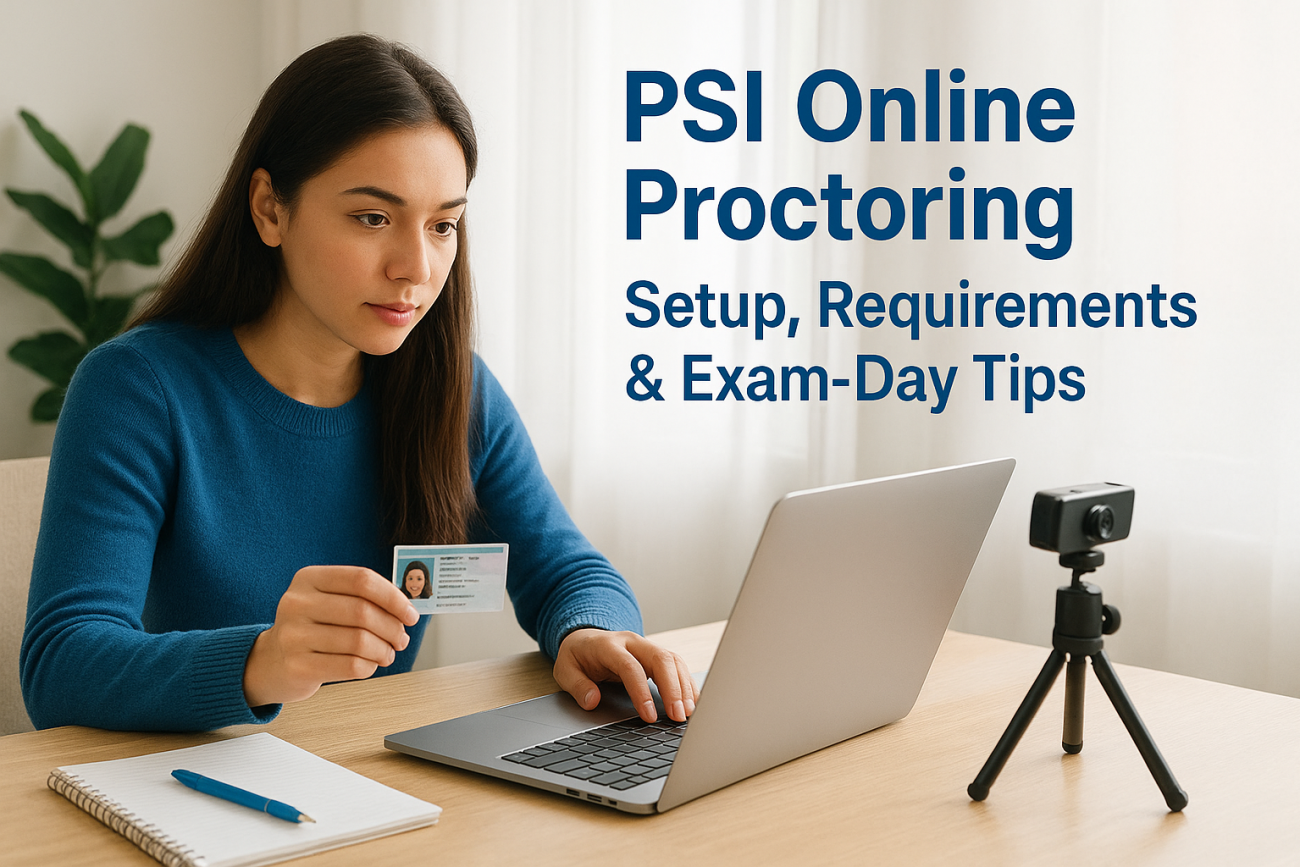
Taking a certification or compliance exam through PSI online proctoring can feel high-stakes before you even click "Start." Between system checks, ID verification, and room scans, there’s a lot that can go wrong if you’re not prepared, and a failed setup can delay your exam by days or weeks. That’s stress nobody needs after putting in the study hours.
At Atrixware, we build Axis LMS to help organizations deliver training that leads to moments exactly like this, where a learner is ready to prove what they know. We understand the full training lifecycle, from course completion to exam day. So we put this guide together to walk you through everything PSI’s remote proctoring process requires: system specs, environment rules, software setup, and practical tips to keep your exam session running smoothly from start to finish.
What PSI online proctoring is and what to expect
PSI is a global testing company that administers certification, licensure, and compliance exams for hundreds of organizations across industries. PSI online proctoring replaces a physical test center with a live human proctor who monitors you through your webcam and microphone in real time. You take your exam from your own device, but the proctor watches your screen, video feed, and audio for the entire session from start to finish.
How the monitoring works
The system uses a combination of live proctor oversight and automated AI-assisted flagging to monitor your session. The proctor can see your face, hear your surroundings, and view your screen at all times. If the system detects unusual behavior, such as looking away from the screen too long or picking up unexpected background noise, it flags that moment for further review. You will not always know when a flag occurs, but the proctor can pause or terminate your session if something looks out of place.
A flagged session does not automatically mean a failed exam, but repeated flags can trigger a formal review that delays your score release.
What the check-in process looks like
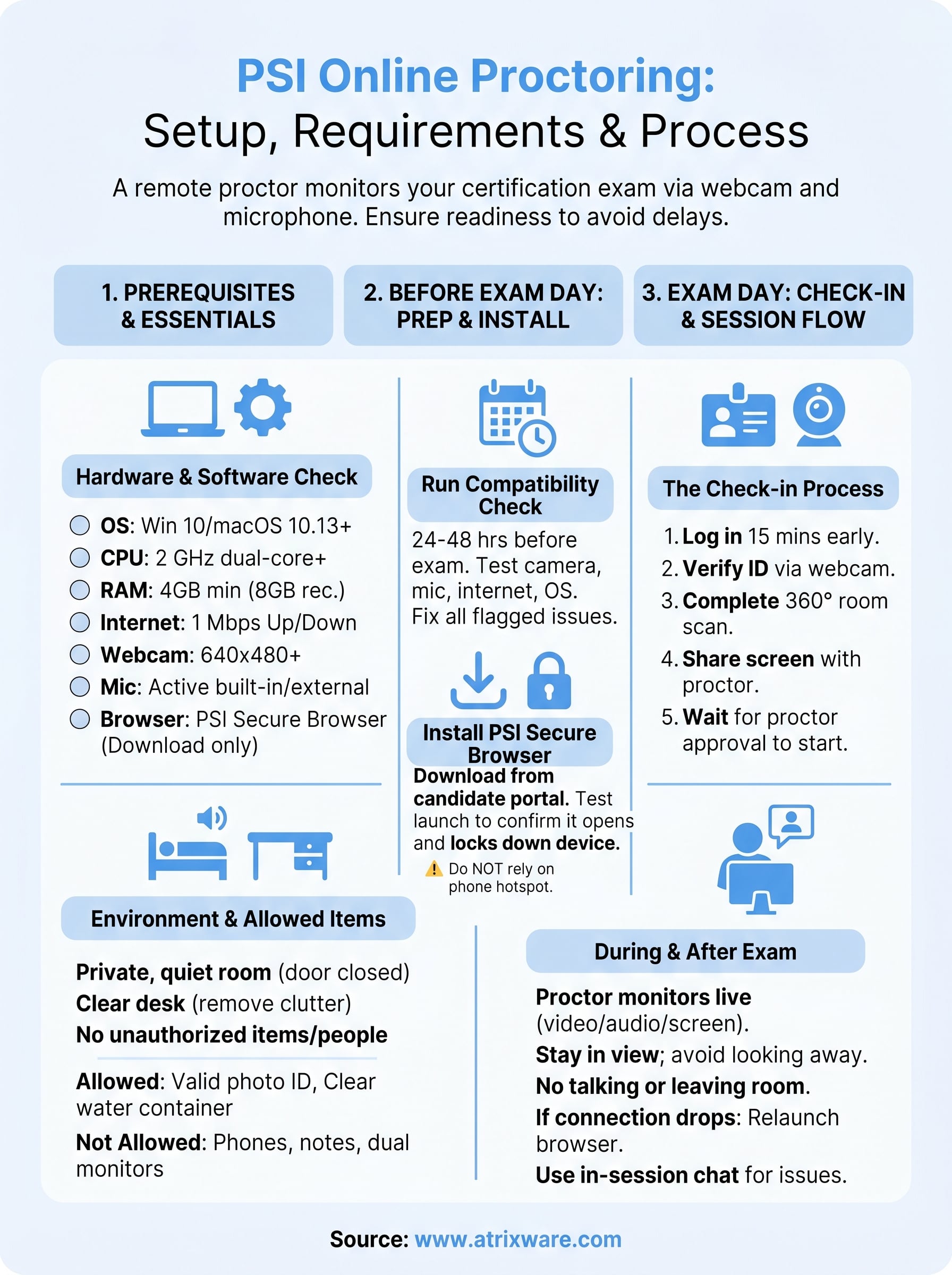
Before your exam timer starts, you go through an identity verification process that typically takes between 10 and 20 minutes. You will hold a valid, government-issued photo ID up to your webcam, complete a 360-degree room scan by slowly rotating your camera around the space, and share your screen with the proctor. Your desk must be clear of all unauthorized materials before the proctor approves you to begin. Only after the proctor confirms your environment meets every requirement will your exam officially start.
Prerequisites and system requirements checklist
Before you schedule your exam, confirm your setup meets every requirement for psi online proctoring. Showing up on exam day with an incompatible device or missing software wastes your testing appointment and may cost you a rescheduling fee.
Hardware and software minimums
Your device needs to meet PSI’s baseline specifications before you can even launch the secure browser. Use this checklist to verify your setup in advance:
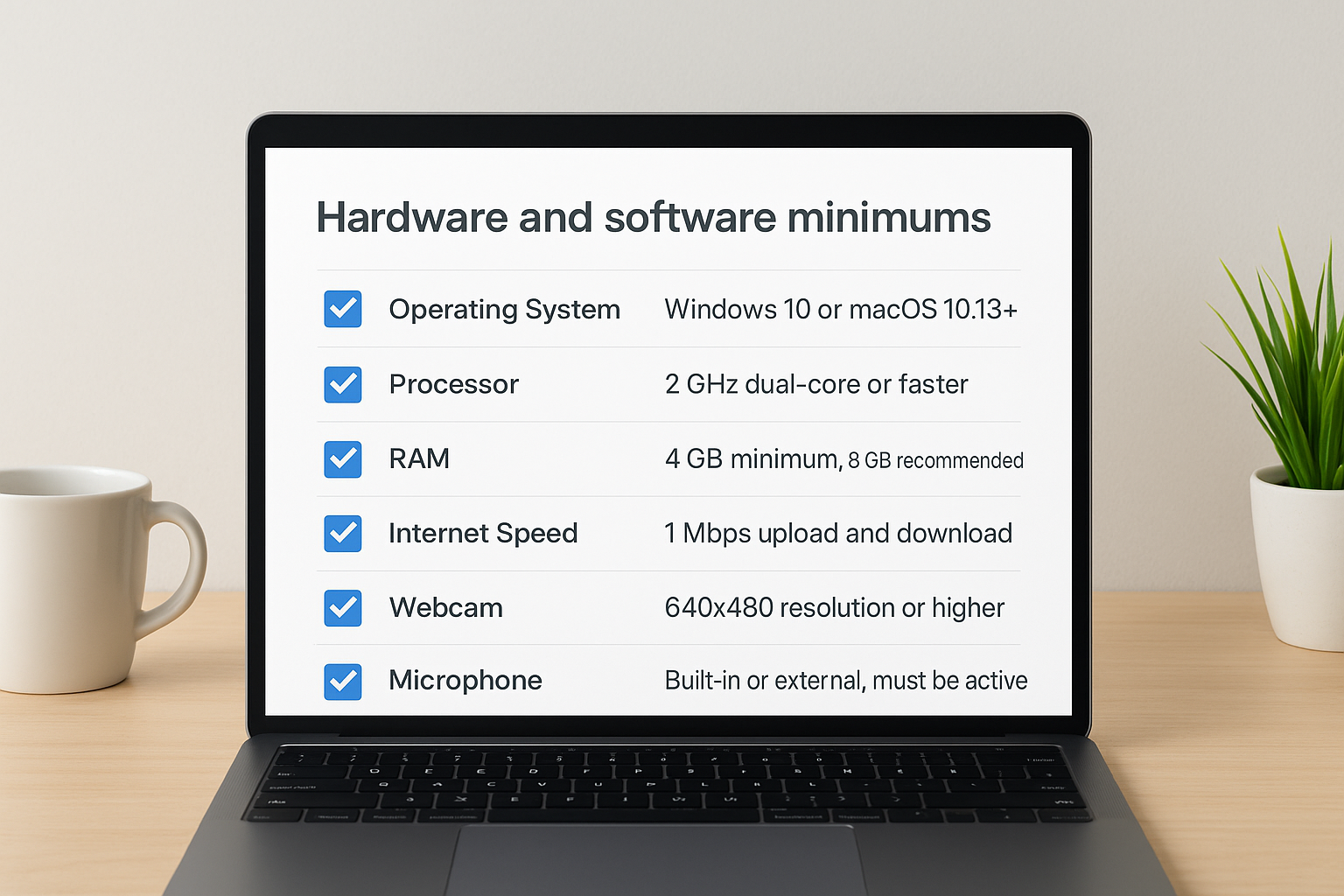
| Requirement | Minimum Spec |
|---|---|
| Operating System | Windows 10 or macOS 10.13+ |
| Processor | 2 GHz dual-core or faster |
| RAM | 4 GB minimum, 8 GB recommended |
| Internet Speed | 1 Mbps upload and download |
| Webcam | 640×480 resolution or higher |
| Microphone | Built-in or external, must be active |
| Browser | PSI Secure Browser (downloaded separately) |
Do not rely on your phone’s hotspot as your primary internet connection. An unstable signal is one of the most common reasons proctoring sessions drop mid-exam.
What to have ready before you log in
Gather your government-issued photo ID and clear your desk completely before your check-in window opens. You also need a quiet, private room with no other people present, no dual monitors connected, and no unauthorized notes or devices within arm’s reach.
Step 1. Do a compatibility check and install software
Run your compatibility check at least 24 to 48 hours before your exam, not the morning of. PSI provides a built-in system check that tests your camera, microphone, internet connection, and OS version before you ever touch the secure browser. Catching a problem early gives you time to fix it without missing your appointment.
Run the PSI compatibility check
Log in to your PSI candidate portal and look for the system check or readiness check link. Run it on the same device and network connection you plan to use on exam day. The check will flag any failures and tell you exactly what needs fixing. Common failures include:
- Microphone not detected (check your browser permissions)
- Internet speed below 1 Mbps (switch to a wired connection)
- OS out of date (run Windows Update or macOS Software Update)
Fix every flagged item before your exam date, even minor warnings.
Download and install the PSI secure browser
After your system passes the check, download the PSI secure browser directly from your candidate portal. Once installed, do a test launch to confirm it opens without errors. This browser locks down your device during psi online proctoring sessions, blocking other tabs, applications, and screen-sharing tools from running simultaneously.
Step 2. Prepare your room, desk, and allowed items
Your physical environment matters as much as your technical setup in psi online proctoring. Proctors reject candidates for room violations just as often as for technical failures, so treat your environment setup as a required step, not an afterthought.
Clear your desk and room
Remove everything from your desk surface except your computer, mouse, and a single blank piece of scratch paper if your exam allows it. Check the specific rules for your exam, because some certifications allow no scratch paper at all.
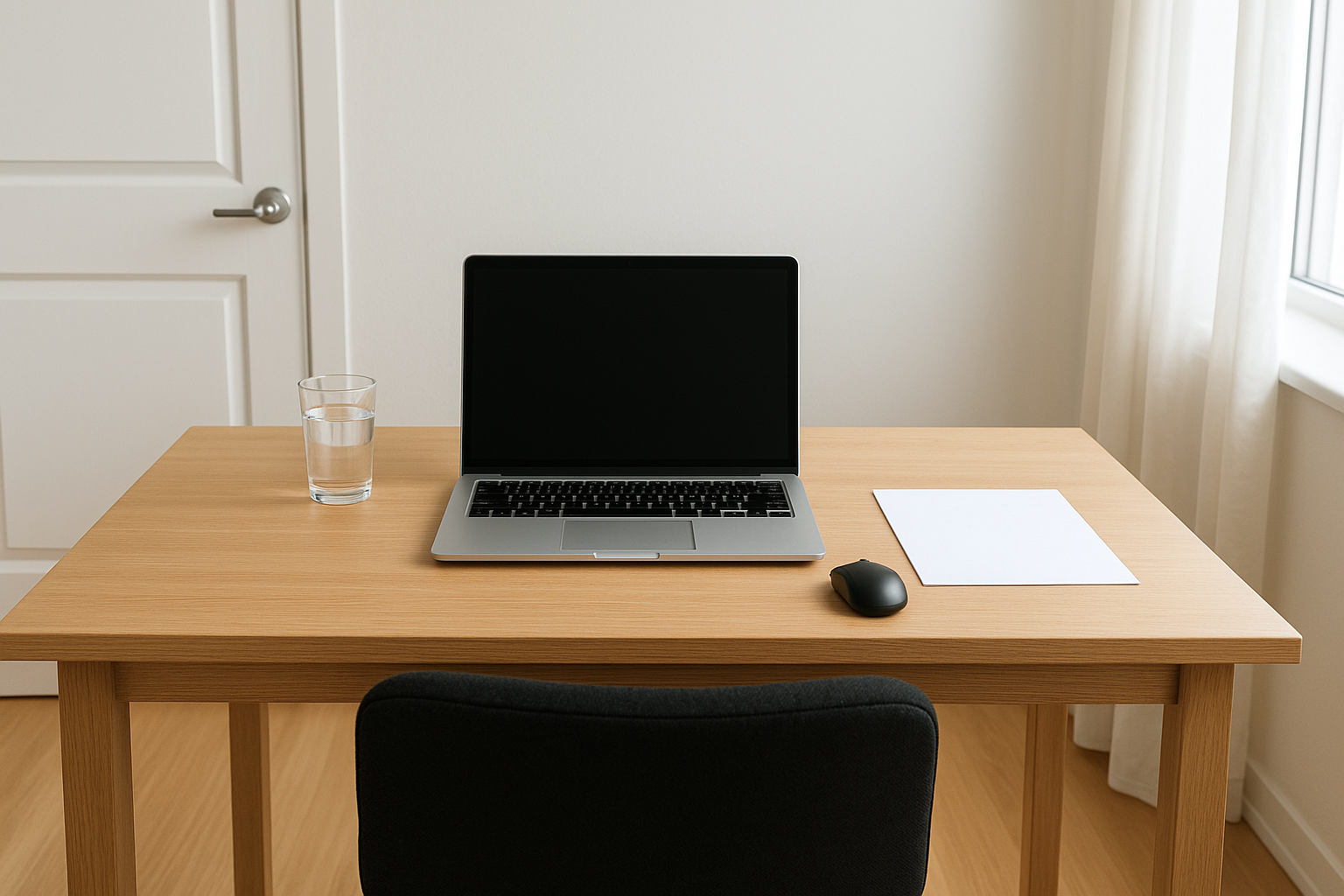
If your proctor sees anything unauthorized on your desk during the room scan, they can end your session immediately before your exam even starts.
Your room needs to be completely private with the door closed for the full session. No other people or pets can be present at any point during your exam.
Know what you can and cannot bring
Use this quick checklist to prep your space before check-in:
- Allowed: Government-issued photo ID, water in a clear container (verify with your specific exam rules), approved scratch paper if explicitly permitted
- Not allowed: Second monitors, phones, smartwatches, notes, textbooks, or any unauthorized reference material
- Room setup: Single light source, no windows directly behind you, no audible background noise
Step 3. Check in, take the exam, and handle hiccups
Your check-in window typically opens 15 minutes before your scheduled start time. Log in to your PSI candidate portal, launch the secure browser, and connect to your proctor on time. Late arrivals can forfeit the appointment entirely, so treat your check-in window like a hard deadline.
Complete the check-in steps in order
Your proctor will walk you through a fixed sequence during psi online proctoring check-in. Follow each step as directed without skipping ahead:
- Show your government-issued photo ID clearly to the webcam
- Complete a full 360-degree room scan by slowly rotating your camera
- Share your screen when the proctor requests it
- Confirm your desk is clear and wait for proctor approval
Do not start typing or interacting with your exam content until your proctor explicitly tells you to begin.
Handle problems without panicking
If your connection drops mid-exam, close the secure browser immediately, reconnect your internet, and relaunch. Your session data typically saves automatically. If the proctor becomes unreachable, use the in-session chat tool to flag the issue rather than closing the application. Document the time and nature of any disruption in case you need to request a score review later.
Next steps
You now have everything you need to walk into psi online proctoring with confidence: the right hardware, a compliant room setup, a verified secure browser, and a clear picture of what happens from check-in through exam completion. Run your compatibility check today, not the day before your exam, and use this guide as your pre-exam checklist each time you sit for a proctored session.
If your organization is responsible for training employees or managing certifications at scale, the steps after exam day matter just as much as exam day itself. Tracking completions, issuing certificates, and scheduling re-certifications manually is a real drain on your team’s time. A purpose-built LMS handles that work automatically, so your learners stay on track and your administrators stay focused. Take the Axis LMS readiness quiz to see where your training program stands and what a modern platform could do for it.
