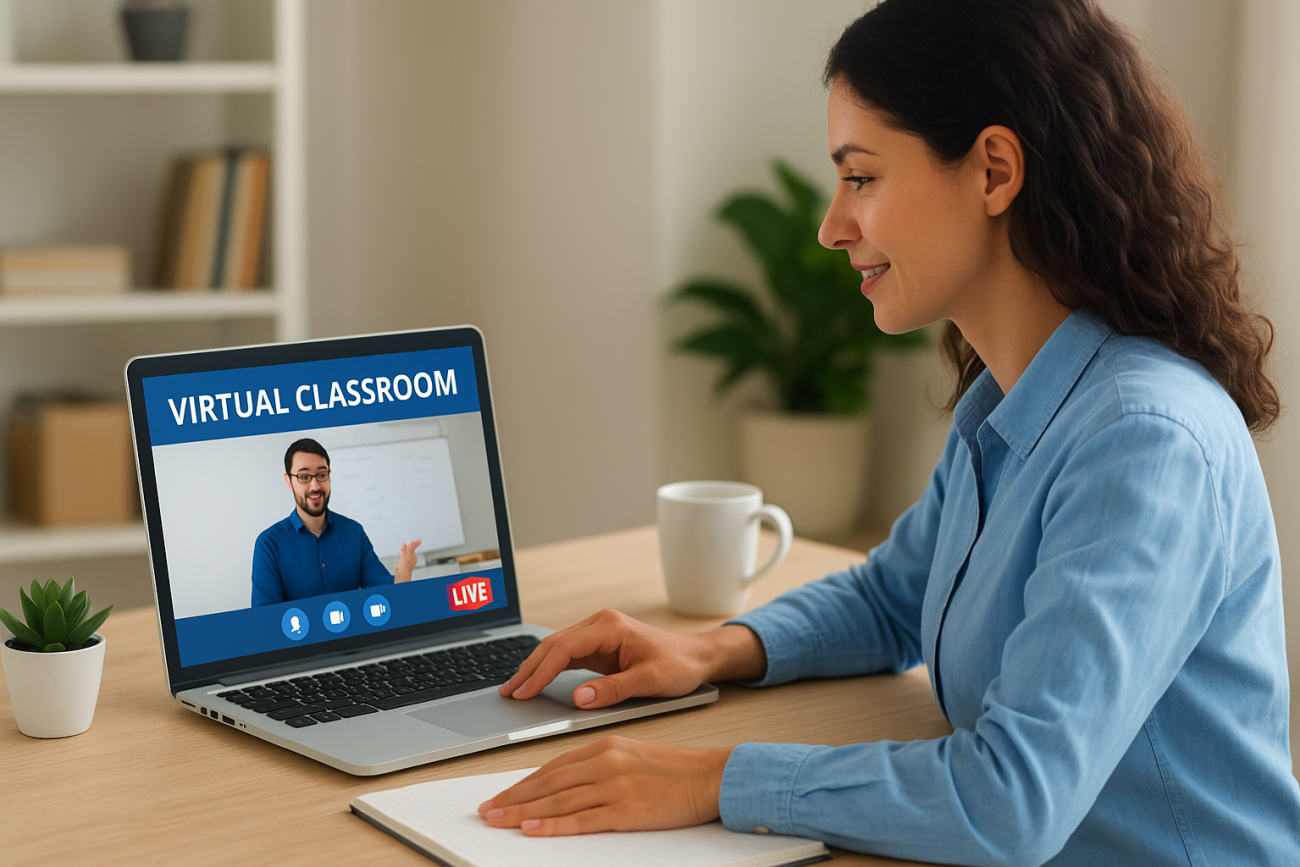
Running live, instructor-led training online requires more than just a video call, it takes a platform built to handle scheduling, learner tracking, and real-time interaction. If you’re exploring the TalentLMS virtual classroom feature, you’re likely trying to figure out how to set it up, connect it with tools like Zoom or Microsoft Teams, and actually run sessions that keep learners engaged. This guide walks you through the full process, from initial configuration to tips for getting the most out of your live training.
At Atrixware, we build Axis LMS, a platform that also supports virtual classroom training alongside robust course delivery, compliance tracking, and reporting. We know what matters when it comes to live online learning because we’ve spent years helping businesses deliver it. That perspective shapes this article: we’ll give you a straight, practical breakdown of how TalentLMS handles virtual classrooms so you can decide whether it fits your training needs.
What a TalentLMS virtual classroom includes
The TalentLMS virtual classroom is a dedicated course unit type within the platform that lets you schedule and deliver live, instructor-led sessions directly inside your training environment. Rather than treating live training as a separate event outside your LMS, TalentLMS connects the session scheduling, attendance tracking, and completion records all in one place. This means learners see their upcoming sessions in the same interface where they access other course content.
Core components of the virtual classroom unit
When you add a virtual classroom unit to a course, you get a set of built-in tools to manage the full lifecycle of a live session. Here’s what that includes:
- Session scheduling: Set a specific date, time, and duration for each live session
- Instructor assignment: Designate one or more instructors per session
- Learner capacity limits: Cap attendance to match your delivery format
- Attendance and completion tracking: Mark learners present or absent, which feeds directly into course completion records
- Session recordings: Store recordings and make them available to learners after the session ends
Completion records tied to live sessions matter for compliance training, since they give you a timestamped, verifiable log of who attended and when.
Conferencing tool integrations
TalentLMS does not host video natively. Instead, it integrates with external conferencing platforms like Zoom, Microsoft Teams, GoToMeeting, and Webex to deliver the actual live video. You connect your preferred tool at the account or course level, and TalentLMS generates the session link automatically.
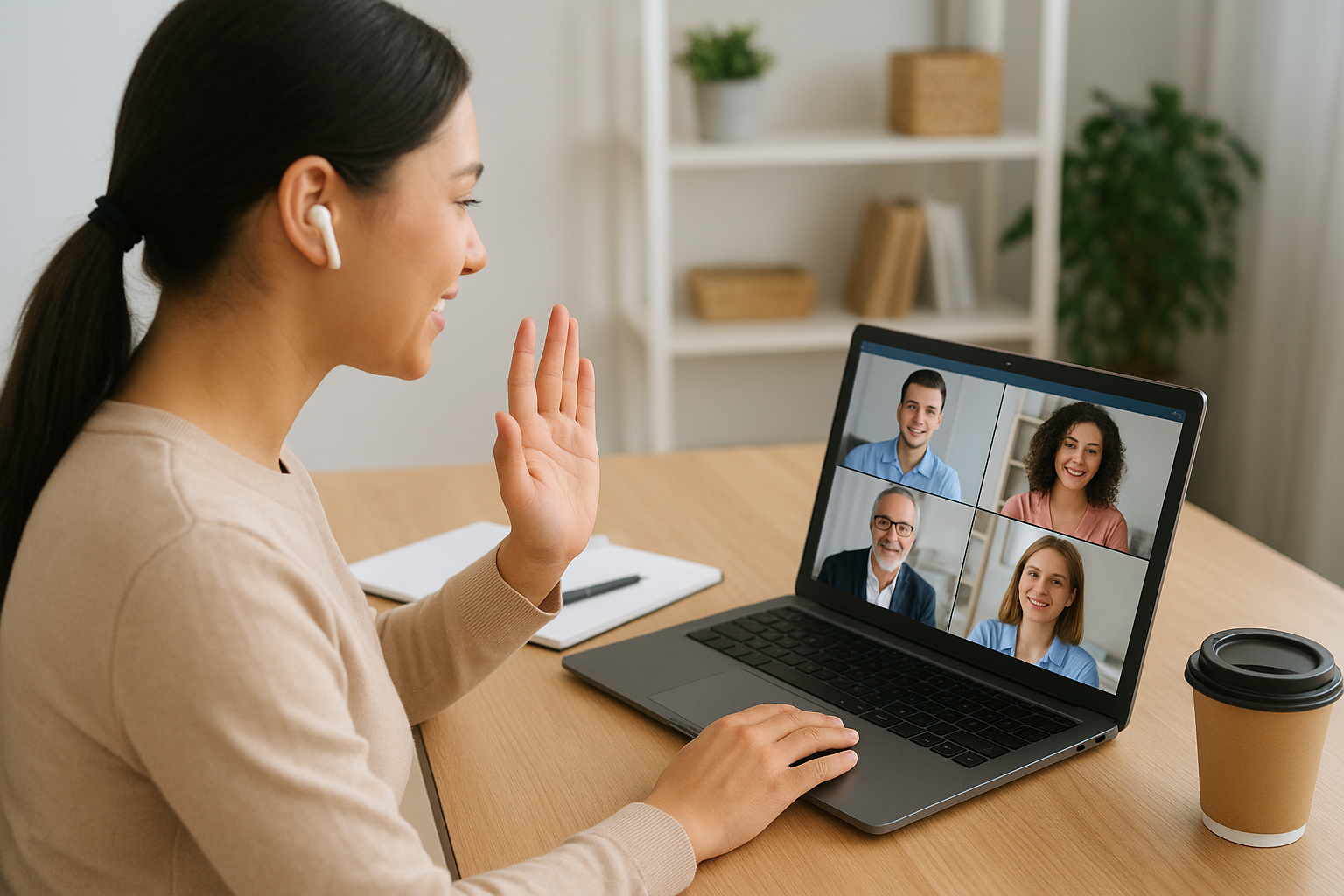
Your learners click a single button inside their course to join the call, which removes the friction of sharing links manually. The integration keeps everything centralized, so learners never have to leave the LMS to find their session details.
When to use live vs self-paced learning
Choosing between live and self-paced delivery depends on what your training actually needs to accomplish. Live sessions work best when real-time interaction and immediate feedback matter, such as onboarding, compliance Q&A, or skills that require direct demonstration. Self-paced modules fit better when learners need flexibility or when the content doesn’t shift based on individual questions.
Where live training adds the most value
The TalentLMS virtual classroom shines in situations where your learners benefit from direct access to an instructor. Think sales coaching, technical certifications, or compliance training where leadership needs to answer questions on the spot. Live sessions also build accountability, since learners commit to a scheduled time rather than working through material at an undefined later date.
If your training involves regulatory requirements or certification sign-offs, live sessions give you a verifiable attendance record that self-paced modules cannot replicate.
When self-paced works better
Self-paced learning fits onboarding materials, product knowledge bases, and reference content that learners revisit over time. If your audience spans multiple time zones or works irregular hours, forcing a fixed schedule creates unnecessary friction that hurts completion rates. Self-paced works well for:
- Reference materials and product documentation
- Onboarding content with no fixed deadline
- Training distributed across multiple time zones
How to set up a virtual classroom in TalentLMS
Setting up a TalentLMS virtual classroom starts in your account settings, not inside a course. Before you add a live session to any course, you need to connect your preferred conferencing platform at the account level so TalentLMS can generate session links automatically.
Connect your conferencing tool first
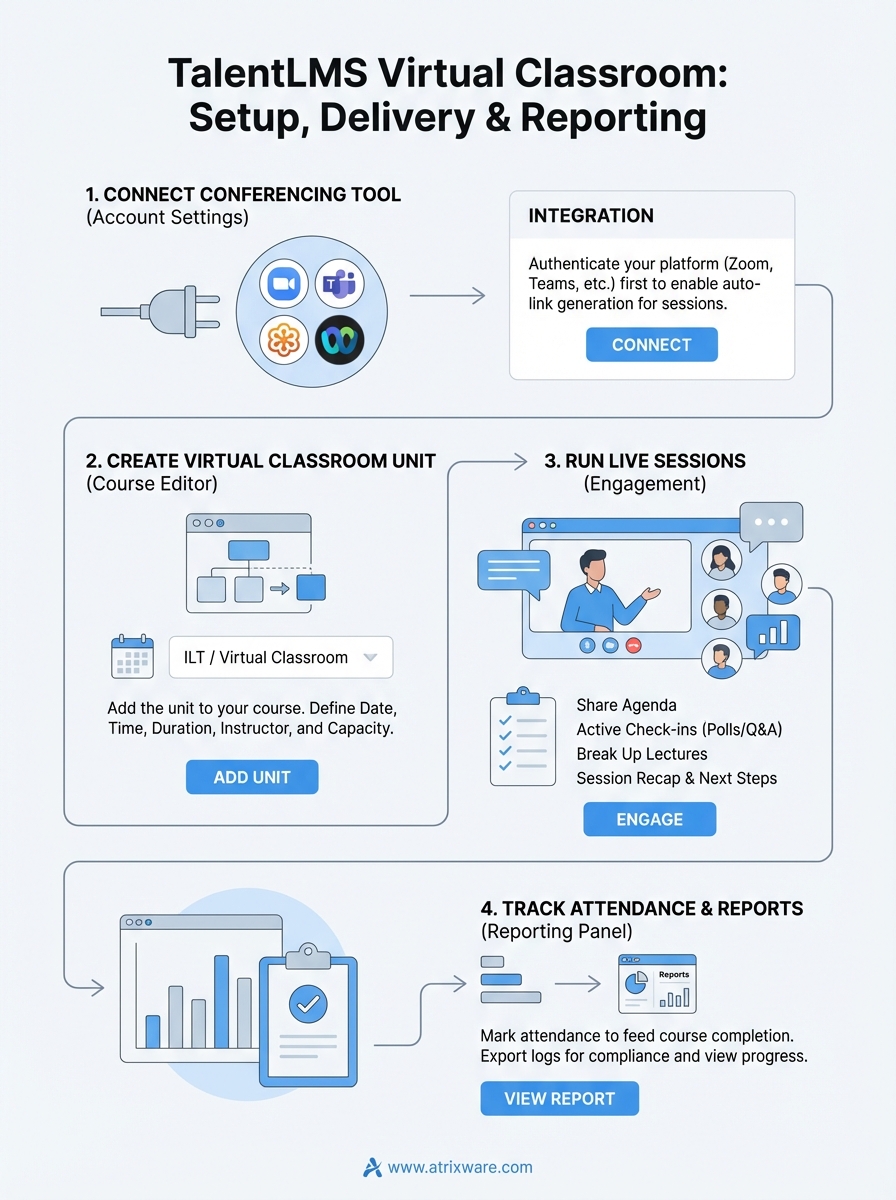
Go to your Account & Settings panel and locate the Integrations section. Select your platform, authenticate with your credentials, and save the connection. This step links your conferencing account to TalentLMS so every session you schedule pulls a valid join link automatically. TalentLMS supports the following platforms:
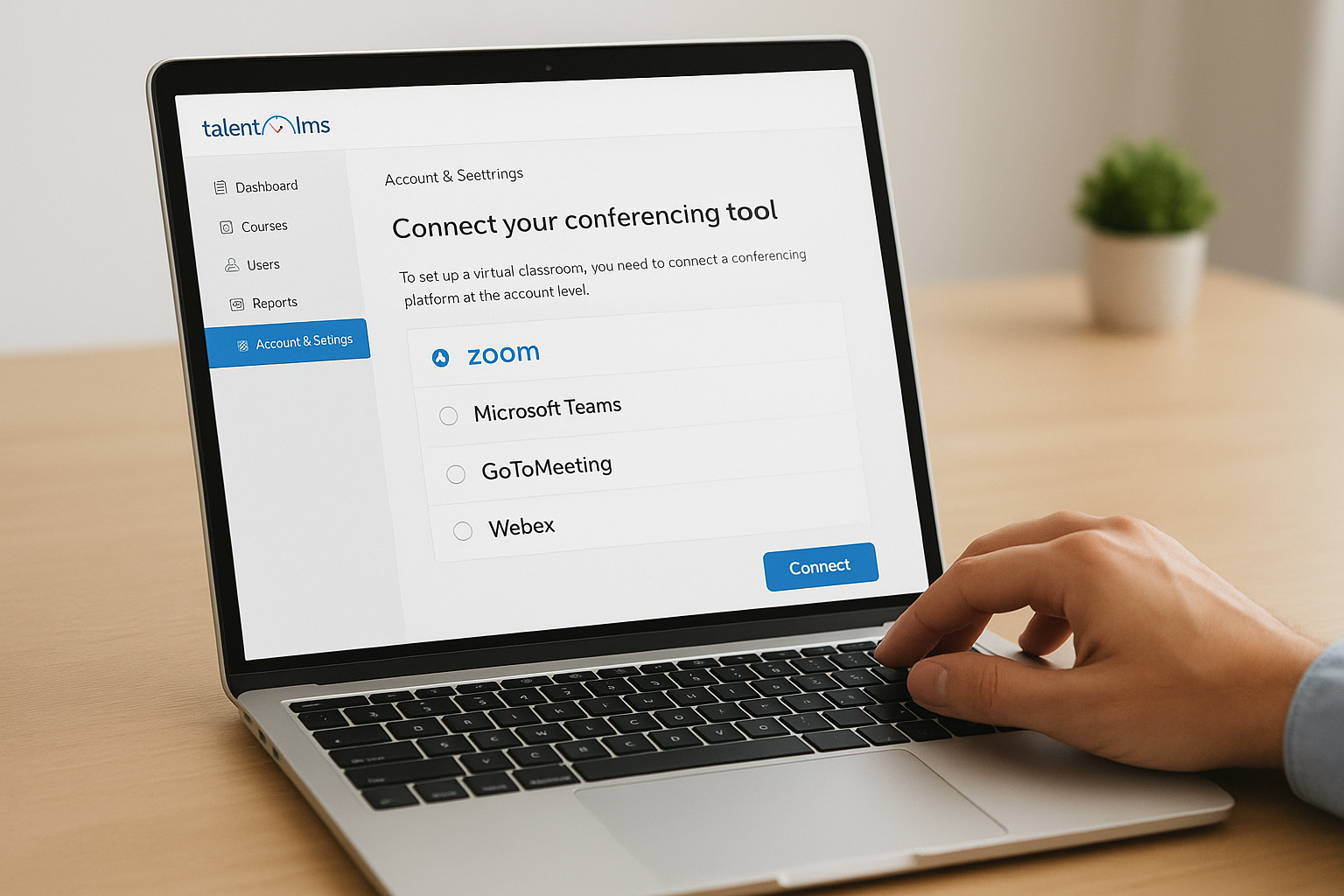
- Zoom
- Microsoft Teams
- GoToMeeting
- Webex
Complete this integration before building any courses, since the virtual classroom unit will not generate a working session link without it.
Add the virtual classroom unit to a course
Once your conferencing tool is connected, open the course editor and add a new unit. Select the ILT or Virtual Classroom unit type depending on your TalentLMS version. From there, set the session date, time, duration, instructor, and learner capacity. Learners enrolled in that course will see the session appear in their course view with a one-click join button, so they never need to hunt for a separate link.
How to run live sessions and keep learners engaged
Running a live session well comes down to preparation and pacing. Before you go live, share the session agenda with learners so they know what to expect and arrive with questions and context already in mind. A short pre-session message through the platform takes two minutes to send and measurably improves learner readiness.
Start the session with structure
Opening your session with a clear outline signals to learners that their time is respected. Cover what you’ll address, how long the session runs, and when you’ll open for questions. This gives learners a mental framework that supports retention throughout the call.
- Open with a brief agenda overview
- Set clear expectations for Q&A timing
- Confirm all attendees can hear and see you clearly before you begin
Keep learners active during the call
The TalentLMS virtual classroom logs attendance automatically, but attendance alone does not mean learners are absorbing the material. Build in active check-ins every 10 to 15 minutes using polls, direct questions, or short exercises through your connected conferencing tool to break up passive watching.
Mixing short interactive moments into lecture time every 15 minutes keeps attention measurably higher across the full session.
Ending each session with a quick recap and a clear next step, such as a follow-up module or assignment inside the LMS, reinforces key takeaways and connects live training back to your broader course structure.
Troubleshooting, reporting, and best practices
Even a well-configured TalentLMS virtual classroom runs into issues. Most problems trace back to either the conferencing integration or learner access, so knowing where to look first saves time.
Fix common session issues
Broken join links almost always point to an expired or disconnected conferencing integration. Re-authenticate your Zoom or Teams connection in Account Settings and regenerate the session link before your next call. If learners report they cannot see the session in their course view, check their enrollment status first since unenrolled learners will not see any course units, including live sessions.
Reconnecting your conferencing integration is the fastest fix for the majority of session link failures.
Read your attendance and completion reports
TalentLMS records attendance and completion data automatically when you mark learners present at the end of each session. Navigate to your Reports section and filter by course or unit type to pull a full attendance log. This data feeds directly into overall learner progress reports, making it easy to identify who missed a session and needs a follow-up.
- Export attendance logs as CSV for compliance audits
- Set automated reminders for learners who miss a session
- Review completion rates by session to spot engagement patterns
Wrap-up and next steps
The TalentLMS virtual classroom gives you a solid foundation for delivering live, instructor-led training inside a structured LMS environment. You now know how to connect your conferencing tool, build sessions into your courses, run engaging live calls, and pull the attendance data you need for compliance and reporting. Each step in this guide builds directly on the last, so getting your configuration right from the start saves you significant troubleshooting time later.
Choosing the right platform matters as much as knowing how to use it. Axis LMS supports virtual classroom training alongside self-paced content, compliance tracking, and deep reporting, all built into a single system designed for organizations that need training to drive real results. If you’re evaluating whether your current LMS setup fully meets your goals, take the LMS readiness quiz to find out where you stand and what to prioritize next.
