Every user login, role assignment, password reset, and policy change that happens in your Microsoft Entra ID tenant gets recorded. Microsoft Entra ID audit logs capture these activities in detail, giving administrators a reliable trail to investigate security incidents, satisfy compliance audits, and troubleshoot access issues. But knowing the logs exist and actually using them effectively are two very different things.
For organizations running integrated platforms, like those using Axis LMS with SAML SSO through Microsoft Entra ID, audit logs become especially important. When your LMS authenticates users through Entra ID, the audit trail doesn’t stop at the identity provider. Understanding what gets logged, where to find it, and how long Microsoft keeps it directly affects your ability to maintain security and compliance across every connected system, training platforms included.
At Atrixware, we work with businesses that take compliance and security seriously in their training environments. That means helping them understand the infrastructure their Axis LMS integrations depend on, including identity management. This guide breaks down everything you need to know about Microsoft Entra ID audit logs: what activities they record, how to access and filter them in the admin center, retention policies and their limitations, and how to read the log schema so the data actually makes sense. Whether you’re preparing for a compliance review or investigating a suspicious configuration change, this is the reference you’ll want bookmarked.
Why Entra ID audit logs matter
Microsoft Entra ID sits at the center of identity management for millions of organizations. Every time your team accesses an application, resets a password, or gets assigned a new role, that action touches your identity infrastructure. Without a reliable audit trail, you’re operating blind when something goes wrong. Microsoft Entra ID audit logs give you the visibility to catch problems early, respond to incidents quickly, and demonstrate to auditors that your organization actively controls who has access to what and when.
Security incident investigation
When a security incident happens, the first question is always: what changed, and when? Audit logs give you a timestamped sequence of events that you can trace backward from the moment you detect a problem. If a user account is compromised, you can identify when configuration changes were made, which applications the attacker accessed, and whether they elevated privileges before you caught the breach.
The value of audit logs isn’t just in the data they hold, it’s in how quickly you can retrieve that data when every minute counts.
Your response speed directly affects how much damage a breach causes. Entra ID records identity events in near real-time, so your security team can move fast rather than waiting for reports to generate. For organizations using SAML SSO connections to platforms like Axis LMS, a compromised identity account could expose sensitive training records, learner data, and completion certificates. The audit trail tells you exactly how far the exposure reached so you can scope your response accurately.
Compliance and regulatory requirements
Many industries require organizations to prove they manage identity access with documented controls. Regulations like HIPAA, SOC 2, GDPR, and FDA 21 CFR Part 11 all expect you to produce evidence that only authorized users access sensitive systems, and that you can account for every access decision. Microsoft Entra ID audit logs serve as the primary source of that evidence for your Microsoft 365 environment and every connected application.
Compliance reviews often require you to pull historical data on specific users or actions across a defined time window. Knowing how long Microsoft retains logs, and which retention tier applies to your license, determines whether you can satisfy those requests without external storage solutions. Organizations that discover retention gaps during an audit, rather than before one, face a significantly harder recovery and potential regulatory penalties.
Operational troubleshooting
Not every audit log investigation involves a security incident. Day-to-day administrative work generates plenty of legitimate reasons to check the logs: a user reports they cannot access a system, an automated process stops working, or a configuration change causes unexpected behavior across connected applications. Audit logs let you identify what changed and who made the change, so you can resolve the issue without guesswork or relying on memory from team members who may not recall every adjustment they made.
Microsoft Entra ID audit logs also help you track down SSO authentication failures with precision. If your Axis LMS integration stops accepting logins, the logs will show you whether the issue originates at the identity provider level, such as a policy change or an expired certificate, versus something further down the stack. That distinction alone can save your team hours of misdirected troubleshooting time and get your learners back into their training without a prolonged outage.
What Entra ID audit logs record
Microsoft Entra ID audit logs don’t record every event in your environment equally. The logs focus on administrative and configuration actions taken within your tenant, which is distinct from sign-in logs that track individual authentication events. Understanding which activities fall into which log type helps you look in the right place during an investigation rather than spending time pulling the wrong data set.
User and account activity
Audit logs capture every action tied to user account lifecycle management, including account creation, deletion, and modification. When an administrator creates a new user, updates an email address, resets a password, or forces a multi-factor authentication re-registration, the log records who performed the action, when it occurred, and which account was affected. This level of detail is critical when you need to confirm that offboarding was completed correctly or that a password reset was initiated by an authorized party.
A user account event that looks routine on its own can reveal a pattern of unauthorized changes when you view it alongside other log entries from the same time window.
Changes to group memberships also appear here. If someone adds a user to a security group that grants broader application access, that membership change is logged with the actor’s identity and timestamp attached.
Directory and role changes
Role assignments represent some of the most security-sensitive actions in your tenant, and the audit log treats them accordingly. Every time a user receives or loses a privileged role, such as Global Administrator or User Administrator, the log captures the full event. Policy changes, conditional access modifications, and custom role updates all generate audit entries as well, giving you a clear record of when your governance posture shifted and who authorized the change.
Application and device events
Application registrations, enterprise app assignments, and OAuth permission grants all appear in the audit log. When a new application connects to your tenant or a user consents to expanded permissions for an existing app, the log records it. For organizations using SSO integrations, such as connecting Axis LMS through SAML, these entries confirm that the integration was configured correctly and flag any unauthorized modifications to service principal settings. Device join and registration events also appear, which matters when you manage conditional access policies that restrict application access based on device compliance status.
How to access and filter audit logs
Pulling microsoft entra id audit logs is straightforward once you know where to look, but the filtering options are where most administrators lose time. The admin center gives you several access paths and a flexible set of filters, and using them correctly from the start saves you from sifting through thousands of irrelevant entries.
Navigating to audit logs in the admin center
You access audit logs through the Microsoft Entra admin center at entra.microsoft.com. Once you’re signed in with an account that holds at least the Reports Reader, Security Reader, or Global Administrator role, follow these steps:
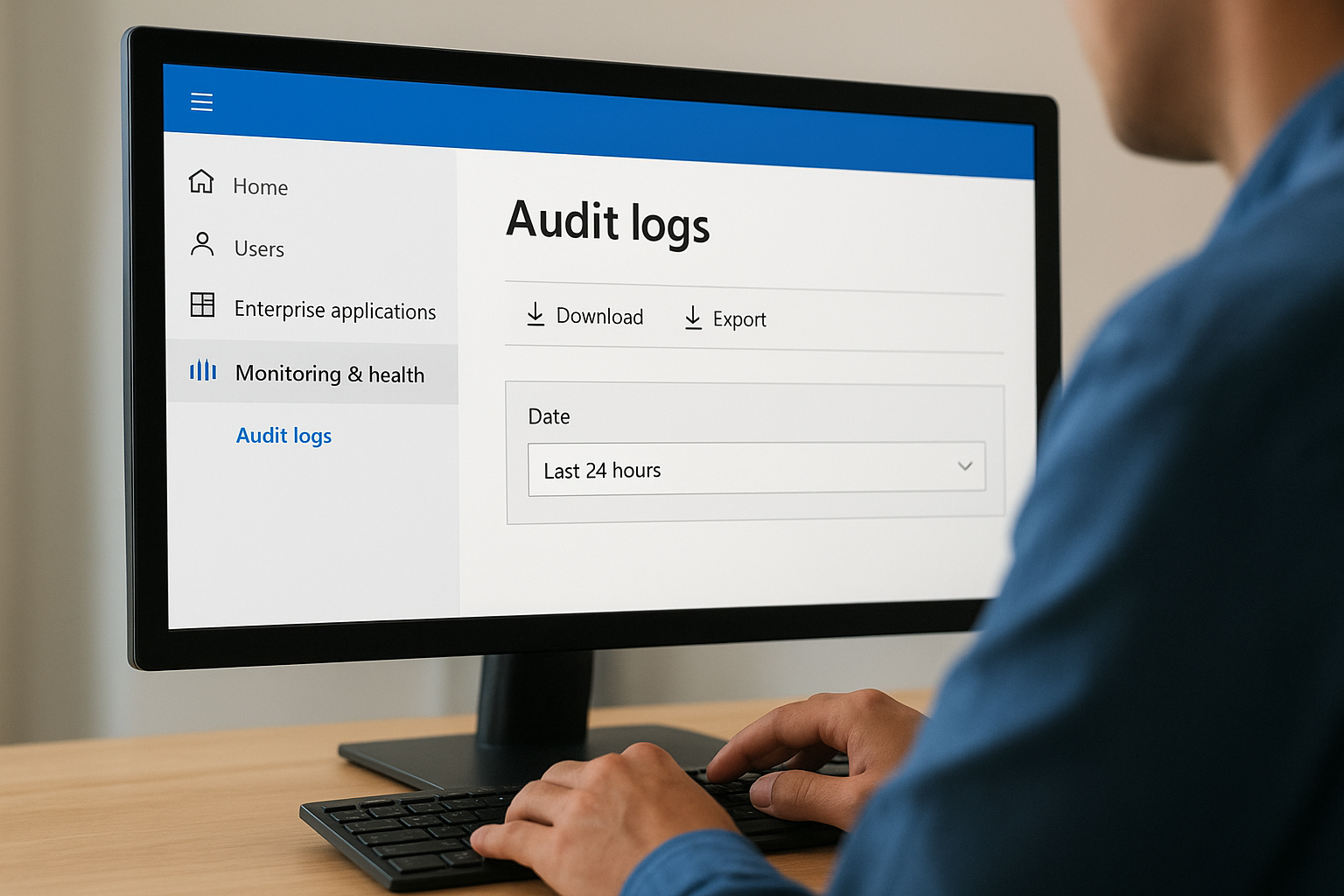
- In the left navigation panel, expand Monitoring & health.
- Select Audit logs.
- The log view loads with a default 24-hour window applied automatically.
Bookmark the direct audit logs URL in your browser so your security team can reach the data immediately during an incident without navigating through multiple menus.
You can also reach audit logs from specific resource blades. If you’re viewing a user profile, a group, or an enterprise application, a dedicated Audit logs tab appears in that blade and pre-filters results to only show events tied to that specific resource. This scoped access is faster than starting from the top-level view when you already know which resource is under investigation.
Filtering and refining results
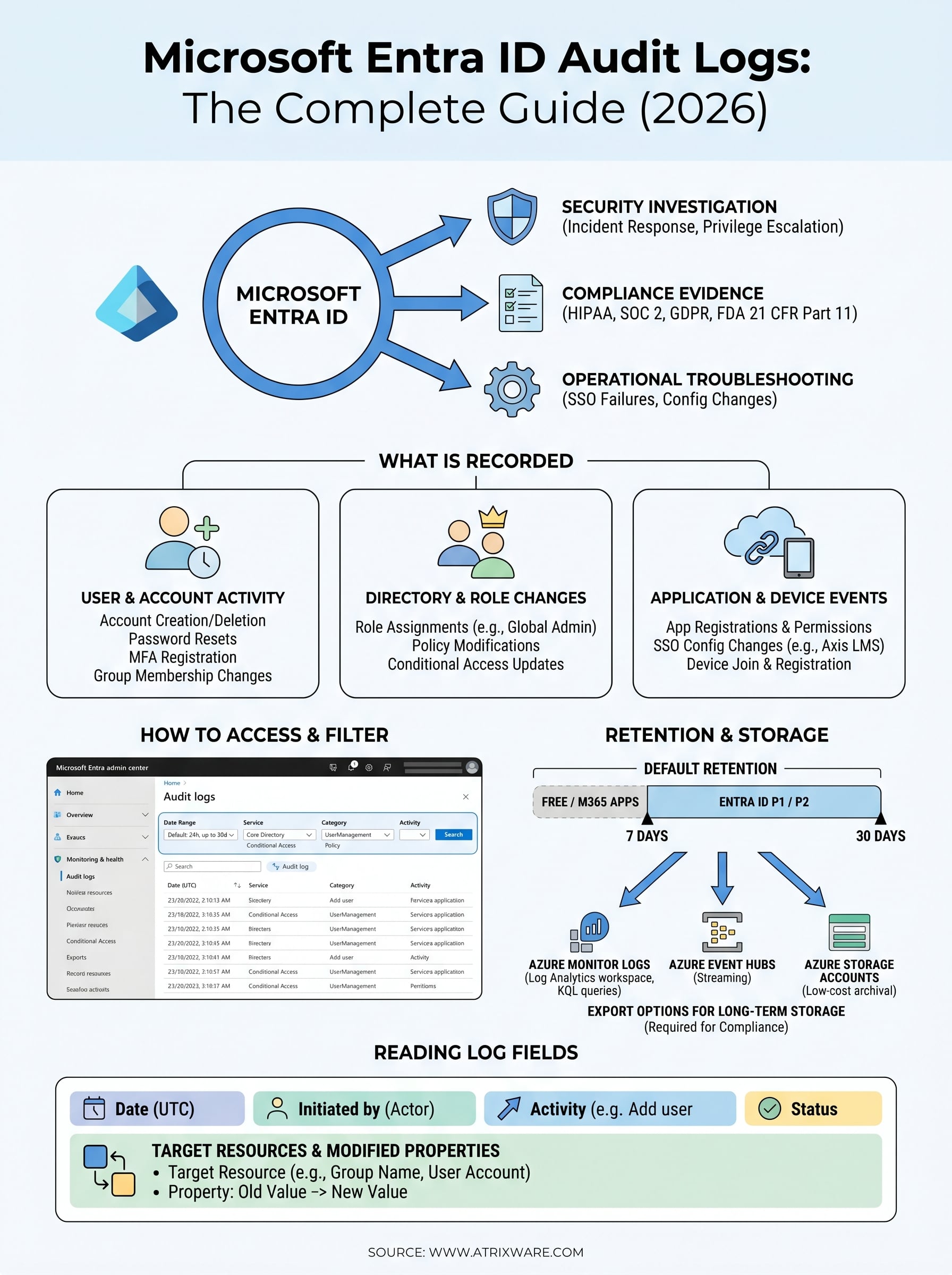
The filter bar at the top of the audit log view gives you control over four primary dimensions: date range, service, category, and activity. The date range filter defaults to one day, but you can extend it up to 30 days directly in the interface. Beyond that window, you need to export the data to an external source, which is covered in the retention section of this guide.
The Service filter narrows results to a specific Entra ID component, such as Core Directory, Conditional Access, or Identity Protection. Pairing the service filter with the Category filter, which groups actions like UserManagement or GroupManagement, lets you isolate exactly the type of activity you need without scrolling through unrelated entries. Once you’ve set your filters, the Activity dropdown updates dynamically to show only the specific actions available within your selected service and category combination, making targeted searches significantly faster than scanning raw output.
How to interpret audit log fields and schema
Raw microsoft entra id audit logs output returns a structured set of fields for every recorded event. Each entry follows a consistent schema, which means once you learn how to read one log entry, you can interpret any event across your tenant. The field values tell you who initiated the action, what resource was affected, and whether the operation succeeded or failed, giving you everything you need to reconstruct what happened without guessing.
Core fields every entry contains
Every audit log entry includes a standard set of fields that anchor your investigation. The Date field records the UTC timestamp of when the action occurred, so you need to account for time zone differences when correlating events with user reports. The Initiated by (actor) field identifies who triggered the event, which may be a user, an application, or a Microsoft system process. The Activity field names the specific operation in plain terms, such as "Add user" or "Update conditional access policy," and the Status field tells you whether the operation completed successfully or failed.
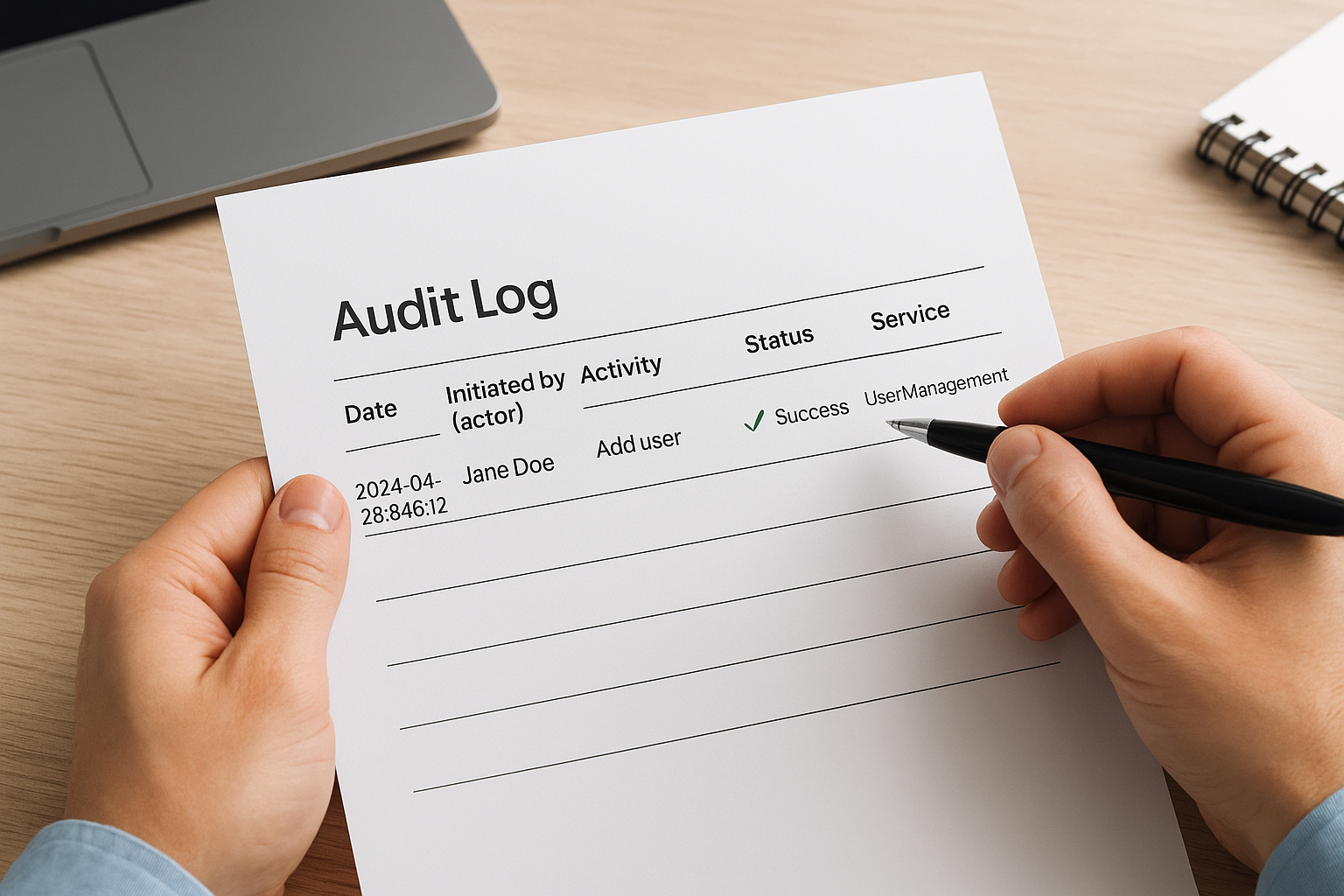
Always check the Status field first when investigating an unexpected outcome. A failed operation that repeats across a short time window often points to a misconfigured policy or a permission issue that needs immediate attention.
The Service field tells you which Entra ID component processed the action, and the Category field groups it into a broader classification like UserManagement or Policy. Together, these two fields let you quickly confirm whether an entry belongs to the investigation scope you defined before you dig into the full details.
Understanding the result and target fields
The Result reason field provides additional detail when an action fails, specifying the error condition that caused the failure. For SSO-related configurations, this field frequently surfaces certificate errors or policy conflicts that a simple "failed" status would not explain on its own. Reading this field carefully saves you from chasing the wrong root cause during an integration issue.
The Target resources field identifies every object affected by the action, which matters when a single operation modifies multiple records simultaneously. A group membership update, for example, may list both the group and the individual user accounts added in a single entry. Expanding the target resources section within each log entry shows you the modified property names alongside their old and new values, giving you a precise before-and-after comparison for any configuration change in your tenant.
Retention, export, and long-term storage
Microsoft does not keep microsoft entra id audit logs indefinitely. Your tenant’s license tier determines how far back you can query directly inside the admin center, and that window is often shorter than compliance frameworks require. Understanding retention limits before you need historical data prevents the situation of discovering a gap in coverage during an active investigation or a formal audit review, when recovering that missing data is no longer possible.
Default retention periods by license tier
Your license tier directly controls how many days of audit log data Microsoft retains and makes queryable in the admin center. Organizations on free or Microsoft 365 subscriptions without a P1 or P2 add-on retain only 7 days of audit log data. Upgrading to Microsoft Entra ID P1 or P2 extends that window to 30 days, which covers most routine investigations but still falls short of requirements in heavily regulated industries that mandate 90 days, one year, or longer.
If your compliance framework requires extended retention, you cannot rely on the admin center alone to hold that data.
| License Tier | Audit Log Retention |
|---|---|
| Microsoft Entra ID Free | 7 days |
| Microsoft 365 Apps | 7 days |
| Microsoft Entra ID P1 | 30 days |
| Microsoft Entra ID P2 | 30 days |
Exporting logs for long-term storage
To retain audit data beyond the default window, you need to route logs to an external storage destination before the in-tenant retention period expires. Microsoft supports three primary export options through the Diagnostic settings configuration in the admin center: Azure Monitor Logs (Log Analytics workspace), Azure Event Hubs, and Azure Storage accounts. Each option suits different use cases depending on whether your priority is querying, streaming, or cost-effective archiving.
Azure Monitor Logs gives your security team full query capability using KQL (Kusto Query Language), which means you can run structured searches across months or years of historical data without rebuilding your investigation from scratch each time. Azure Storage accounts offer the lowest cost per gigabyte for pure archival purposes, making them a practical choice when you only need to retrieve logs occasionally for compliance evidence rather than active analysis.
Regardless of which export path you choose, configure Diagnostic settings as early as possible in your tenant lifecycle. Once the default retention window closes, Microsoft does not recover logs that were not exported in time. No escalation path restores data the system already purged, so early configuration is the only way to guarantee your coverage.
Common investigations and compliance workflows
Microsoft entra id audit logs support a wide range of practical scenarios beyond simple monitoring. Knowing which log patterns and query strategies apply to each investigation type helps your team move from raw data to actionable conclusions without unnecessary back-and-forth. The sections below cover the three situations that administrators encounter most often and the specific steps that make each investigation efficient.
Investigating unauthorized privilege escalation
Privilege escalation is one of the highest-risk events in any identity environment. When you suspect that a user or application gained elevated access without authorization, start by filtering the audit logs to the Core Directory service and selecting the Role Management category. Look for "Add member to role" activity entries within the time window you’re investigating. The Initiated by field will tell you whether a human administrator or an automated process triggered the change, which immediately narrows your response.
A privilege escalation that originates from an application identity rather than a user account often signals a compromised service principal rather than an insider threat.
Once you identify the suspicious entry, expand the Target resources section to confirm exactly which role was granted and to which account. Cross-reference that timestamp against sign-in logs to determine whether the account used the elevated access before you detected the change.
Preparing for compliance audits
Compliance reviews require you to produce documented evidence of access controls across a defined historical period. Before an audit begins, export audit log data for the relevant window to an Azure Monitor Log Analytics workspace so that you can run precise KQL queries against the full dataset rather than manually reviewing admin center output. Build queries that surface specific activity types your framework requires, such as all role assignments, all conditional access policy modifications, and all application permission grants.
Organize your exported data into evidence packages that map directly to each compliance control your auditor will test. Including the actor identity, timestamp, target resource, and operation result for every retrieved entry satisfies most documentation requirements without additional interpretation. Regulators and auditors expect structured, reproducible output rather than screenshots, so scripted log exports that you can rerun on demand save significant preparation time across repeat audit cycles.
Tracing SSO authentication failures
When your SAML SSO integration stops working, the audit log tells you whether the problem originated at the Entra ID configuration layer. Filter to the Application Management category and look for recent changes to the enterprise application record associated with your SSO connection. Modified service principal properties, especially certificate updates or reply URL changes, are the most common configuration-layer causes of sudden authentication failures and show up clearly in the target resources modified properties view.
Next steps
Microsoft Entra ID audit logs give you a complete record of every significant action taken inside your identity environment, from role assignments to SSO configuration changes. You now know what activities the logs capture, how to access and filter them in the admin center, how to read the schema fields, what retention limits apply to your license tier, and which workflows to run when security incidents or compliance reviews demand fast, accurate answers.
The practical next step is to review your current Diagnostic settings and confirm that you’re exporting logs to an external destination before your default retention window closes. If your organization connects applications like Axis LMS through SAML SSO, that integration depends on a well-managed identity layer, and the audit trail is your first line of defense when something breaks. If you’re evaluating whether your current training platform is built to support that kind of infrastructure, take the LMS readiness quiz to find out where you stand.
