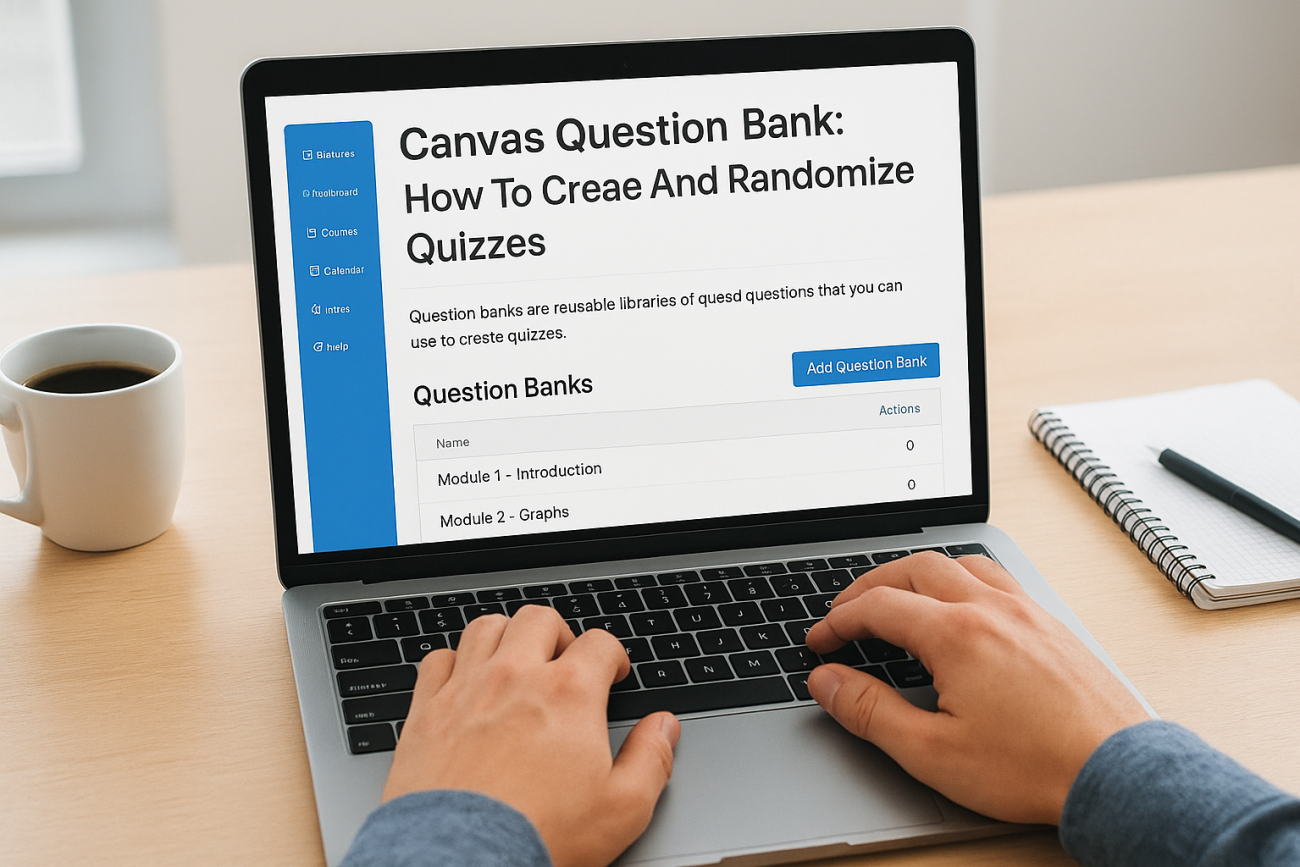
If you’re building quizzes in Canvas LMS, the canvas question bank feature is one of the first things you need to understand. Question banks let you organize assessment questions into reusable groups, then pull from those groups to create randomized quizzes, so no two students get the exact same test. It’s a straightforward concept, but the setup process has a few steps that trip people up.
This guide walks you through creating question banks, adding questions to them, and using those banks to build quizzes with randomized question sets. Whether you’re setting up your first quiz or restructuring an existing course, you’ll have a clear path to follow.
Worth noting: Canvas handles question banks well for academic settings, but if you’re managing corporate training, compliance, or employee onboarding, a platform like Axis LMS from Atrixware gives you more control over assessments, automated reporting, and learner tracking, purpose-built for business needs rather than classroom ones.
What a Canvas question bank is and when to use it
A canvas question bank is a stored collection of questions that lives separately from any individual quiz. Think of it as a reusable library you can draw from whenever you build an assessment. Instead of recreating questions from scratch each time, you store them in a bank, then link that bank to a quiz so Canvas can pull a set number of questions automatically, in a random order, for each student.
How question banks work in Canvas
Question banks sit at the account, sub-account, or course level, depending on your permissions. When you build a quiz, you add a question group and point it at one or more banks. You then tell Canvas how many questions to pull from that bank, and it selects them randomly for each learner. The result is that two students can take the same quiz and see a completely different mix of questions drawn from the same pool.
This randomization only works if your question bank contains more questions than the number you ask Canvas to pull, so build banks with real depth before going live.
When to use a question bank
You get the most value from question banks when you need consistent, repeatable assessments across multiple quiz attempts or course sections. Common use cases include final exams where academic integrity matters, module-level knowledge checks that repeat across semesters, and certification-style tests that require a wide question pool. If you’re building a one-time, fixed quiz with no randomization and no plans to reuse the questions, a question bank adds setup steps without a meaningful payoff. In that case, adding questions directly to the quiz is the faster path.
Step 1. Create and name your question banks
Before you can link a quiz to a pool of questions, you need to build the canvas question bank first. The setup is quick, but knowing exactly where to navigate saves you from searching through Canvas menus.
Where to find the question bank tool
In your Canvas course, click Quizzes in the left navigation, then select the three-dot "Options" menu in the top right and choose "Manage Question Banks." Click "Add Question Bank," enter a name, and press return. Canvas saves the bank instantly with no extra confirmation required.
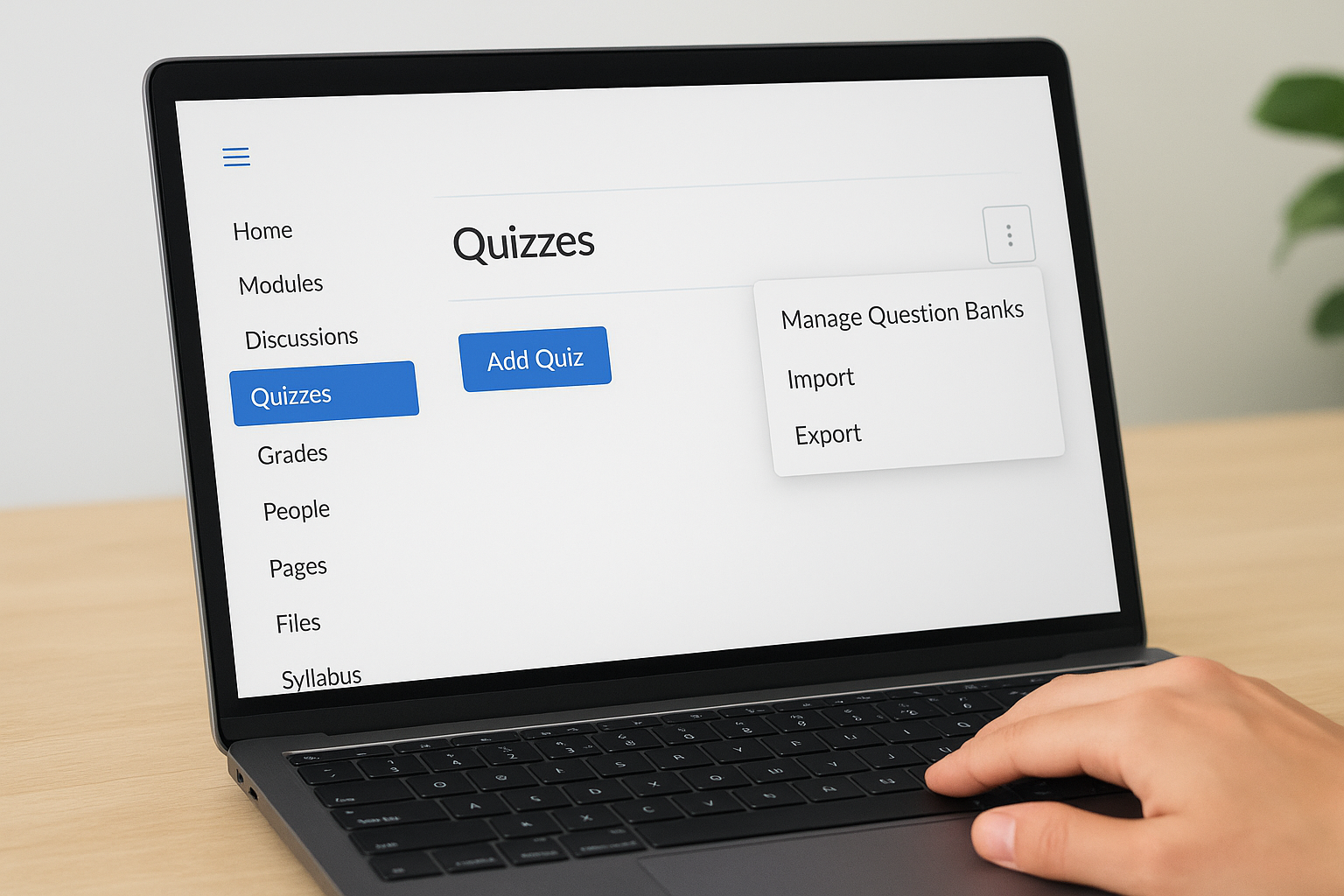
To create your first bank, follow these steps:
- Go to Quizzes in your course menu.
- Click the Options icon (three dots) at the top right.
- Select "Manage Question Banks."
- Click "Add Question Bank" and type your bank name.
Naming banks before you add questions
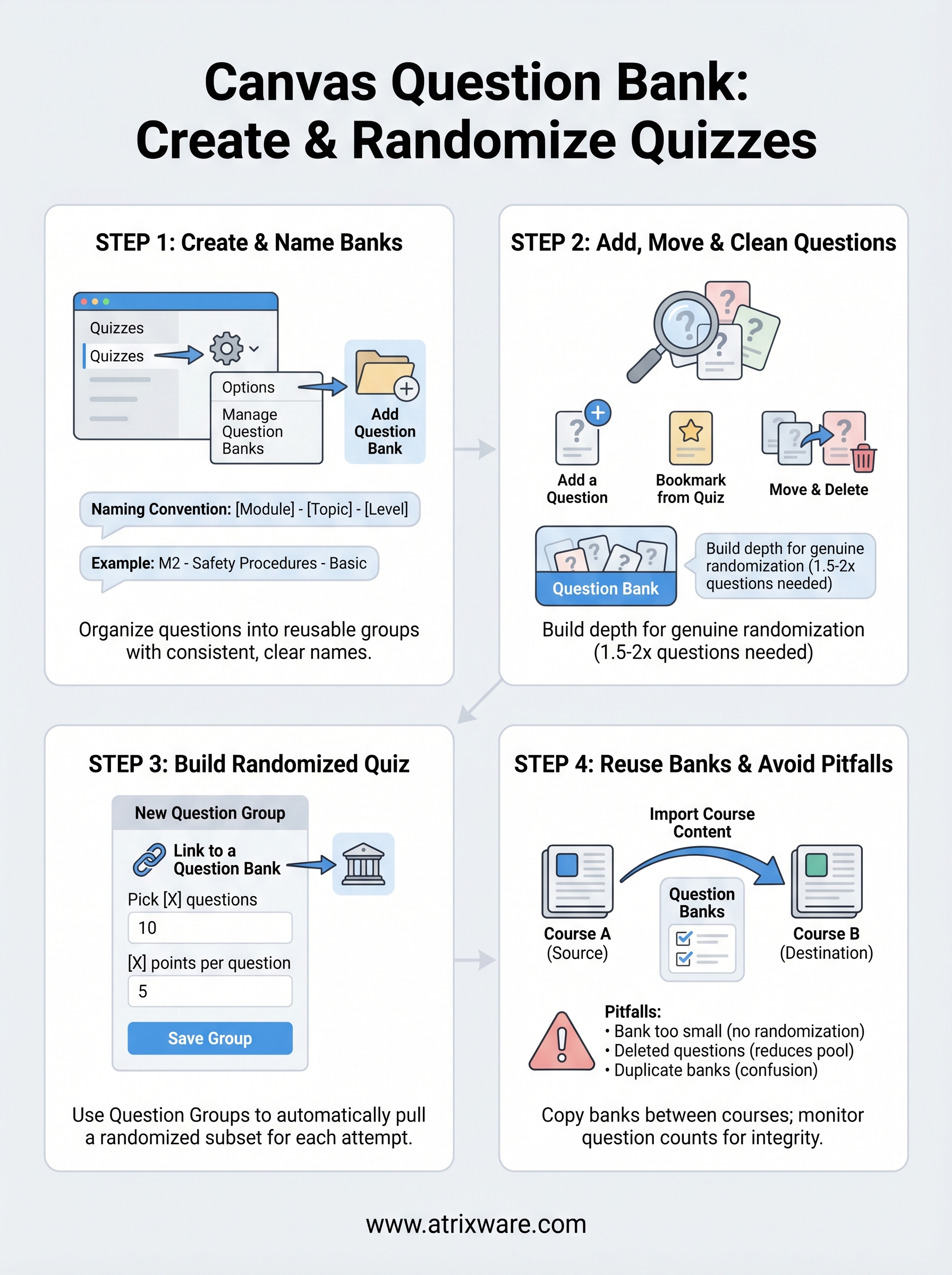
Strong naming conventions prevent confusion later, especially when multiple banks cover related topics. A format like [Module] - [Topic] - [Level] works well in practice: M2 - Safety Procedures - Basic or M2 - Safety Procedures - Advanced.
Set your naming format before adding any questions; consistent names make it easy to match the right bank to the right quiz group without second-guessing yourself mid-build.
This small step saves significant time once your question library grows across multiple modules.
Step 2. Add, move, and clean up questions in banks
Once your canvas question bank exists, you need to populate it with questions and keep it organized as your course evolves. Canvas gives you a few ways to add questions, and understanding each option helps you work faster.
Adding questions to a bank
Open the bank by going to Manage Question Banks, clicking the bank name, then selecting "Add a Question." You can also bookmark questions from an existing quiz to move them into a bank. To do that, open any quiz question in edit mode and click the bookmark icon in the top right corner of the question card.
Add at least 1.5 to 2 times the number of questions you plan to pull per quiz attempt; this ensures genuine randomization rather than a predictable rotation.
Moving and deleting questions
To move a question between banks, open the question, click "More Options," and use the "Move To" dropdown to select a different bank. To remove a question entirely, click the trash icon on the question card. Before deleting, check whether any active quizzes reference that bank, since Canvas will pull fewer questions than expected if your bank shrinks below the required count.
Step 3. Build a randomized quiz from question banks
With your canvas question bank stocked with questions, you’re ready to wire it into a quiz. The key is using question groups, which tell Canvas to pull a specific number of questions from a bank randomly for each attempt.
Link a question group to your bank
Open your quiz in edit mode and click "New Question Group" instead of adding a standalone question. Give the group a name, then click "Link to a Question Bank" and select the bank you want to pull from. Follow these steps to complete the setup:
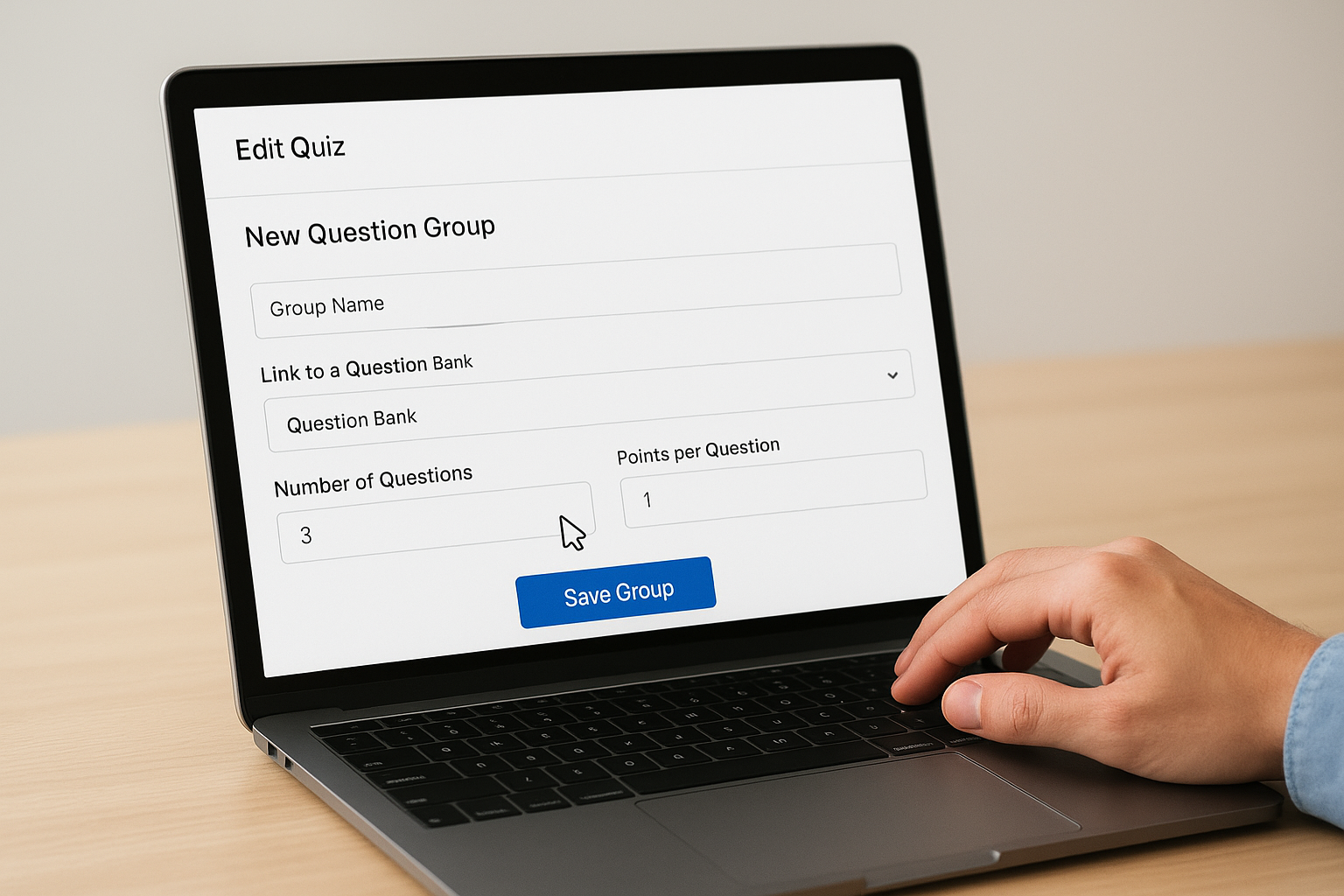
- Click "New Question Group" inside the quiz editor.
- Enter a group name that matches the topic or module.
- Click "Link to a Question Bank" and choose your bank.
- Set the number of questions to pick and the points per question.
- Click "Save Group."
Set the pull count and point values
Once the group links to your bank, enter how many questions Canvas should pull per attempt and assign a point value to each. If your bank has 20 questions and you pull 10, every student gets a unique, randomized subset each time they take the quiz.
Keep point values consistent across all questions in a bank so scoring stays fair regardless of which questions a student receives.
Step 4. Reuse banks across courses and avoid pitfalls
Once you’ve built a solid canvas question bank, you don’t have to rebuild it for every course. Canvas lets you copy banks between courses, which saves significant time when you run the same training content across multiple sections or terms.
Copy banks to other courses
The most reliable way to transfer a question bank is to use Canvas’s built-in course import tool. Copy the source course into the destination course, and Canvas carries all banks over intact. For a targeted transfer, follow these steps:
- Go to Settings in the destination course.
- Click "Import Course Content."
- Select the source course and choose "Question Banks" from the content options.
- Run the import and verify the bank in Manage Question Banks.
Check the question count in the imported bank before linking it to any quiz; imports occasionally drop questions if the original bank had formatting issues.
Common pitfalls to avoid
Watch for these issues that break randomization or scoring in your active quizzes:
- Bank too small: Pulling 10 questions from a bank of 10 gives no randomization.
- Deleted questions: Removing questions mid-term silently reduces the pull count below what your quiz expects.
- Duplicate banks: Naming banks inconsistently creates confusion when you link question groups across multiple quizzes.
Wrap-up and next steps
Building a reliable canvas question bank system takes upfront work, but it pays off every time you run a quiz. You’ve now covered how to create and name banks, add and maintain questions, link banks to randomized question groups, and reuse banks across multiple courses without rebuilding from scratch. Keep your banks deep and your naming consistent, and the randomization will work exactly as intended.
If your organization runs compliance training, employee onboarding, or product certification programs, Canvas may not give you the reporting depth or administrative controls you need at scale. Axis LMS is built specifically for corporate training, with advanced assessment tools, automated reporting, and learner tracking that go beyond what a classroom LMS offers.
Ready to find out which training platform fits your organization? Take the LMS readiness quiz to see where you stand in the buying process and what features matter most for your training goals.
