If you’re evaluating LMS platforms, mobile access is likely high on your checklist. The TalentLMS mobile app gives learners a way to access courses from their phones and tablets, and understanding what it actually offers, and where it falls short, matters before you commit. As an LMS provider ourselves (we build Axis LMS), we know how critical mobile functionality is to keeping learners engaged outside of a desktop environment.
This article breaks down the TalentLMS mobile app’s features, offline capabilities, and device requirements so you can make an informed decision. We’ll cover what the app does well, what limitations to watch for, and how it fits into day-to-day training workflows for both learners and administrators.
Whether you’re an HR manager vetting platforms, a training lead rolling out a new program, or simply trying to figure out if TalentLMS works on your team’s devices, you’ll find the specifics here. We’ve kept this straightforward: no fluff, just the practical details you need to move forward.
What the TalentLMS mobile app does
The TalentLMS mobile app is available on both iOS and Android, giving learners access to their training content through a dedicated app rather than a mobile browser. It mirrors much of the desktop experience, letting users view courses, complete assessments, and track their progress directly from a phone or tablet. The app connects to your TalentLMS account, so any activity you complete syncs back to the platform and appears in your reports.
Core learning features
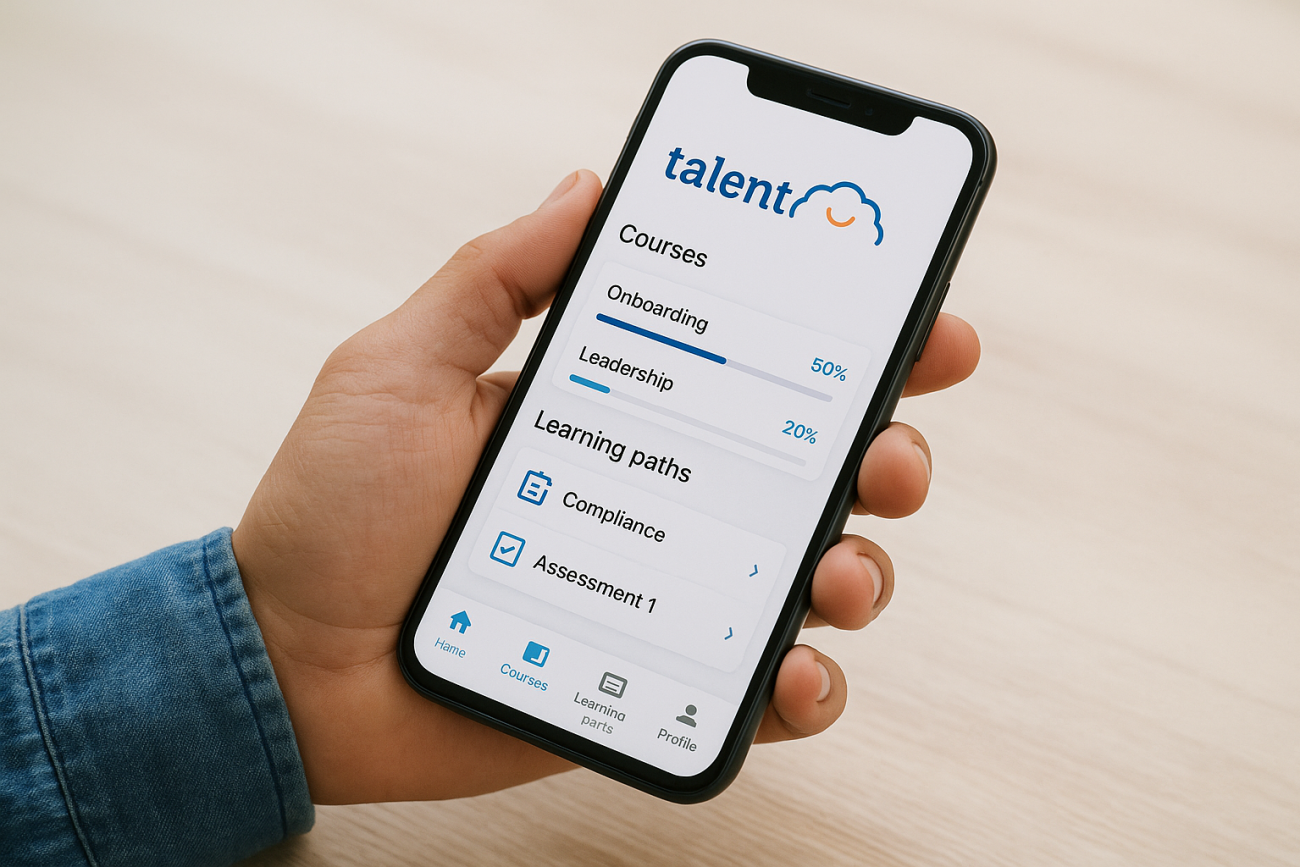
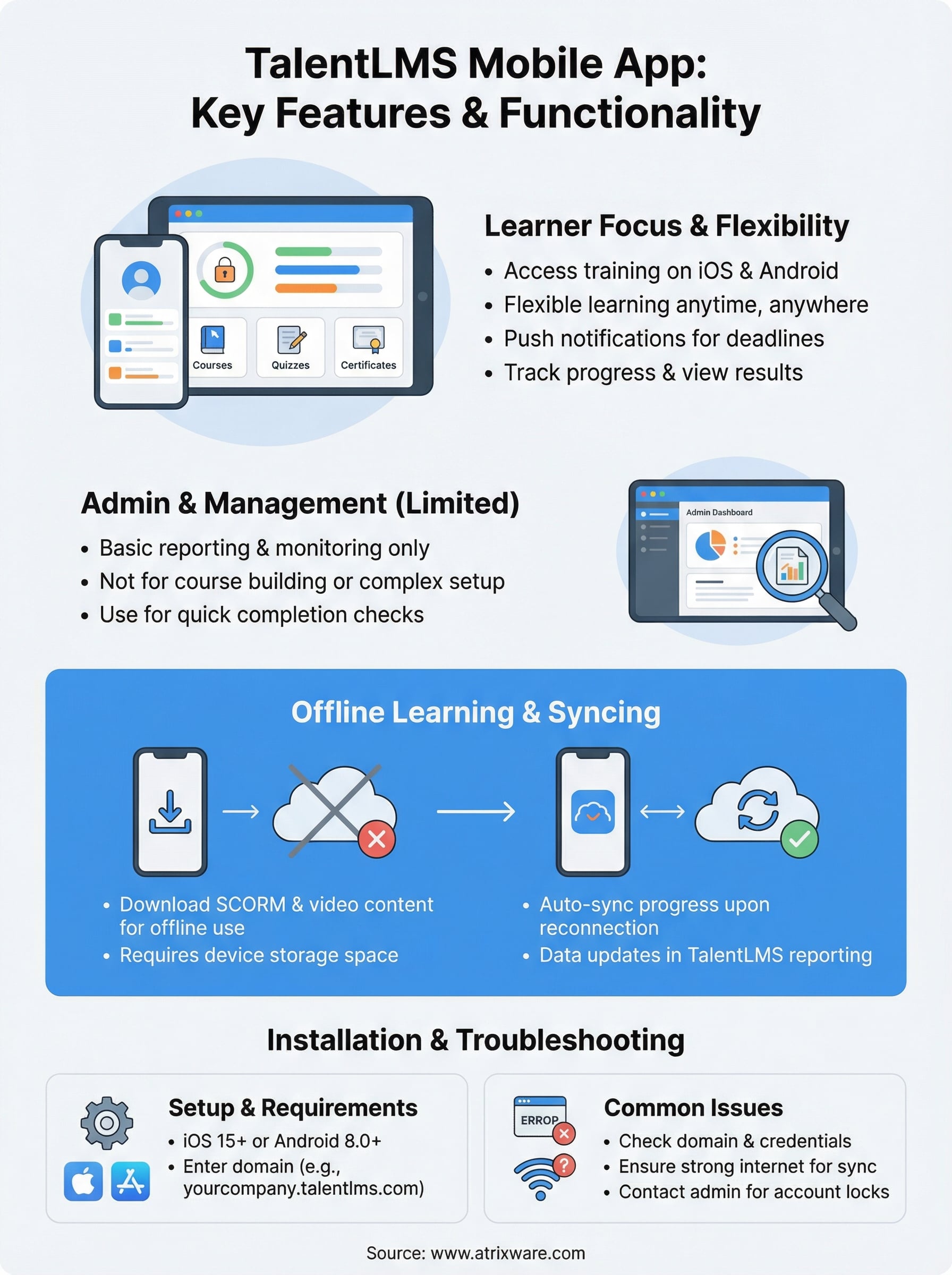
When a learner opens the app, they see their assigned courses and learning paths laid out in a familiar interface. They can launch SCORM content, watch video lessons, take quizzes, and receive completion certificates without switching to a desktop. The app also supports push notifications, which you can use to remind learners about upcoming deadlines or newly assigned courses.
Push notifications are one of the more practical tools in the app because they keep learners on track without requiring you to send manual reminders.
Here is a quick look at what learners can do inside the app:
- View and launch assigned courses
- Complete quizzes and assessments
- Download content for offline use
- Receive push notifications for deadlines
- Track their own progress and completion status
Admin and management capabilities
Administrators have a more limited experience on mobile compared to the full desktop dashboard. You can log in as an admin and access basic reporting, but most configuration tasks, such as building courses or setting up automation rules, still require a desktop. The app is built with learners as the primary user, so if you manage training day-to-day, you’ll find yourself switching to a browser for anything beyond checking completion data.
Some reporting views do load on mobile, giving you a quick read on completions without opening a laptop. That makes the app useful as a lightweight monitoring tool, even if it is not a full admin replacement.
Why teams use an LMS mobile app
Training rarely happens at a desk. Frontline workers, field teams, and remote employees often spend most of their day away from a computer, which makes mobile access a practical necessity rather than a bonus. The TalentLMS mobile app addresses this by giving learners a way to fit training into moments that would otherwise go unused, such as a lunch break or a commute.
Mobile learning works best when it meets learners where they already are, rather than requiring them to change their routine to complete a course.
Flexibility and completion rates
Learner flexibility has a direct impact on course completion. When you remove the requirement to sit at a desktop, you lower the barrier for learners to start and finish content. Teams that deploy mobile-accessible training consistently report higher engagement because learners can pick up where they left off on any device, at any time.
Common scenarios where mobile access makes a real difference:
- Sales reps completing product training between client calls
- Warehouse staff watching safety videos during shift changes
- Remote employees finishing compliance modules while traveling
Keeping training visible across your organization
Real-time progress syncing means your reports stay accurate regardless of which device your learners use. You get a complete picture of completion data without chasing people down for updates. Managers can also pull up basic completion figures from their own phones during a site visit, keeping training accountability visible without opening a laptop.
How to install and log in on iOS and Android
Getting the TalentLMS mobile app onto your device takes only a few minutes. You find it by searching "TalentLMS" in the Apple App Store or Google Play Store, depending on your device. Download it, open it, and you’re ready to log in.
iOS requirements and setup
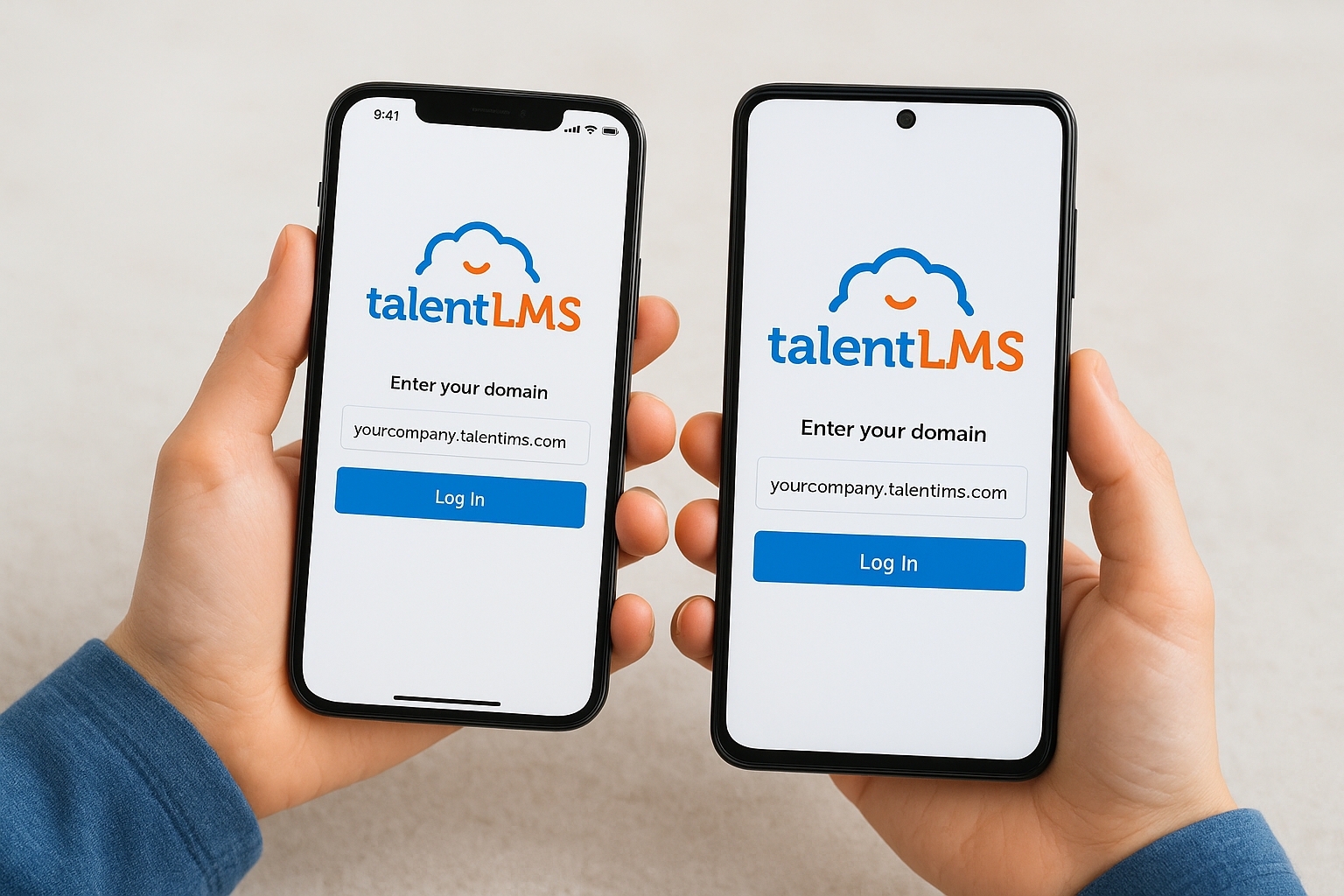
Apple devices running iOS 15 or later support the app. If your iPhone or iPad runs an older version, update it through Settings > General > Software Update before downloading. Once installed, tap the app, enter your TalentLMS domain, then your username and password to log in.
Your domain is the unique URL your organization uses to access TalentLMS, such as "yourcompany.talentlms.com."
Android requirements and setup
Android users need Android 8.0 (Oreo) or later to run the app without issues. Check your version under Settings > About Phone if you’re unsure which version your device runs. Once confirmed, install the app from Google Play, open it, enter your domain, and log in with your credentials.
Here are the steps that apply to both platforms:
- Search for "TalentLMS" in your device’s app store
- Download and install the app
- Enter your organization’s TalentLMS domain
- Log in with your username and password
How offline learning and syncing works
The talentlms mobile app includes an offline mode that lets learners download course content before losing internet access. This is particularly useful for field workers or travelers who need to complete training in areas with poor connectivity. Not all content types download equally well, so understanding what works offline saves you frustration later.
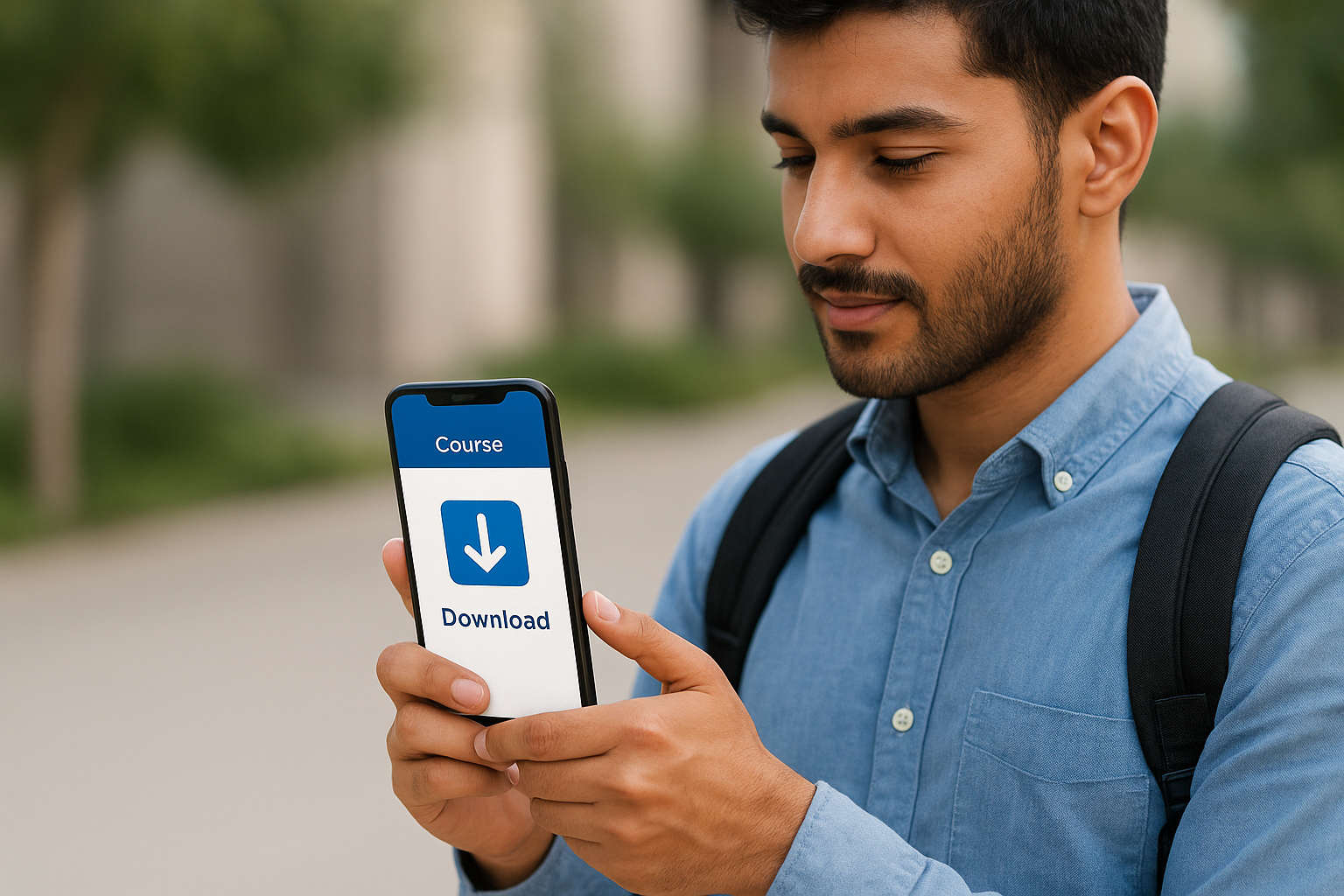
SCORM packages and video files generally download for offline use, but interactive content that requires a live server connection will not be available without internet access.
Downloading content for offline use
You trigger offline downloads manually inside the app. Navigate to a course or module, tap the download option, and the app saves that content locally on your device. Keep in mind that storage space on your device limits how much you can download at once, so learners with older phones may need to manage what they keep downloaded versus what they remove after completing.
How syncing works when you reconnect
Once your device reconnects to the internet, the app automatically pushes your completed activity back to the TalentLMS server. You do not need to manually trigger a sync. Your quiz scores, completion status, and progress data all update in the platform’s reporting system at that point, so administrators see accurate records as soon as the learner goes back online.
Troubleshooting and common questions
Most issues with the talentlms mobile app trace back to a small set of causes: an outdated app version, an incorrect domain entry, or a weak internet connection during sync. Checking these three things first resolves the majority of problems learners report.
If an issue persists after basic troubleshooting, contacting your TalentLMS administrator is faster than going directly to support, since many access issues are account-level settings.
When the app won’t log you in
Login failures almost always come from one of two sources: a mistyped domain or expired credentials. Double-check that you’re entering your organization’s full domain exactly as given, including any subdomains. If your credentials are correct and the login still fails, your account may be inactive or locked at the admin level. Ask your training administrator to verify your account status before reinstalling the app.
- Confirm your domain format: "yourcompany.talentlms.com"
- Reset your password through the web portal, not the app
- Check that your account is active in the admin dashboard
Content not loading or syncing
Videos or SCORM modules that stall mid-load usually point to a bandwidth issue rather than an app bug. Switch to a stronger Wi-Fi connection and relaunch the course. If offline content fails to sync after reconnecting, close the app completely and reopen it to force the sync process to restart.
Next steps for mobile learning
The talentlms mobile app gives learners a practical way to access training outside of a desktop environment, but mobile access is just one factor in a larger decision. Before settling on a platform, you need to confirm that its core features, reporting tools, and integration capabilities match how your organization actually delivers training.
Comparing LMS platforms on paper only gets you so far. Hands-on testing reveals things that feature lists do not, such as how quickly you can build a course, how reporting performs on mobile, and whether the learner experience feels smooth across devices. Taking that step now saves you from discovering gaps after you have already migrated your content.
Start by identifying where your organization stands in the evaluation process with our LMS readiness quiz. If you are ready to see a platform in action, sign up for an Axis LMS admin demo and evaluate the full feature set yourself.
