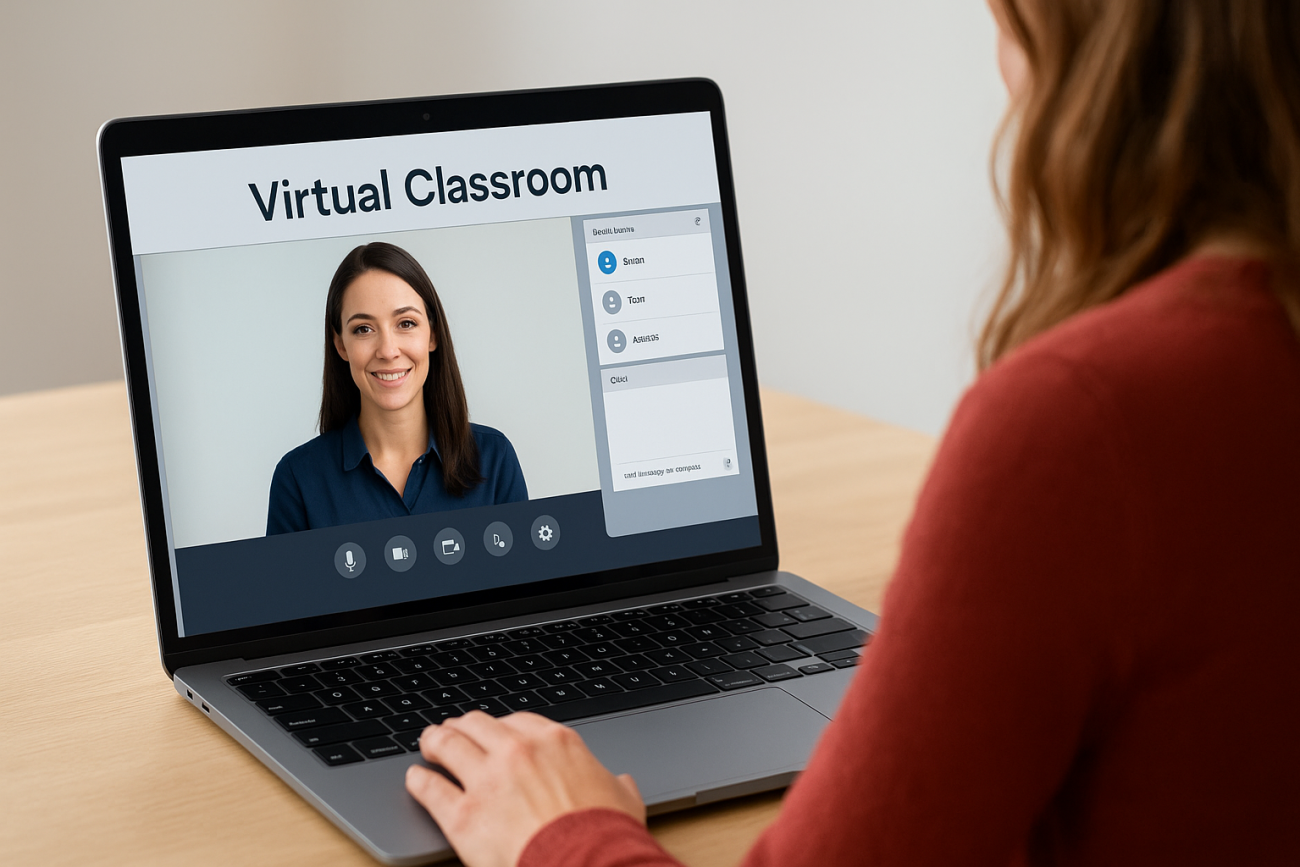
Blackboard Collaborate virtual classroom, now rebranded as Class Collaborate, is a real-time web conferencing tool built into the Blackboard Learn platform. It lets instructors and participants connect through live video, audio, screen sharing, and interactive whiteboards. If you’re trying to figure out how to log in, set up a session, or troubleshoot access issues, you’re in the right place.
Whether your organization currently uses Blackboard Collaborate or is evaluating virtual classroom options, understanding how the tool works is a practical first step. At Atrixware, we build Axis LMS, a scalable learning management system designed for businesses that need reliable online and virtual training delivery. We know firsthand that choosing and configuring the right tools can make or break a training program, so we put together this guide to help you get up and running quickly.
Below, you’ll find step-by-step instructions for accessing Blackboard Collaborate, launching your first session, adjusting key settings, and resolving common login problems. Let’s get straight to it.
What to know before you start
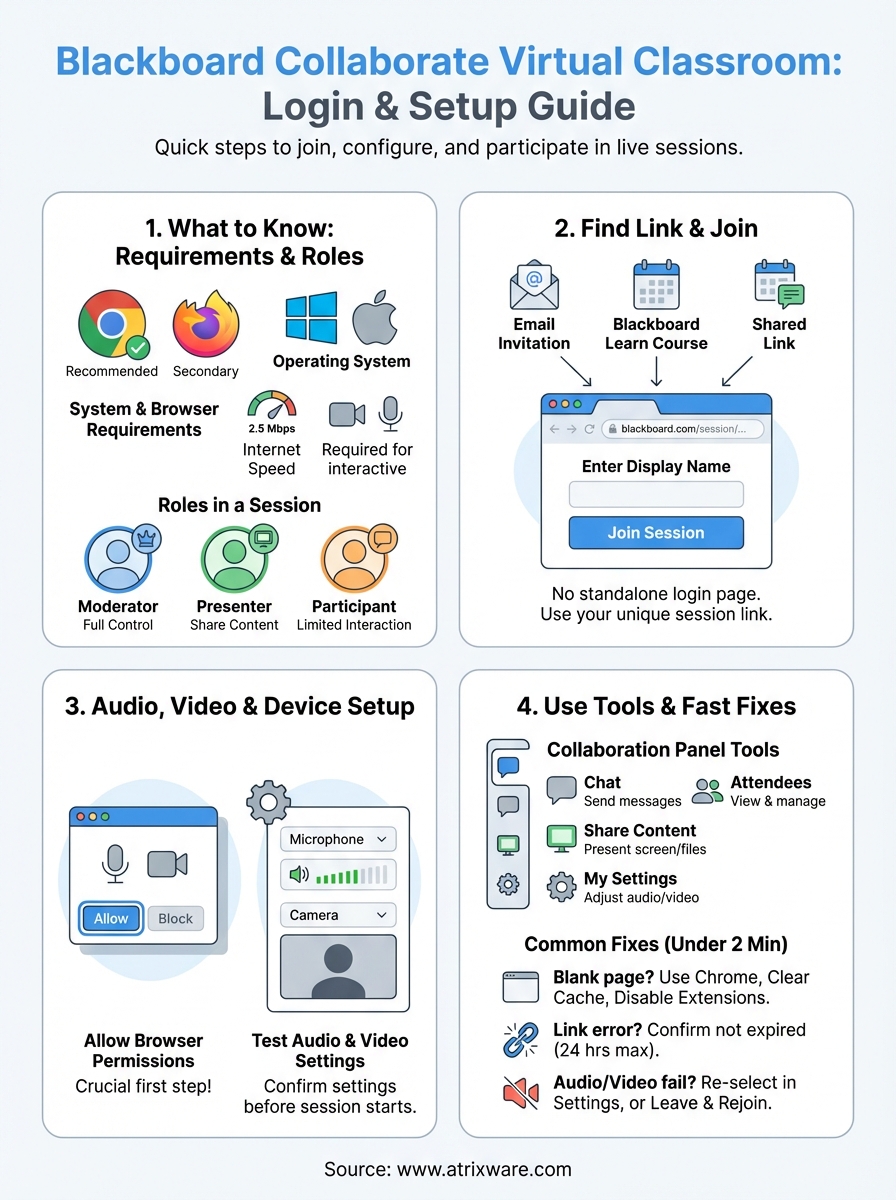
Before you try to access the Blackboard Collaborate virtual classroom, a few setup details can save you significant time. Blackboard Collaborate runs entirely in a browser, which means there’s no desktop app to install, but it does require a compatible browser and the right permissions to work correctly.
System and browser requirements
Your device and browser need to meet a baseline set of requirements before you can join or host a session. Google Chrome is the recommended browser and delivers the most consistent experience. Firefox works as a secondary option, but Safari and Internet Explorer have known compatibility gaps that can block audio and video from loading.
If you’re on a work device, confirm with your IT team before the session that Chrome is allowed and that browser-level permissions for your microphone and camera are not blocked.
Here’s a quick reference for what you need:
| Requirement | Recommended |
|---|---|
| Browser | Google Chrome (latest version) |
| Operating System | Windows 10+, macOS 10.13+ |
| Internet speed | 2.5 Mbps download / 2.5 Mbps upload |
| Camera and microphone | Required for interactive sessions |
Roles in a session
Blackboard Collaborate assigns one of three roles to every person in a session: Moderator, Presenter, or Participant. Your role controls what tools you can access, including who can share their screen, manage attendees, or start and stop recordings.
Moderators hold full control over the session environment, while Participants have limited interaction by default. Your instructor or administrator assigns your role before or during the session, so you don’t need to configure it yourself.
Step 1. Find your login link and join a session
Your login link is the starting point for every session. In the Blackboard Collaborate virtual classroom, there is no standalone login page you navigate to on your own. You access sessions through a link your instructor, administrator, or Blackboard Learn course provides directly to you.
Where to find your session link
Your session link typically arrives through one of the channels below. Check each one before assuming your link is missing.
- Email invitation: Your instructor or admin sends a direct URL to your inbox
- Blackboard Learn course: Navigate to your course, find the "Collaborate" tool in the left menu, and select the scheduled session
- Shared link: Your training administrator pastes the link into a calendar invite, team chat, or notification
If none of these sources have your link, contact the session moderator directly rather than searching for a general login page – one does not exist for Blackboard Collaborate.
How to open and enter the session
Once you have your link, open Google Chrome and paste the URL into the address bar. The system will prompt you to enter your display name before you enter the room. Type your name as you want it to appear to other participants, then click "Join Session."
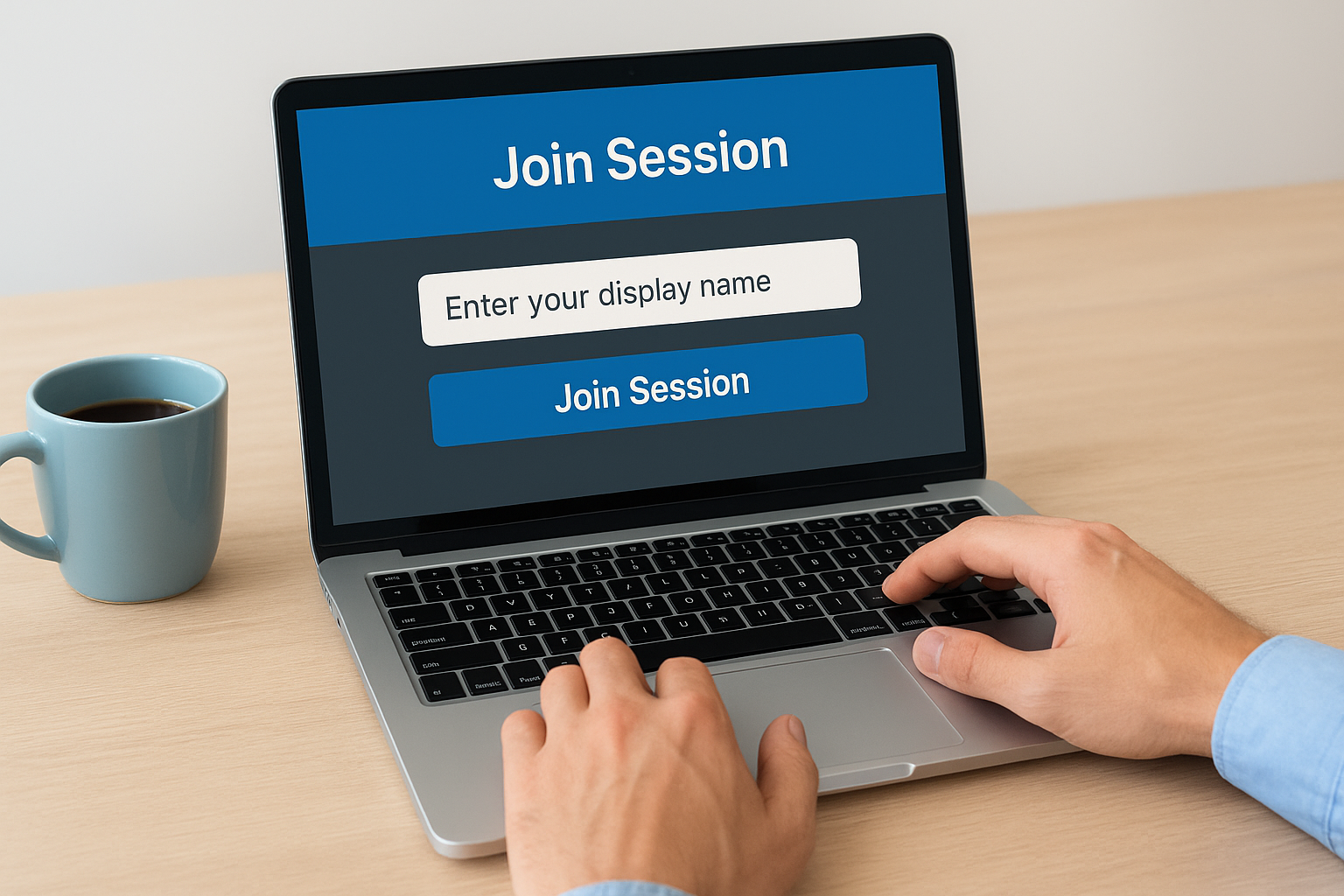
The browser loads the session interface within a few seconds. If the session has not started yet, you’ll see a waiting screen with a message that the moderator will open the room soon.
Step 2. Set up audio, video, and your device
Once you’re inside the session, the Blackboard Collaborate virtual classroom prompts you to configure your audio and video. Getting these settings right before the session starts saves you from scrambling once the moderator opens the room.
Allow browser permissions
Your browser needs explicit permission to access your microphone and camera before anything else works. When the permission prompt appears in the top-left corner of Chrome, click "Allow." If you accidentally clicked "Block," open Chrome Settings, go to Privacy and Security, then Site Settings, and update the camera and microphone permissions for the Collaborate URL.
Blocked browser permissions are the most common reason audio and video fail to load entirely in a virtual classroom session.
Test your audio and video
After granting permissions, open the built-in settings panel by clicking the gear icon in the bottom-right corner of the session screen. From there, select your correct microphone and camera from the dropdown menus. Speak aloud to confirm the audio meter moves in response to your voice. If your microphone does not appear in the list, unplug and reconnect it, then refresh the page. Your camera preview displays on the right side of the settings panel so you can confirm the video feed loads correctly before anyone else can see you.
Step 3. Use the virtual classroom tools confidently
The Blackboard Collaborate virtual classroom gives you a set of interactive tools along the right side of the session screen. Understanding what each tool does before you need it prevents fumbling during a live session.
The collaboration panel
Your collaboration panel contains four tabs: Chat, Attendees, Share Content, and My Settings. Chat lets you send messages to everyone or privately to a specific participant, while the Attendees tab shows who is in the room and lets moderators adjust roles mid-session.
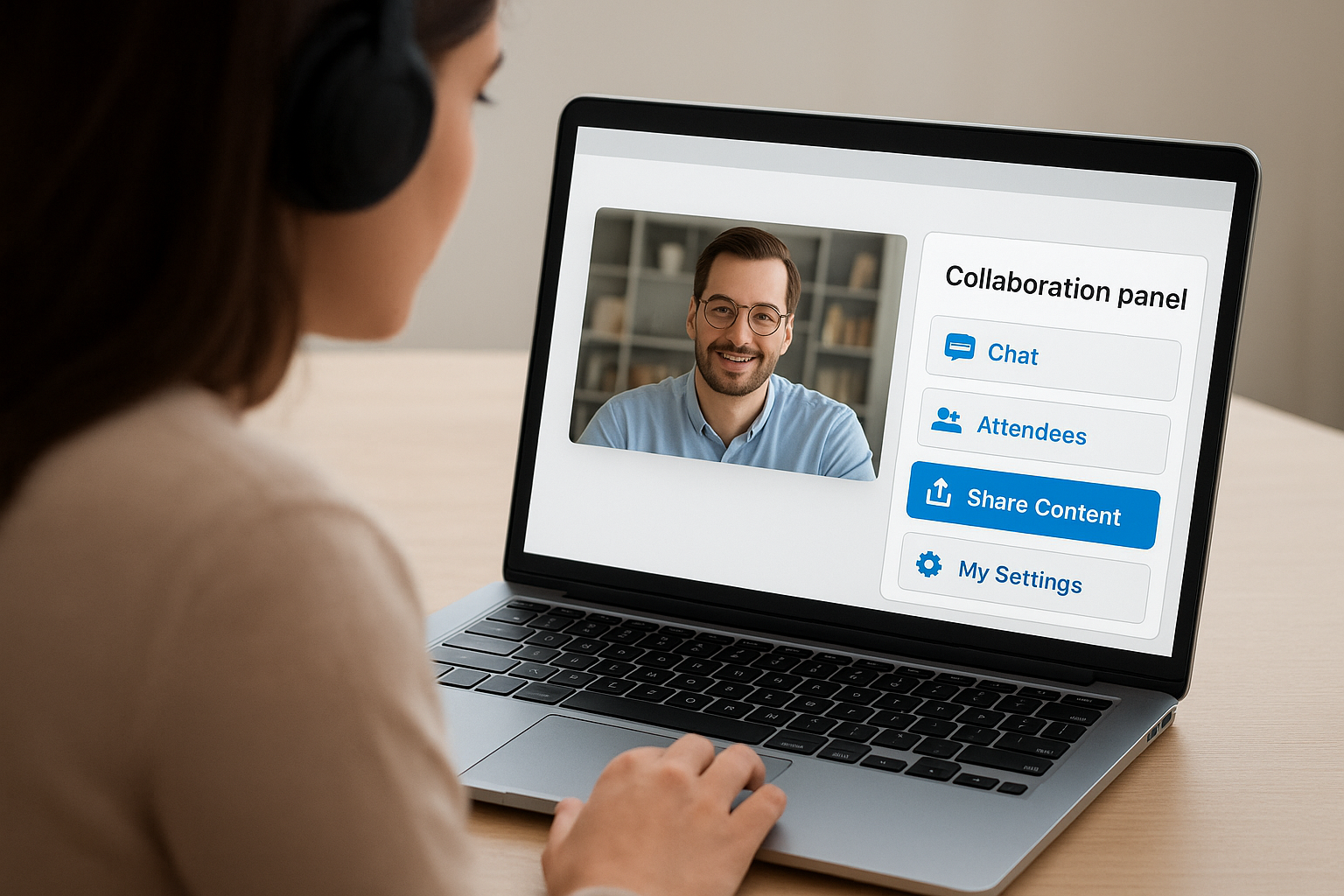
Use the "raise hand" button in the Attendees tab to signal the moderator without interrupting the session audio.
| Tab | Primary Function |
|---|---|
| Chat | Send public or private messages |
| Attendees | View participants and manage roles |
| Share Content | Present screens, files, or whiteboards |
| My Settings | Adjust audio, video, and notifications |
Share your screen or content
Open the Share Content tab to present your screen, a whiteboard, or an uploaded file. Follow these steps to begin sharing:
- Click "Share Application/Screen"
- Choose the specific window you want to display
- Click "Share" to go live
- Click the red "Stop" button at the bottom when finished
Upload slides directly through the Share Content panel and Collaborate converts them automatically, so participants see your content without downloading anything.
Fix common login and connection problems fast
Most problems in the Blackboard Collaborate virtual classroom trace back to a small set of causes: wrong browser, blocked permissions, or a stale session link. Running through a quick checklist before calling IT support resolves the majority of issues in under two minutes.
Login and access errors
If your session link opens a blank page or returns an error, try these fixes in order:
- Open the link in Google Chrome (not Safari or Edge)
- Clear Chrome’s cache by pressing Ctrl+Shift+Delete, selecting "All time," and checking "Cached images and files"
- Disable browser extensions by opening an Incognito window and retrying the link
- Confirm the link has not expired by checking with your session moderator
A link shared more than 24 hours before a session sometimes requires a refreshed URL from the course administrator.
Audio and video failures
When your microphone or camera stops working mid-session, the fastest fix is to open My Settings from the collaboration panel and reselect your input devices from the dropdown menus. If that does not restore audio, leave the session and rejoin using the same link, then allow browser permissions again when prompted.
Next steps
You now have everything you need to log in, configure your settings, and run a live session in the Blackboard Collaborate virtual classroom without running into avoidable problems. The biggest takeaways: always use Chrome, allow browser permissions before the session starts, and keep your session link handy from the original source.
If your organization is weighing whether Blackboard Collaborate meets your full training needs, it is worth looking at what a dedicated LMS can offer. Tools like Axis LMS combine virtual classroom delivery with course building, automated reporting, compliance tracking, and integrations with the systems your team already uses, all in one platform.
Not sure whether an LMS is the right next move for your training program? Take the LMS readiness quiz to find out exactly where you stand and what to consider before making a decision.
