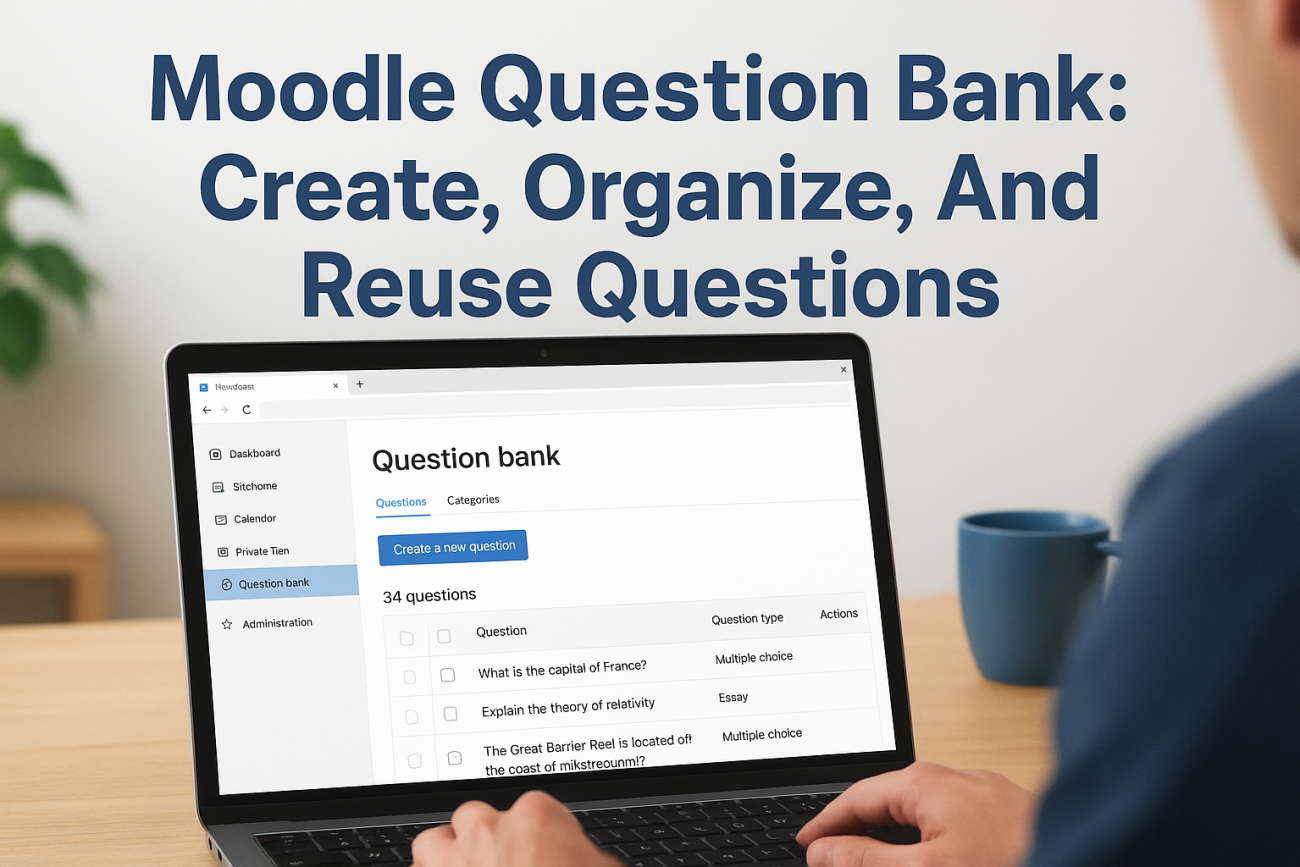
If you’re building quizzes and assessments in Moodle, the Moodle question bank is one of the most useful tools at your disposal. It lets you create, categorize, and reuse questions across multiple courses, saving hours of repetitive work and keeping your assessments consistent. But getting started with it isn’t always straightforward, especially when you’re dealing with categories, imports, and sharing questions between courses.
This guide walks you through the entire process: creating questions, organizing them into categories, importing from external sources, and reusing them wherever you need. Whether you’re managing compliance training or onboarding assessments, having a well-structured question bank makes everything easier. And if you’re evaluating whether Moodle’s approach fits your needs long-term, it’s worth knowing that platforms like Axis LMS from Atrixware offer built-in assessment tools designed specifically for business and corporate training environments, often with less setup overhead.
Let’s get into it.
What the Moodle question bank does
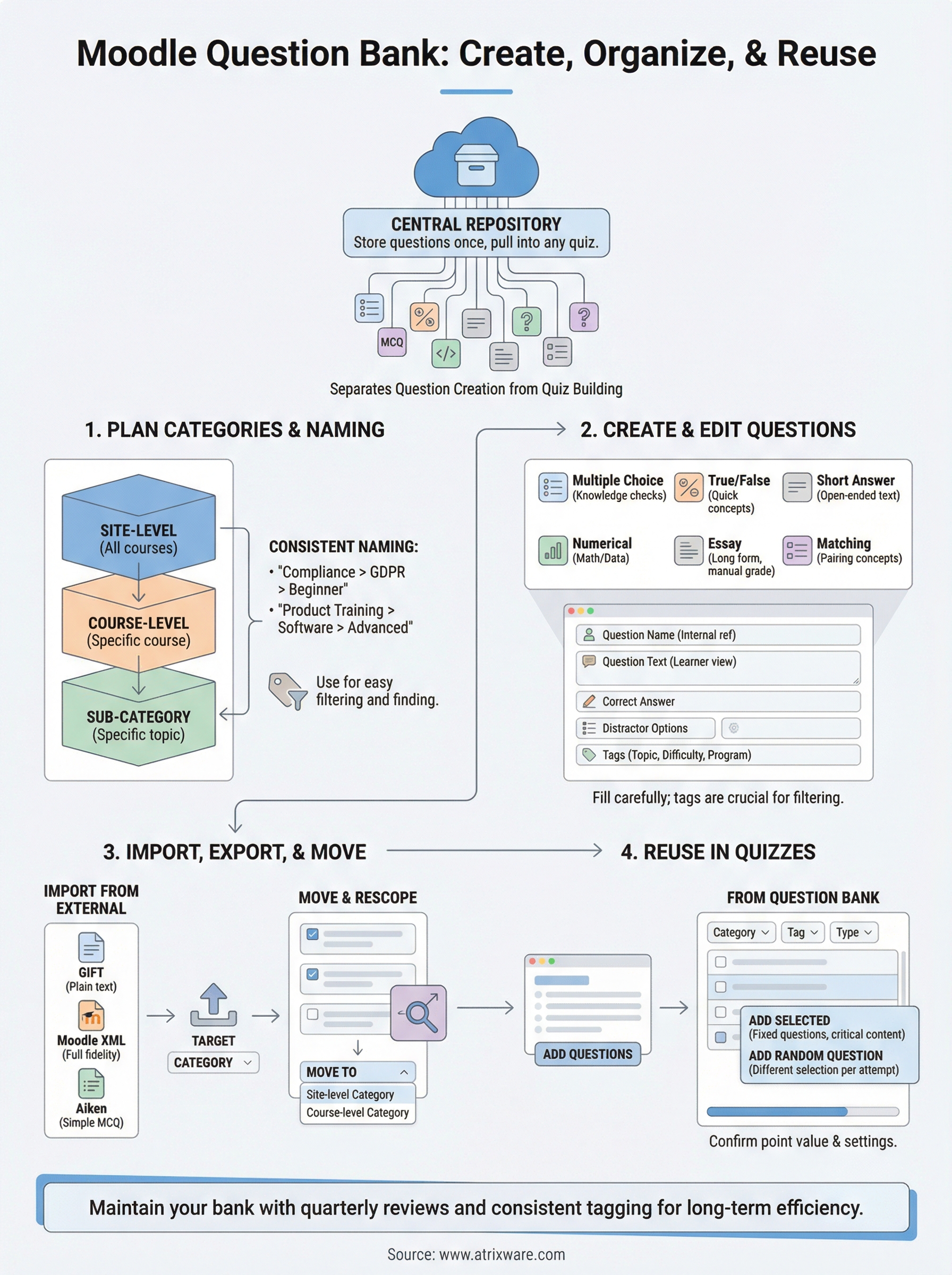
The Moodle question bank is a central repository where you store all quiz questions for a course or your entire Moodle instance. Instead of rebuilding questions every time you create a new quiz, you write them once, store them in the bank, and pull them into any quiz you need. This separation between question creation and quiz building is what makes large-scale assessment management practical.
Where questions live in Moodle
Questions in Moodle don’t float freely. They always belong to a category, and categories can be scoped to a specific course, a course category, or the entire site. This scoping controls who can access and reuse those questions. A question in a site-level category is available to any course on your Moodle instance, while a question scoped to a single course stays private to that course.
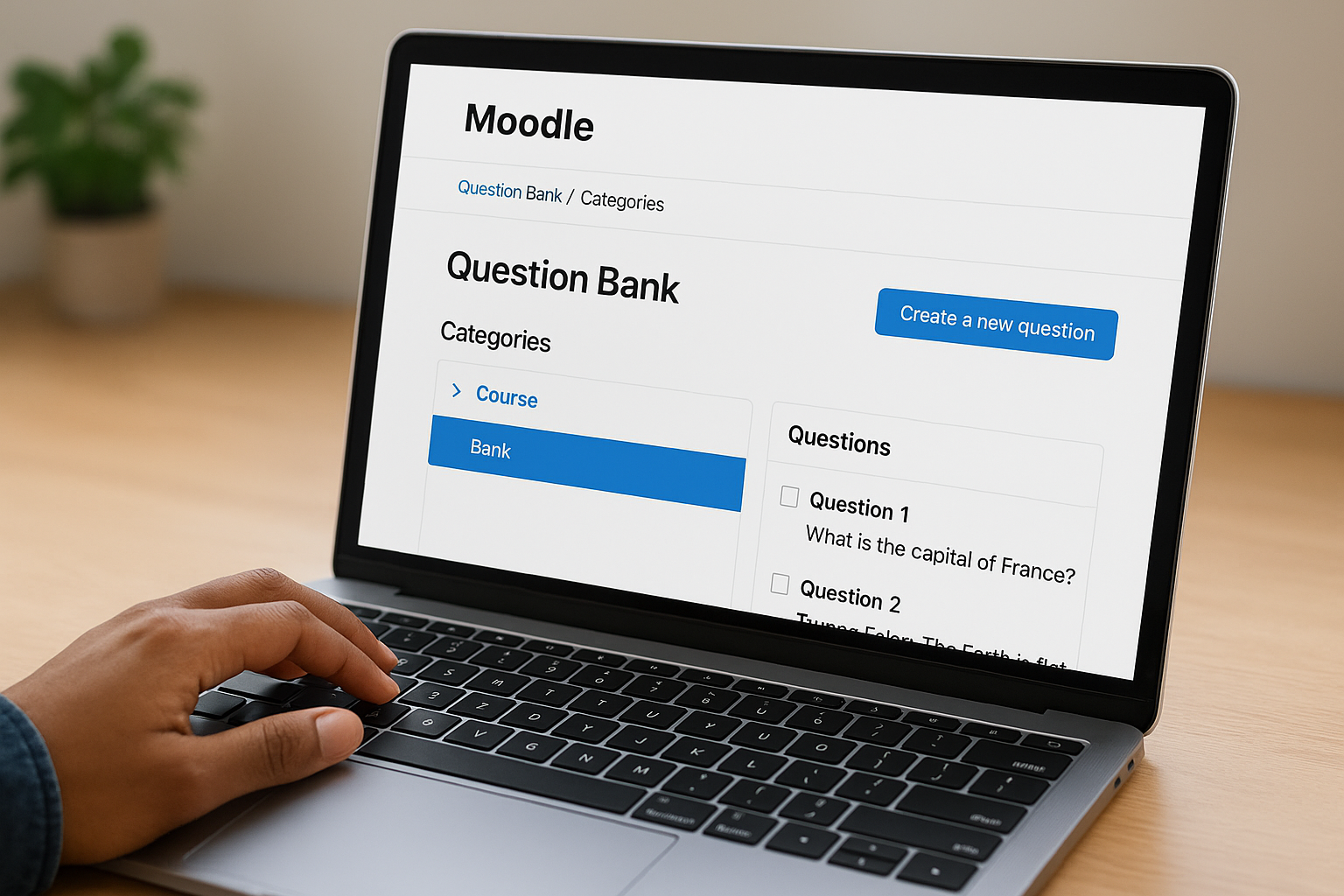
The scope you assign to a category determines whether other instructors and courses can access those questions, so plan your category structure before you start adding content.
Question types available
Moodle supports a wide range of question types, giving you real flexibility in how you assess learners. Each type serves a different purpose, and knowing your options upfront helps you build a more useful bank from the start:
| Question Type | Best Used For |
|---|---|
| Multiple choice | Knowledge checks with one or more correct answers |
| True/False | Quick conceptual checks |
| Short answer | Open-ended text responses |
| Numerical | Math or data-based assessments |
| Essay | Long-form written responses (manually graded) |
| Matching | Pairing concepts or definitions |
Every type has its own settings for partial credit, feedback, and scoring, which you configure at the question level inside the bank itself.
Step 1. Plan categories and naming
Before you create a single question, spend time mapping out your category structure. A poorly organized moodle question bank becomes a maintenance problem fast, especially as your question library grows across multiple courses and training programs.
Your category names should tell anyone reading them exactly what’s inside, without needing to open the category to find out.
Use a consistent naming convention
Clear, consistent names save time when you’re pulling questions into a quiz later. A good pattern is to combine the topic, subtopic, and difficulty level in each category name. For example:
Compliance > GDPR > BeginnerOnboarding > Company Policy > IntermediateProduct Training > Software Setup > Advanced
This naming structure lets you filter and find questions quickly, and it scales as you add more content.
Match category scope to your access needs
Decide early whether a category should live at the course level, category level, or site level. If multiple instructors or courses need access to the same questions, set the category at the site level from the start. Moving questions between scopes later is possible but adds unnecessary work when you could have defined the right scope upfront. Scoping decisions also affect who can edit or delete questions, so think about permissions and access control at the same time you decide on scope.
Step 2. Create and edit questions
Once your categories are set, you can start adding questions directly inside the Moodle question bank. To access it, go to your course, open the Question Bank from the course administration menu, and select "Questions." From there, click "Add a new question" and choose your question type from the list Moodle presents.
Fill in every field carefully the first time, including tags and feedback, because editing questions already used in quizzes can affect existing attempt data.
Set up the question fields correctly
Each question form includes several fields you need to complete for the question to work properly. At minimum, fill in the question name (used only for internal reference), the question text (what learners actually see), and the correct answer. For multiple choice questions, also add distractor options and set the grade weighting for each answer choice.
Adding tags directly on the question form is worth the extra minute. Tags let you filter questions by topic, difficulty, or training program when building quizzes later, which pays off significantly once your bank grows past a few dozen questions. Without tags, locating specific questions inside a large bank becomes slow and frustrating.
Step 3. Import, export, and move banks
The Moodle question bank supports bulk import and export, which lets you move large question sets between courses without recreating them manually. From the Question Bank screen, use the Import and Export options in the left-hand navigation under "Question Bank."
Import questions from external files
Moodle accepts several file formats for importing questions. Choose the format that matches your source file, select the target category, and upload the file. Moodle will parse the file and add the questions directly into that category.
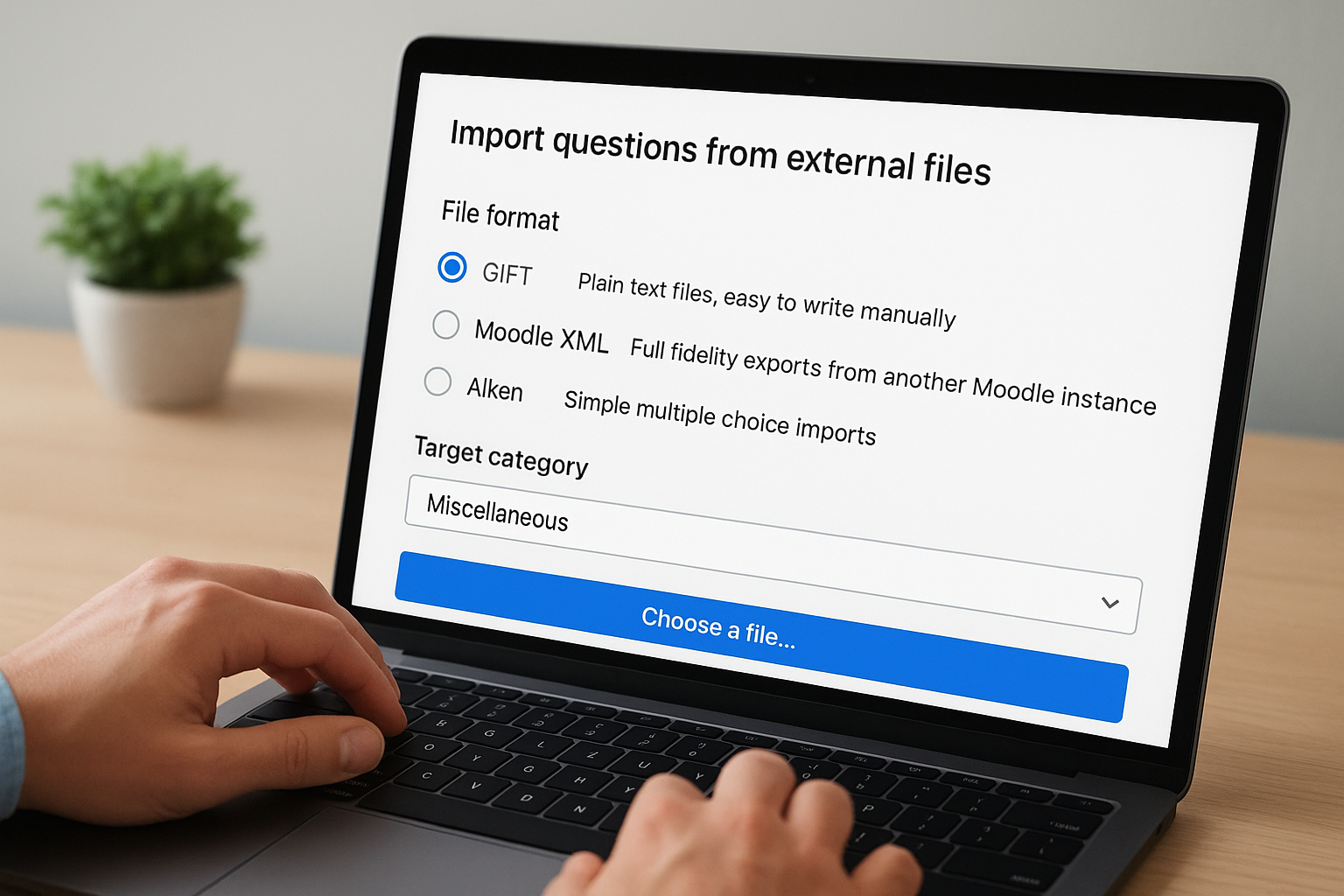
Always preview your imported questions immediately after upload to catch any formatting errors before learners encounter them in a quiz.
| Format | Best Used For |
|---|---|
| GIFT | Plain text files, easy to write manually |
| Moodle XML | Full fidelity exports from another Moodle instance |
| Aiken | Simple multiple choice imports |
Move questions between categories or courses
To move questions, open the Question Bank, check the questions you want to move, and use the "Move to" dropdown at the bottom of the list. Changing the category scope (for example, from course-level to site-level) makes those questions available to other courses immediately. If you’re reorganizing a large bank, move questions in batches by topic to avoid losing track of what has already been reassigned.
Step 4. Reuse questions in quizzes
Once your questions are in the moodle question bank, pulling them into a quiz is straightforward. Open the quiz you want to build, click Edit quiz, then select "Add" and choose "from question bank." Moodle shows a filtered list of questions from your available categories, which you can narrow by category, tag, or question type before selecting.
Confirm the point value for each question after you add it to the quiz, since the default grade may not match what you intended for that assessment.
Use random questions for better assessments
Random questions pull a different selection from a category each time a learner takes the quiz, which reduces the chance of answer sharing between participants. To add one, select "a random question" from the "Add" dropdown and pick the source category. Moodle then draws questions from that category automatically at quiz runtime.
Mixing fixed and random questions in the same quiz gives you tighter control over consistency. Use fixed questions for critical content, such as a specific compliance rule, and random questions for broader topic coverage. This approach keeps your core assessment requirements covered while varying the experience for each learner.
Keep your question bank manageable
A well-maintained moodle question bank saves time long-term, but only if you treat it as an ongoing responsibility rather than a one-time setup. Schedule a quarterly review to retire outdated questions, fix broken formatting, and confirm that your category names still reflect your current training structure. Questions that no longer align with your content create confusion for other instructors and slow down quiz building.
Tag every question before you add it to any quiz, and enforce that habit across your team if multiple people manage the bank. Consistent tagging keeps filtering fast and prevents duplicate questions from piling up over time. If you find yourself spending too much time maintaining your question bank instead of building effective training, it may be worth evaluating a platform designed for corporate training from the ground up. Take the LMS readiness quiz to see where you stand.
