Gamification turns passive course completion into something learners actually want to do. Badges, points, leaderboards, and rewards tap into natural motivation, and when done right, they boost engagement and knowledge retention across your training programs. Docebo gamification is one of the more talked-about implementations in the LMS space, offering a dedicated app within its platform that lets admins configure points, badges, and contests to reward learner behavior.
But setting it up isn’t always straightforward. Between activating the gamification app, defining point rules, designing badges, and connecting rewards to meaningful learning outcomes, there are several moving parts that need to work together. Getting the configuration wrong can lead to superficial engagement, learners chasing points without actually absorbing the material, which defeats the entire purpose of building a training program that sticks.
This guide walks through how Docebo’s gamification features work, step by step, from initial activation to advanced reward strategies. Whether you’re evaluating Docebo or comparing it against platforms like Axis LMS from Atrixware, which offers its own approach to learner engagement and training automation, you’ll walk away with a clear picture of what’s involved in making gamification work for your organization.
What Docebo gamification can do for training
Docebo gamification operates through a dedicated app inside the Docebo platform that you activate separately from your core LMS settings. Once enabled, it gives administrators control over point systems, badge logic, leaderboards, and reward catalogs that connect directly to learner actions inside the platform. Rather than treating engagement as an afterthought, Docebo built gamification as a structured layer that responds to specific training behaviors, from completing a course to passing a test to contributing to a discussion forum.
The core engagement mechanics
The system works by assigning point values to defined learner actions and displaying progress in ways that motivate learners to keep going. You configure rules so that learners earn points for things like logging in, finishing a course, or scoring above a threshold on an assessment. Those points feed into leaderboards, and badges get awarded automatically when learners hit specific milestones or complete defined training sequences.
Here is a quick breakdown of the main mechanics available:
| Mechanic | What it does | Admin control level |
|---|---|---|
| Points | Earned through defined learner actions | Fully configurable per action |
| Badges | Awarded for milestones or completions | Custom images and trigger rules |
| Leaderboards | Ranks learners by points within a group | Scoped by branch or group |
| Contests | Time-limited competitions for rewards | Set duration, rules, and prizes |
| Reward catalog | Learners redeem points for tangible items | Managed through the rewards module |
How points and badges connect to learning behavior
The value of this system goes beyond making training feel like a game. When you tie point rules to meaningful actions, such as completing a compliance module or achieving a minimum quiz score, rather than passive ones like simply logging in, you steer learners toward behaviors that actually produce outcomes. Badges reinforce those wins visually, giving learners a record of their accomplishments they can reference over time.
Gamification only works when the behaviors you reward are the behaviors you actually want learners to repeat.
Your badge design choices matter more than most admins realize. A badge tied to "completed onboarding" communicates completion. A badge tied to "scored 90% or higher on product knowledge" communicates mastery. That distinction shapes how learners interpret the recognition they receive and whether they treat it as meaningful or just cosmetic.
Where gamification actually moves the needle
Gamification produces the most measurable results in programs where learner participation is voluntary or self-paced, like extended onboarding tracks, product knowledge libraries, or sales enablement content. In those contexts, points and leaderboards give learners a reason to return to the platform without a manager prompting them every week.
For compliance or mandatory training, the mechanics still help, but the effect shows up differently. Learners complete required content faster and with fewer reminders when there is a visible progress indicator and a small reward tied to finishing the required sequence.
Step 1. Activate the Gamification app and set rules
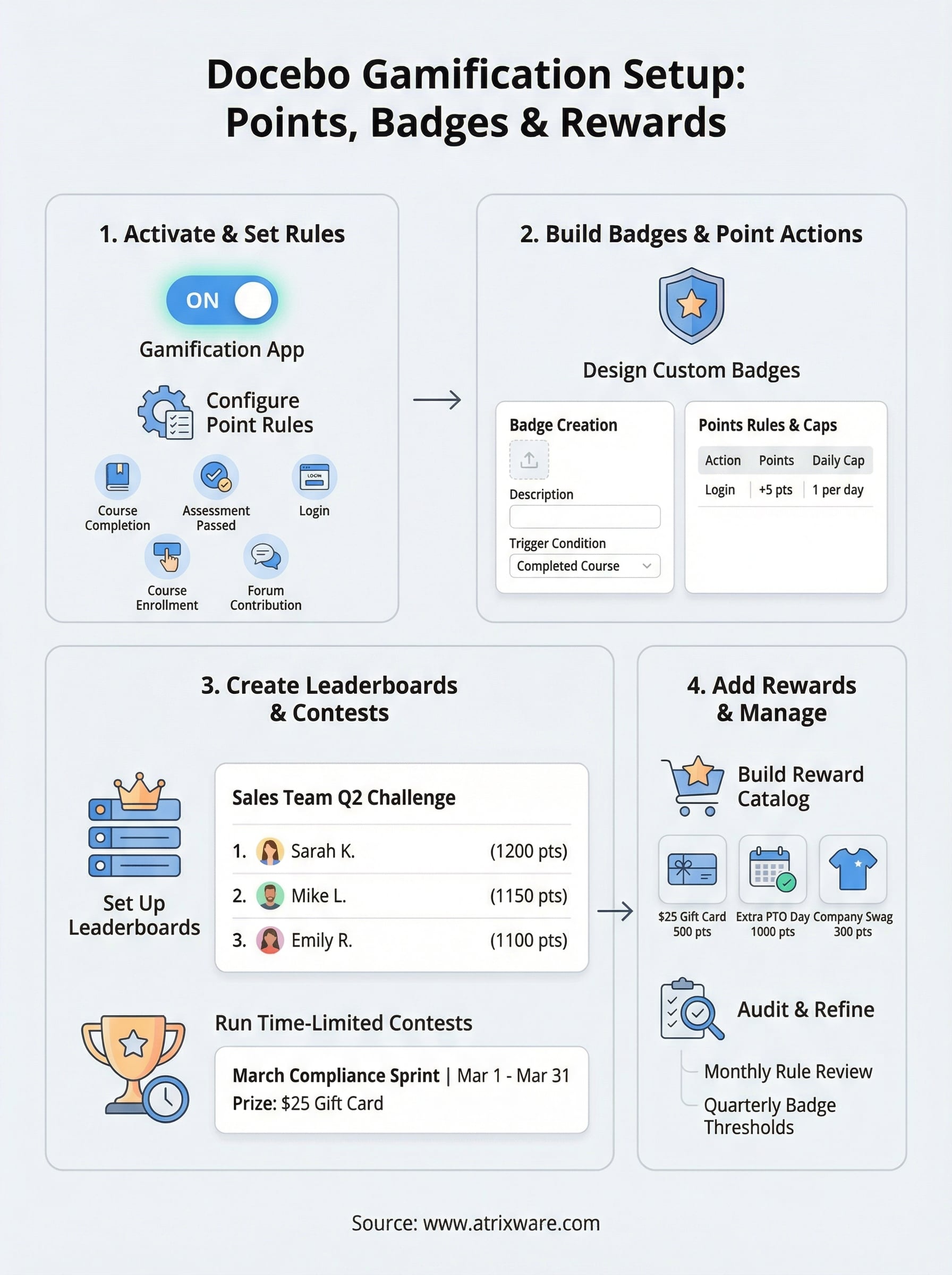
Before any badges or leaderboards appear in your platform, you need to activate the Gamification app from within your Docebo admin panel. The feature does not run by default, so this is your true starting point. Once activated, you will have access to the full rule configuration interface where you define which learner actions earn points and how much each action is worth.
Find and enable the Gamification app
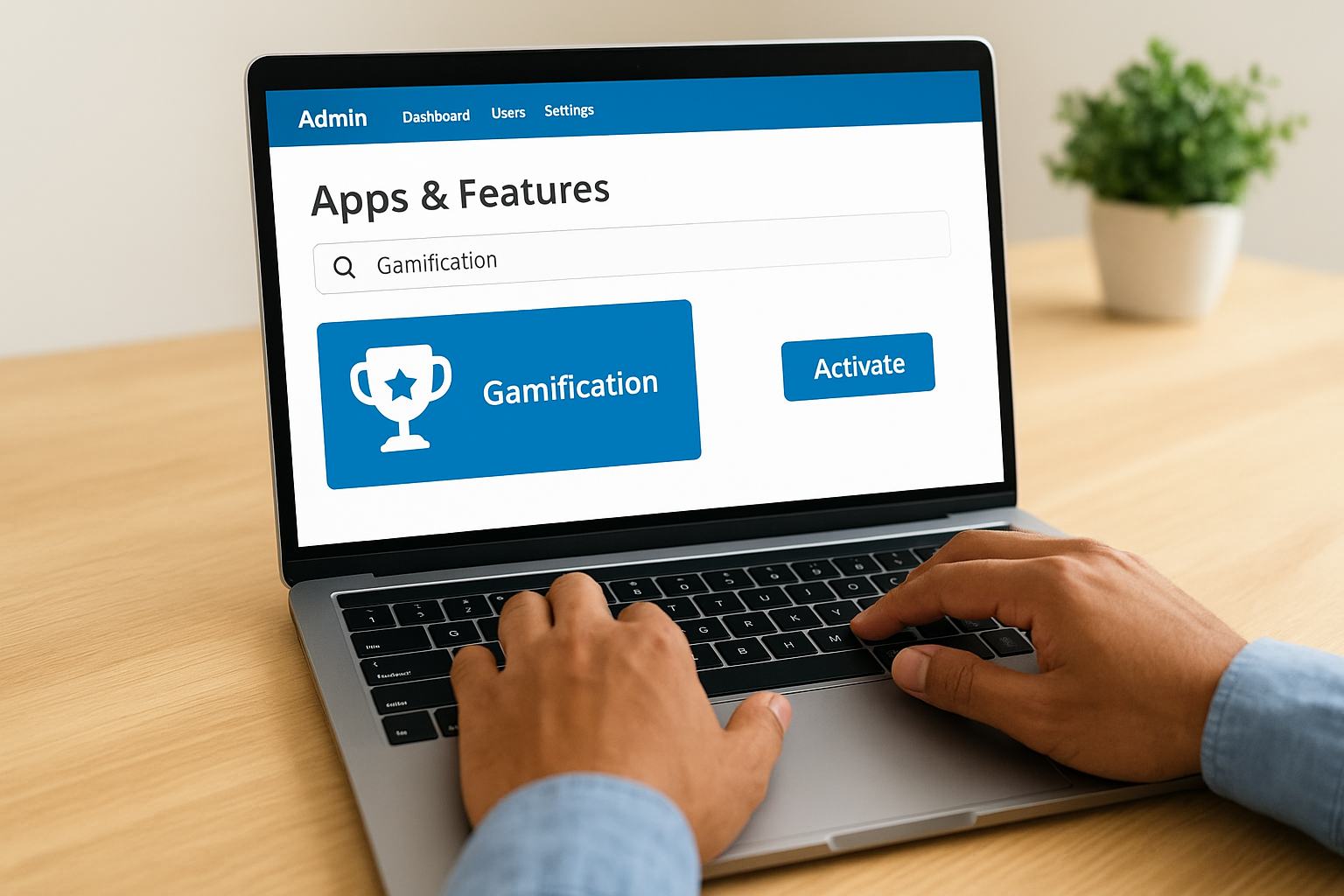
Log in as a Superadmin and navigate to the Admin Menu, then select "Apps & Features." Inside the app library, search for "Gamification" and click Activate. Docebo will prompt you to confirm the activation, and the Gamification section will then appear in your admin sidebar. From there, you can open the settings panel and begin configuring the system for your training environment.
Activate the app in a sandbox or test environment first if you have one, so you can verify your rule logic before learners see it.
Configure your point rules
With the app active, open the Points Rules section inside Gamification settings. This is where you map specific learner actions to point values. Each rule has a trigger (the action), a point value, and an optional daily cap that prevents learners from gaming the system by repeating the same low-effort action.
Here are the most commonly used rule triggers you should configure from the start:
- Course completion: Award points when a learner finishes a course and meets your minimum score threshold
- Assessment passed: Assign higher points for passing a test above a set score, such as 80% or higher
- Login: Award a small daily login bonus to encourage consistent platform visits
- Course enrollment: Give a small point bump when a learner self-enrolls in optional training
- Forum contribution: Reward posts or replies in discussion boards to build collaborative habits
Keep your Docebo gamification point values proportional to the effort required. A course completion should always award significantly more points than a daily login, or learners will optimize for the wrong behaviors.
Step 2. Build badges and point actions
With your rules active, the next step is designing badges that carry actual meaning and fine-tuning the point actions that trigger them. Docebo gamification lets you upload custom badge images and set the exact conditions that award them, so you have full control over what learners see when they reach a milestone. This is where your engagement strategy moves from configuration into something learners will interact with every day.
Design your badges with purpose
You access badge creation through the Gamification section in your admin panel by selecting "Badges" and clicking "New Badge." Upload a custom image in PNG format, write a short description that explains what the badge recognizes, and then define the trigger conditions. A badge can fire based on a specific point threshold, a completed course or learning plan, or a combination of criteria you set manually.
Badge descriptions should tell learners exactly what they did to earn it, not just that they earned it.
Here are three badge types you should configure from the start, along with example trigger logic:
| Badge name | Trigger condition | Point threshold (optional) |
|---|---|---|
| Course Completer | Completed any single course | None required |
| Assessment Ace | Passed any assessment at 85% or higher | +50 bonus points |
| Learning Streak | Logged in and completed content 5 days in a row | +30 bonus points |
Set up point actions and caps
After you create your badges, go back to the Points Rules panel and connect each rule to a cap value. A daily login rule, for example, should cap at one award per day so learners cannot inflate their scores by logging in and out repeatedly. Set the cap field when you create or edit each rule inside the points configuration screen.
Fine-tuning caps and multipliers keeps your leaderboard rankings honest and ensures the learners at the top genuinely engaged with your training content rather than found a shortcut.
Step 3. Create leaderboards and contests
Leaderboards and contests are where Docebo gamification becomes visible to your learners in real time. Points sitting in a database mean nothing until learners can see how they compare against their peers. Leaderboards create that social layer, turning individual progress into a shared experience that drives continued engagement across your training programs.
Set up leaderboards
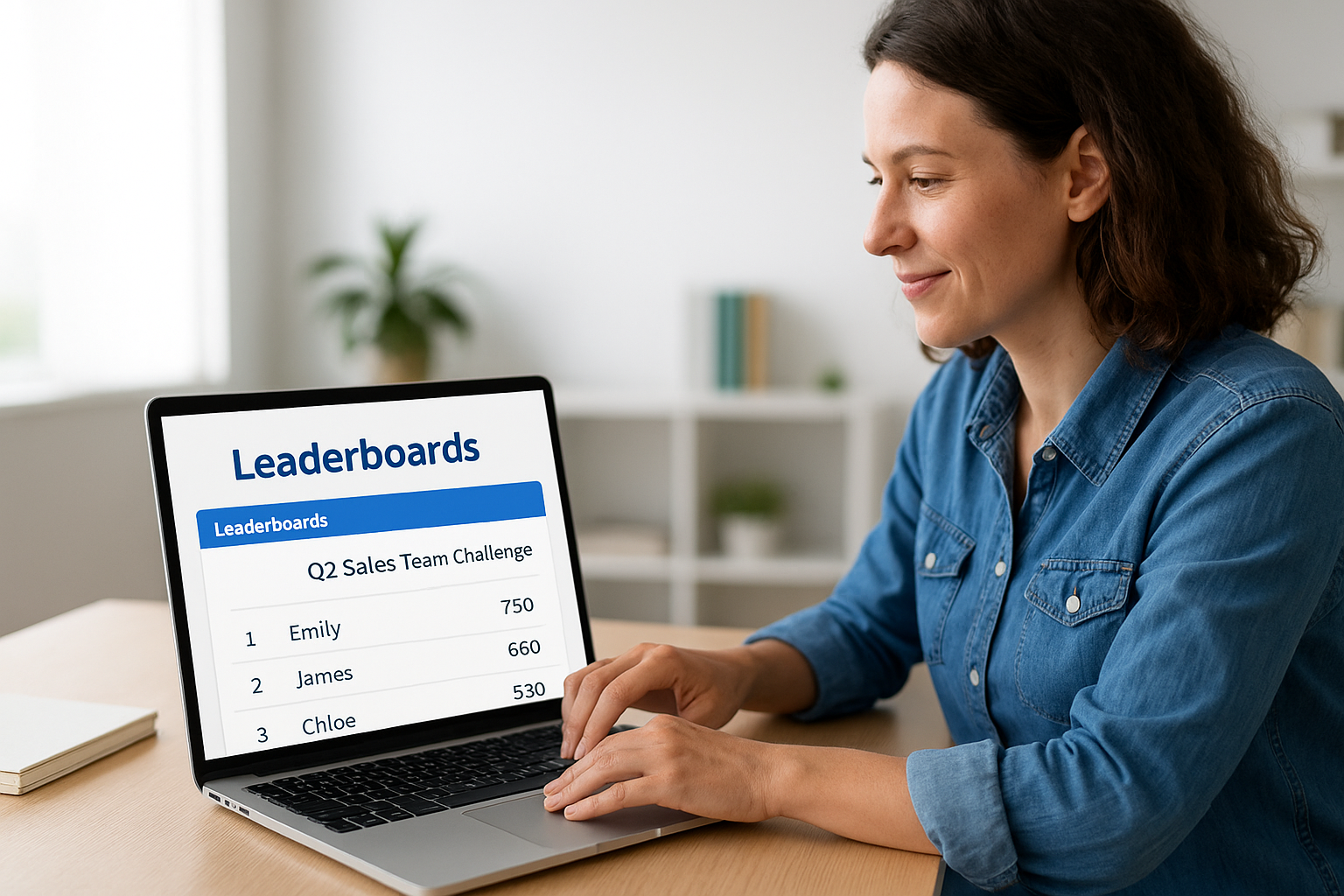
You access leaderboard settings from the Gamification section of your admin panel by selecting "Leaderboards." Docebo lets you scope each leaderboard to a specific branch or group, which matters significantly if your organization has multiple departments or locations. Scoping prevents cross-group comparisons that feel unfair to smaller teams competing against larger ones.
Narrow your leaderboards to teams of 10 to 30 learners so the competition feels winnable rather than discouraging.
When creating a leaderboard, configure these fields:
- Name: Use something specific like "Q2 Sales Team Challenge" rather than a generic label
- Scope: Select the branch or group the leaderboard applies to
- Time period: Set a rolling window (weekly or monthly) or a fixed start and end date
- Visibility: Decide if learners see full rankings or only their own position plus top performers
Run a time-limited contest
Contests build on leaderboards by adding a defined start date, end date, and a reward tied to the final ranking. You create a contest by navigating to "Contests" inside the Gamification section and clicking "New Contest." Fill in the contest name, select the scoring rules it tracks, set the time window, and connect it to a reward from your catalog.
Here is a simple contest template you can adapt:
| Field | Example value |
|---|---|
| Contest name | March Compliance Sprint |
| Duration | March 1 to March 31 |
| Scoring rule | Compliance course completions only |
| Top prize | $25 gift card (set in rewards catalog) |
| Runner-up prize | Platform badge + 100 bonus points |
Running contests on a quarterly cycle gives learners something to work toward without contest fatigue setting in from over-saturation.
Step 4. Add rewards and run it day to day
Rewards are what give Docebo gamification its long-term staying power. Points and badges motivate learners to engage, but a reward catalog gives them something tangible to work toward, which keeps the system from going stale after the novelty of leaderboards wears off. This step covers how to set up your reward catalog and keep the system running smoothly once it is live.
Build your reward catalog
You add rewards by navigating to the "Rewards" section inside Gamification settings and clicking "New Reward." Each reward gets a name, a description, a point cost that learners pay to redeem it, and an available quantity if you want to limit supply. Keep your catalog small and relevant, between five and ten high-value options, so learners spend time earning rather than browsing.
Here is a starter catalog template you can adapt for your organization:
| Reward name | Point cost | Quantity limit | Notes |
|---|---|---|---|
| $25 gift card | 500 points | Unlimited | Digital delivery |
| Extra PTO day | 1,000 points | 10 per quarter | HR approval required |
| Company swag item | 300 points | 50 per month | Physical item, ship to address |
| Recognition post | 150 points | Unlimited | Shared in company channel |
| Course of choice | 200 points | Unlimited | Learner selects from catalog |
The best rewards connect directly to what your learners already value, so survey your team before you finalize the catalog.
Keep the system running well
Once your system is live, schedule a monthly audit of your points rules and leaderboard results to catch any unintended behavior early. If you notice learners clustering at the top of rankings without completing substantive content, your point caps or rule weights need adjustment.
Review your badge award rates quarterly. If no learners are earning a specific badge, the trigger condition may be set too high. If nearly everyone earns it immediately, raise the threshold so the badge retains its meaning over time.
Wrap up and keep improving
Docebo gamification gives you a real toolkit for turning passive course completion into active, ongoing engagement. When you build your point rules around meaningful behaviors, design badges that reflect actual learning outcomes, and connect rewards to what your team values, the system does meaningful work beyond just adding a scoreboard to your training program. The key is treating gamification as a living system, not a one-time setup you forget after launch.
Run your monthly audits, refresh your reward catalog at least twice a year, and retire contests that no longer generate interest. Small, consistent adjustments keep engagement from plateauing after the initial excitement fades.
If you are still evaluating whether your organization is ready for a platform like this, or if Docebo is the right fit for your training goals, take the LMS readiness quiz to get a clearer picture of where you stand before committing.
