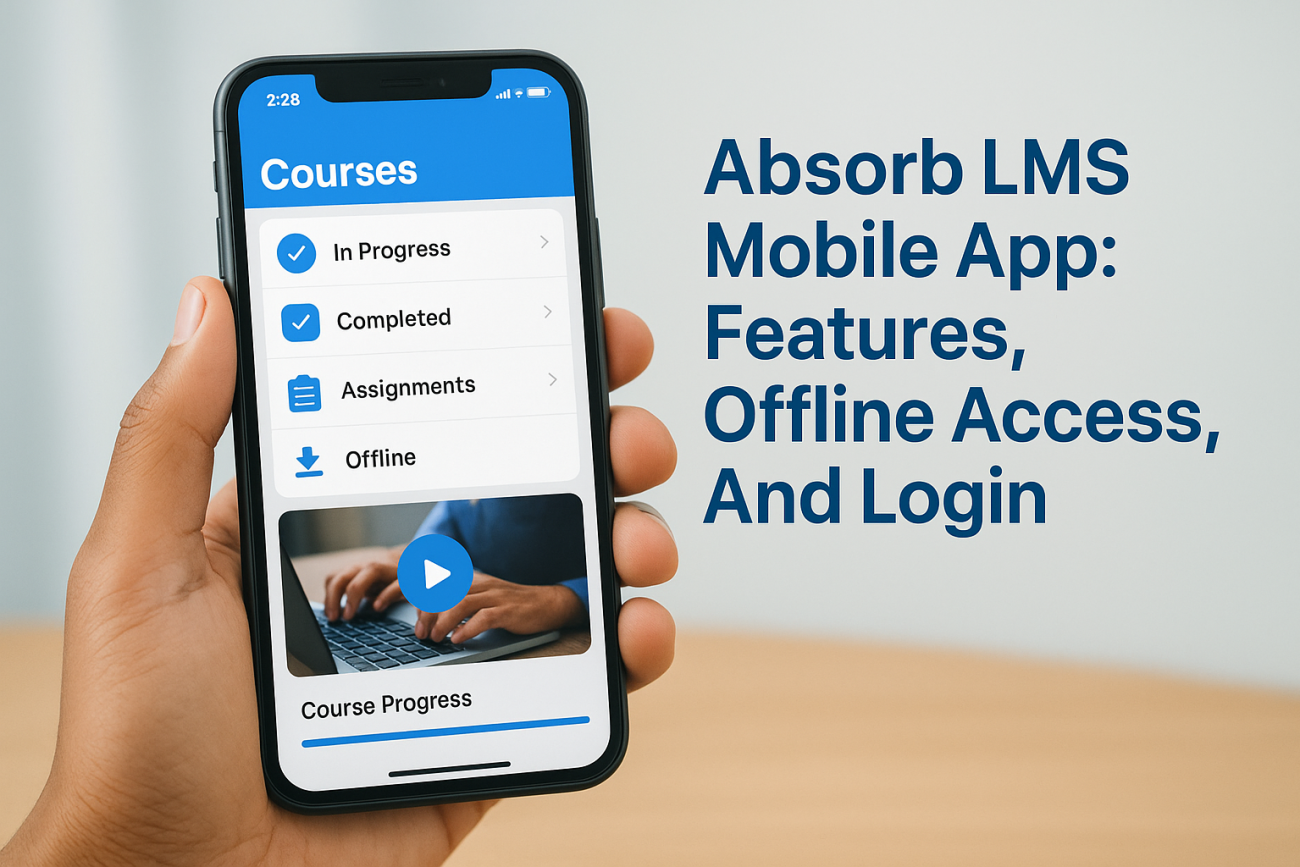
Mobile learning has become essential for organizations that need to train employees, customers, or partners on the go. The Absorb LMS mobile app gives learners access to their training content from smartphones and tablets, making it easier to complete courses outside traditional desktop environments. For businesses evaluating LMS options, understanding mobile capabilities is a critical part of the decision-making process.
At Atrixware, we build Axis LMS and work with organizations navigating their training technology choices every day. That perspective gives us insight into what matters most when assessing mobile learning tools, whether you’re considering Absorb or comparing it against other platforms. Knowing how a mobile app actually works in practice helps you make informed decisions.
This guide covers everything you need to know about the Absorb LMS mobile app, including its core features, offline learning functionality, and step-by-step login instructions. You’ll also find details on app store availability and device compatibility to help you get started.
What the Absorb LMS mobile app is
The Absorb LMS mobile app is a native application that learners install on their iOS or Android devices to access their Absorb LMS training content. Absorb Software, the company behind the platform, developed separate apps for each operating system to provide optimized performance on smartphones and tablets. You can download the app from the Apple App Store or Google Play Store depending on your device.
Mobile apps provide native functionality that web browsers can’t match, including offline access and push notifications.
Platform compatibility and requirements
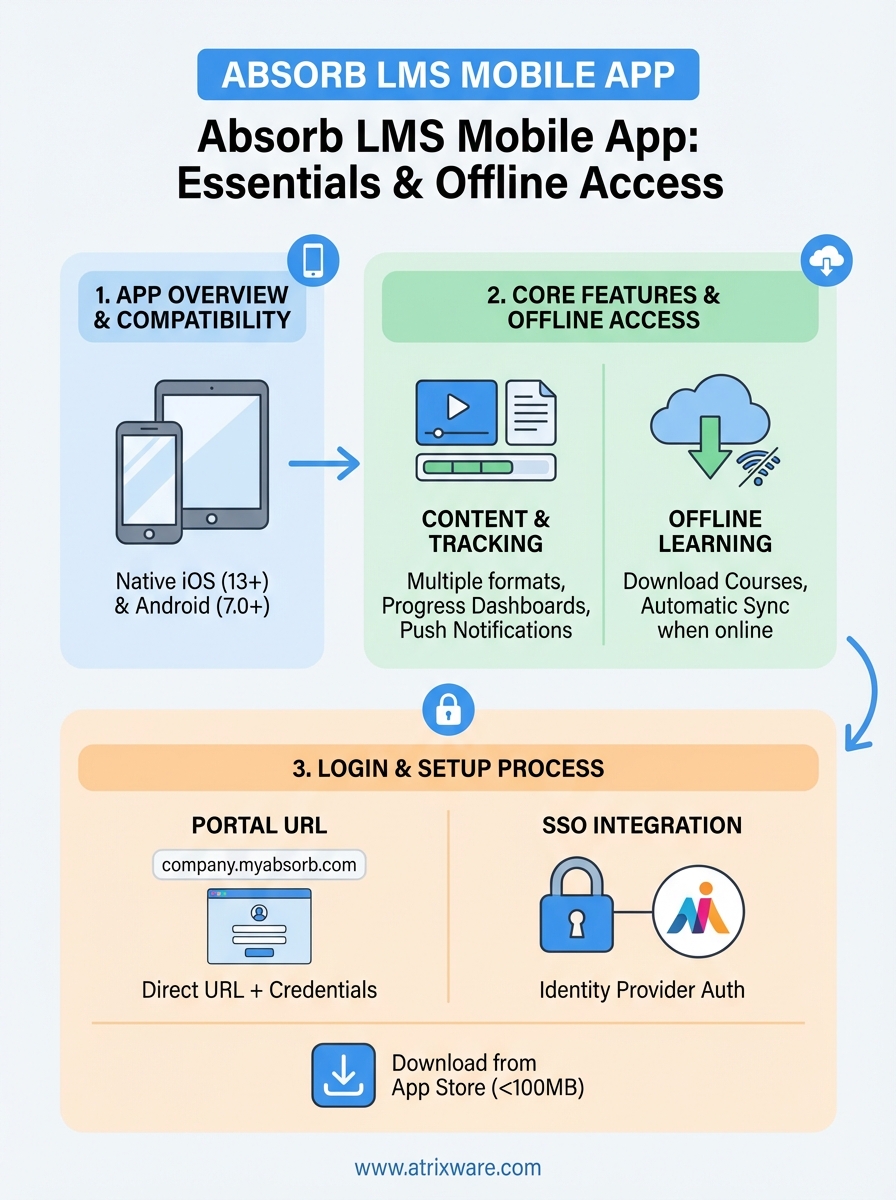
The app works on iOS devices running iOS 13 or later and Android devices running Android 7.0 or higher. This broad compatibility means most modern smartphones and tablets can run the application without issues. Your organization’s Absorb LMS administrator controls whether mobile access is enabled for your account, so you’ll need proper permissions before you can log in successfully.
Desktop vs mobile functionality
The mobile experience prioritizes core learning activities like viewing course content, completing assignments, and tracking progress. You won’t find every administrative feature from the desktop version, but the app covers essential learner functions for most training scenarios. The interface adapts to smaller screens with simplified navigation and touch-friendly controls. Absorb designed the mobile app to complement desktop learning, not replace it entirely, which means certain advanced features remain desktop-only.
Key features for mobile learning
The Absorb LMS mobile app delivers training content through a streamlined interface built specifically for smartphones and tablets. You get access to multiple content formats including videos, documents, SCORM packages, and interactive assessments that work within the mobile environment. The app supports both portrait and landscape orientations, automatically adjusting the layout based on how you hold your device.
Course content access
You can browse your assigned courses and learning paths directly from the app’s home screen. The interface organizes content into categories that match your desktop experience, making it easy to find specific training materials. Videos play natively within the app using your device’s media player capabilities, and PDF documents open with smooth scrolling and zoom functionality. SCORM content renders properly on mobile screens, though complex interactions may work better on larger devices.
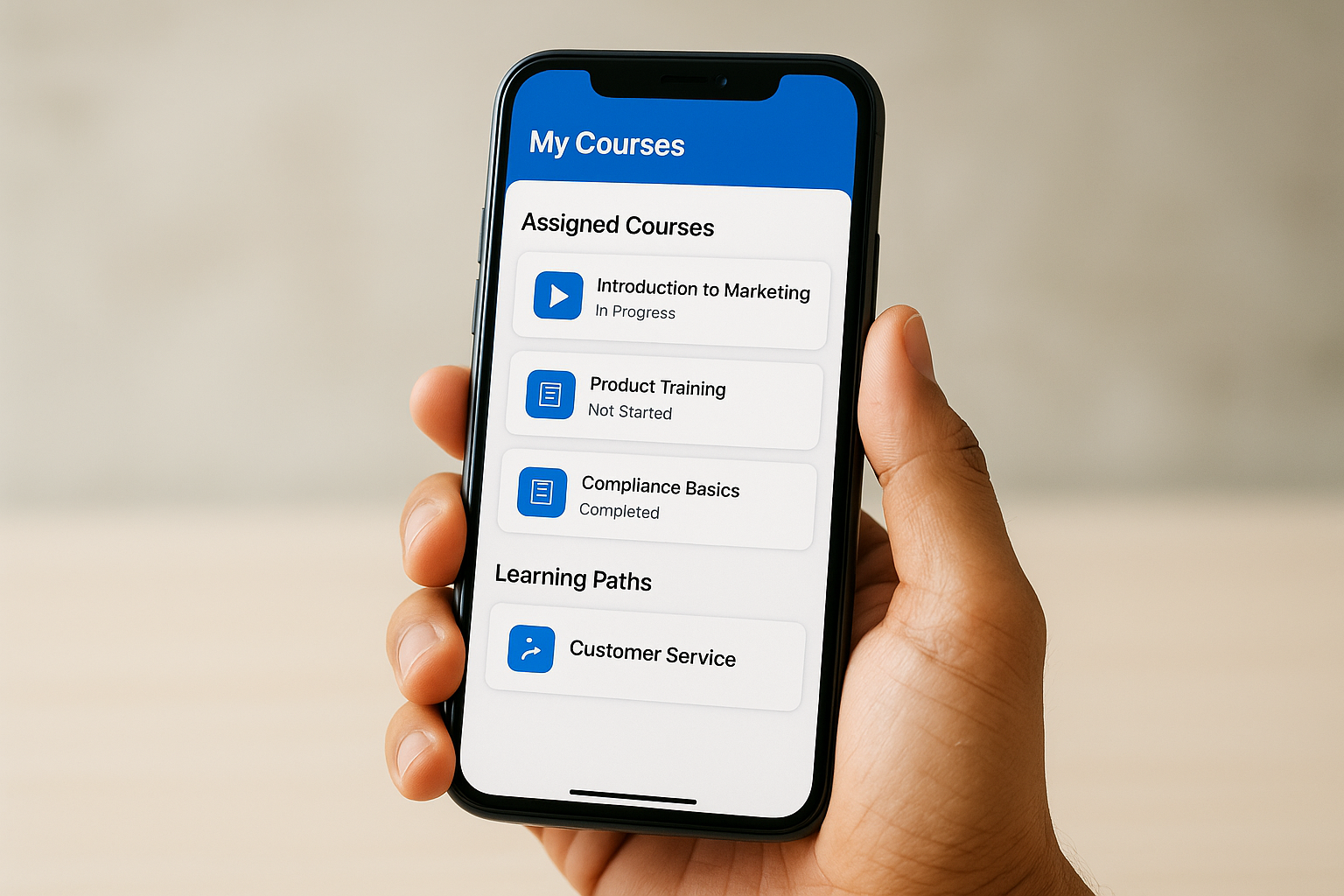
Mobile-optimized content ensures learners can engage with training materials regardless of screen size.
Progress tracking and notifications
The app tracks your completion status automatically and syncs with the main LMS database when you have an internet connection. You receive push notifications for new course assignments, upcoming deadlines, and certification renewals if your administrator enables these alerts. Your learning progress appears in visual dashboards that show completion percentages and earned credentials, giving you clear visibility into your training status.
How to download and set up the app
Getting the Absorb LMS mobile app onto your device takes just a few minutes once you know where to look. The installation process follows standard app store procedures, and you’ll need your organization’s specific login credentials to complete setup. Your administrator should provide the necessary information before you begin the download.
Finding the app in app stores
You can locate the app by searching for "Absorb LMS" in either the Apple App Store or Google Play Store depending on your device type. The official app displays the Absorb Software logo and company name, which helps you distinguish it from similar applications. Download sizes vary, but the app typically requires less than 100 MB of storage space. Make sure you have a stable internet connection during the initial download to avoid interruptions.
Always verify the publisher is Absorb Software before installing to ensure you download the authentic application.
Initial setup steps
After installation completes, open the app and you’ll see a welcome screen that prompts you for your organization’s portal URL or SSO credentials. You’ll need the exact URL format your administrator provides, which typically looks like "yourcompany.myabsorb.com" or a similar structure. The app saves this information so you won’t need to re-enter it for future logins. Your first connection requires internet access to verify your credentials and sync your initial course catalog.
How to log in with SSO or a portal URL
The Absorb LMS mobile app supports two primary login methods that your organization’s administrator will specify during setup. You can authenticate using either a direct portal URL with username and password credentials, or through a Single Sign-On (SSO) integration that connects with your company’s existing identity provider. Both methods provide secure access, and your choice depends entirely on how your administrator configured your Absorb instance.
Portal URL login method
When you open the app for the first time, you’ll see a field requesting your organization’s portal URL. This address typically follows the format "companyname.myabsorb.com" or a custom domain your administrator set up. After entering the URL, you’ll reach a login screen where you input your username and password. The app validates these credentials against your organization’s Absorb database and grants access to your assigned training content. Your login information remains stored securely on your device for future sessions.
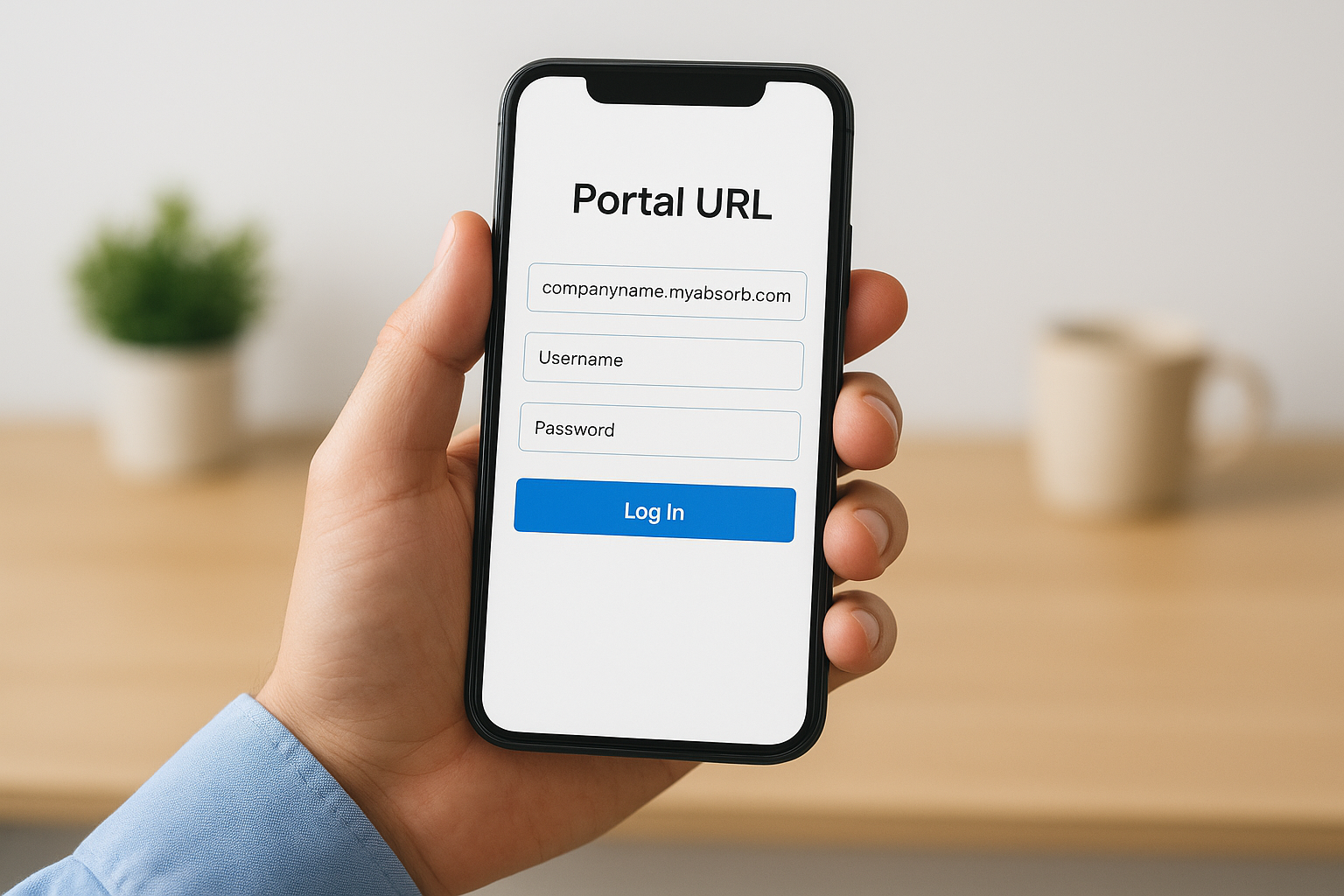
SSO integration eliminates the need to remember separate passwords for your learning platform.
SSO authentication process
Organizations using SSO redirect you to their identity provider’s login page after you enter the portal URL. You authenticate through your company’s standard credentials, which might include multi-factor authentication if your security policies require it. The SSO provider confirms your identity and sends you back to the Absorb LMS mobile app with proper access permissions already configured.
Offline access, syncing, and common fixes
The Absorb LMS mobile app lets you download specific courses to your device for learning without an internet connection. This offline capability matters most when you travel, work in areas with limited connectivity, or want to conserve mobile data. Your downloaded content remains accessible until you manually delete it or your administrator updates the course materials on the server.
Downloading courses for offline use
You can select individual courses from your catalog view and tap the download icon that appears next to eligible content. The app displays a progress indicator showing how much content has transferred to your device storage. Videos and large files consume more space, so check your available storage before downloading multiple courses. Not all content types support offline access, particularly interactive elements that require server connections to function properly.
Syncing progress when back online
Your device stores completion data locally when you work offline and automatically syncs this information once you reconnect to the internet. The app runs a background sync process that updates your course progress, quiz scores, and time tracking without requiring manual intervention. You’ll see a sync icon in the app that confirms when your data has successfully uploaded to the main database.
Automatic syncing ensures your learning progress transfers to official records without manual data entry.
Troubleshooting connection issues
Connection problems typically stem from incorrect portal URLs or network restrictions your organization implements. You can force a manual sync by pulling down on your course list to refresh the content. If login fails repeatedly, verify you’re using the exact URL format your administrator provided and check that your device’s date and time settings match your actual timezone.
Quick recap and what to do next
The Absorb LMS mobile app provides learners with flexible access to training content through iOS and Android devices available in standard app stores. You can download courses for offline learning, track your progress automatically, and log in using either portal URLs or SSO credentials depending on your organization’s setup. The app handles essential training activities on smaller screens while syncing your completion data back to the main system when you reconnect to the internet.
Understanding mobile capabilities helps you evaluate whether an LMS fits your organization’s training needs beyond just the absorb lms mobile app features. If you’re exploring options or want to compare mobile features across platforms, take our LMS readiness quiz to identify which features matter most for your specific situation. Atrixware’s Axis LMS offers its own approach to mobile learning that prioritizes intuitive interfaces and comprehensive functionality across all devices.
