The best employee video training software depends on the job you need done: making the video, hosting it, or proving that people watched it and learned something. Axis LMS suits teams that need completion records and compliance reporting. Loom and ScreenPal suit trainers who record quick screen lessons. Camtasia suits polished courses. Vimeo and Kaltura suit teams that need a controlled video library. Screencastify suits teams that already live in Google Drive.
Most "best of" lists mix these categories and compare a screen recorder to a learning management system as if they were rivals. They are not. A recorder gets a lesson made in ten minutes, but it cannot tell you who skipped the safety module. A learning platform can, but it will not edit your footage. Pick the wrong type and you either pay for features you never use or rebuild your setup in six months.
This article sorts seven tools by what they do, then gives you the plans, prices, strengths and limits of each. Atrixware makes Axis LMS, so it is listed first, but only for the tracking job, and we say plainly where it does not replace a recorder. Use the comparison and the budget example to build a short list in one sitting.
How to choose employee training video software
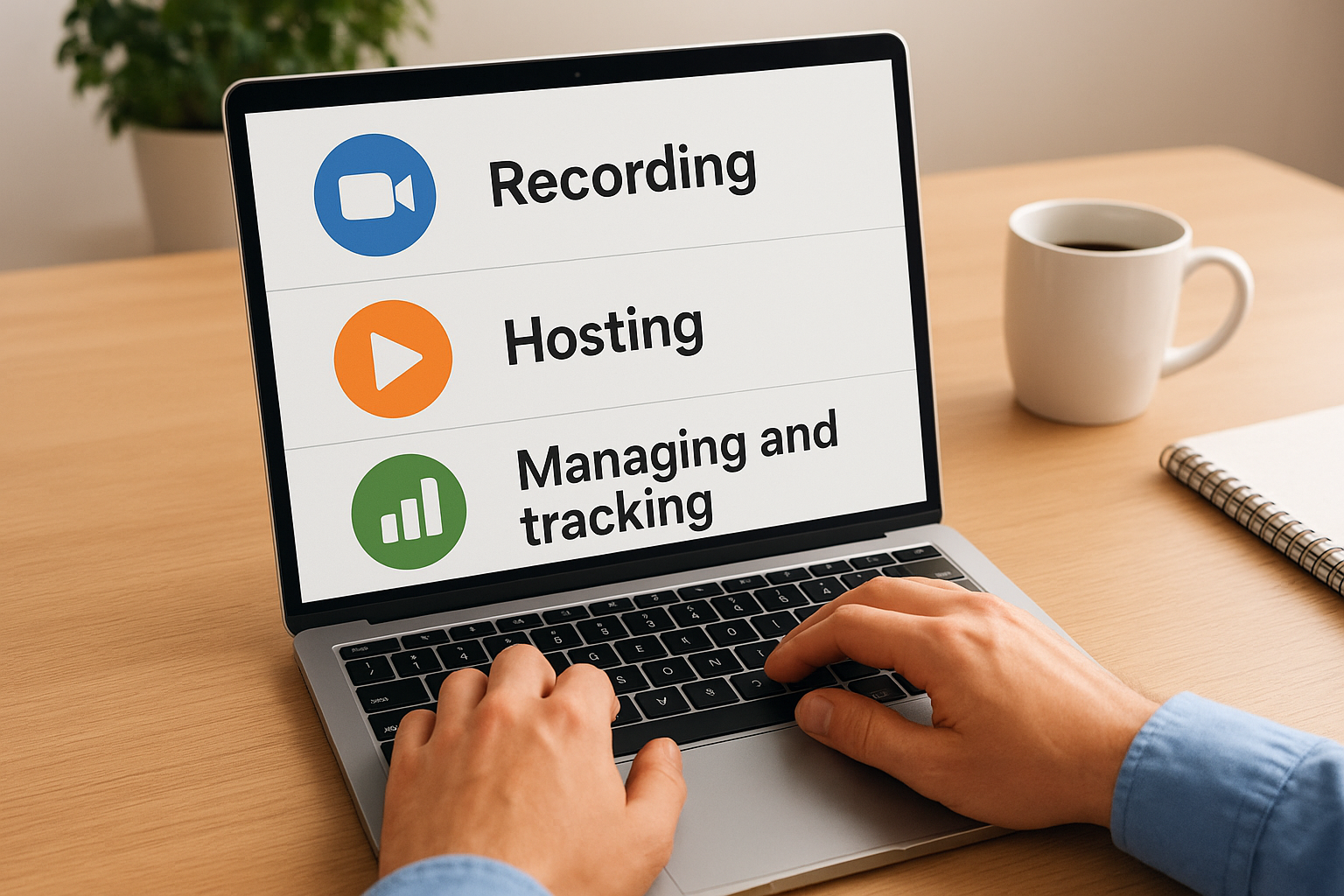
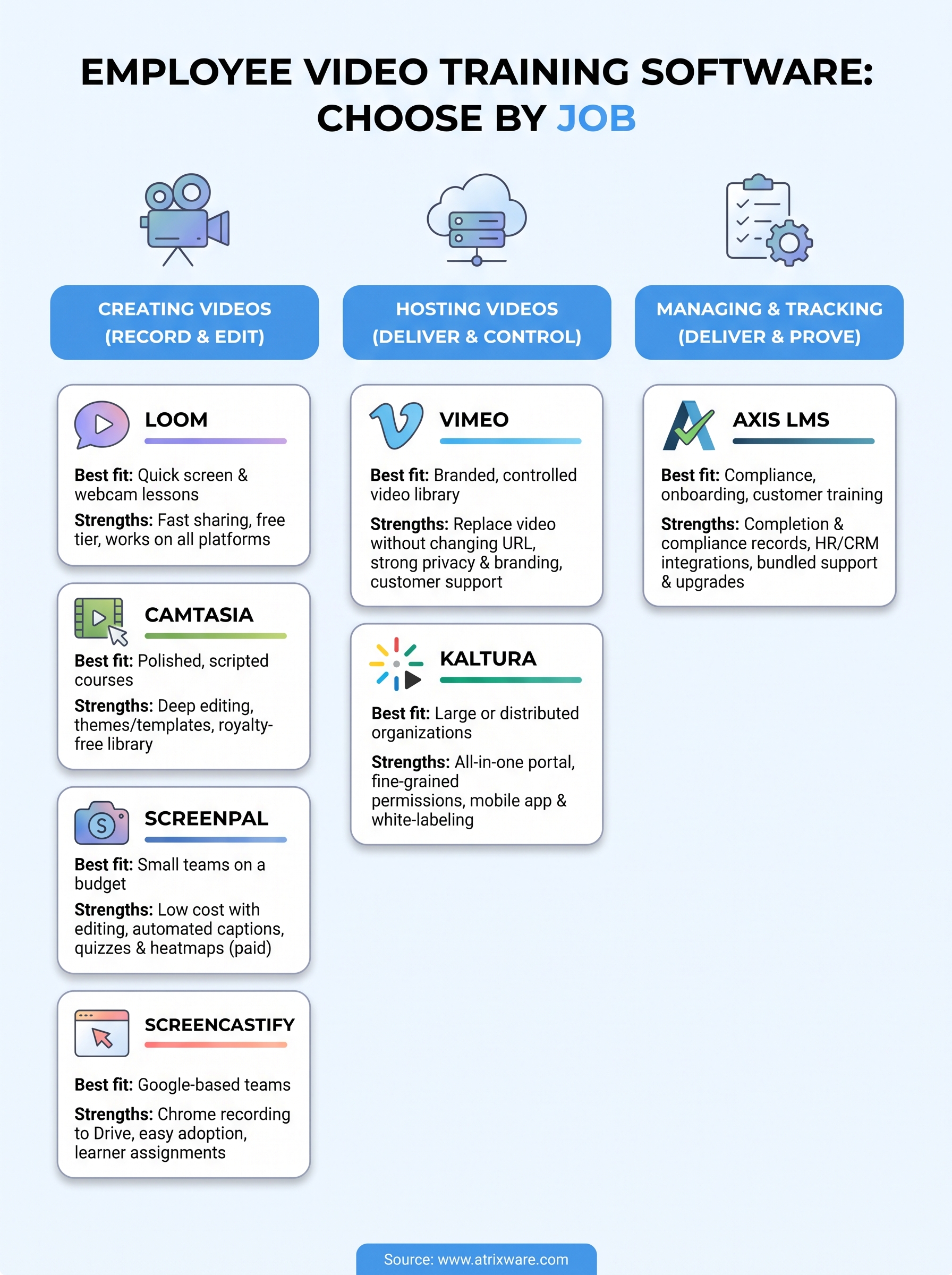
Choose by job first and price second. Every tool below does one or two of three jobs: creating videos, hosting them, and managing and tracking training. Most teams need a creator tool plus a place to deliver and track, unless they pick an all-in-one platform.
Three jobs, and which tool does which
| Tool | Main job | Best fit |
|---|---|---|
| Axis LMS | Delivering and tracking training | Compliance, onboarding, customer training |
| Loom | Recording | Quick screen and webcam lessons |
| Camtasia | Recording and editing | Polished, scripted courses |
| Vimeo | Hosting and playback | Branded, controlled video library |
| Kaltura | Recording, hosting, interaction | Large or distributed organizations |
| ScreenPal | Recording and editing | Small teams on a tight budget |
| Screencastify | Chrome recording, Google Drive storage | Google-based teams |
Features worth checking before you buy
Run every shortlisted tool against this list. A miss on the first three usually rules it out.
- Permissions and privacy: can you limit a video to one department?
- Captions and transcripts: needed for accessibility and for people watching without sound.
- Learner-level reporting: views alone are not training data. You want completions and quiz scores.
- Quizzes or interactive points: these turn watching into practice.
- Integrations and SSO: the tool should connect to your HR system and your login provider.
- Easy updates: policies change, so replacing a video should not break every link to it.
Views tell you a video was played; only completion and assessment data tell you it worked.
A worked budget for three creators
Say three trainers each record lessons. These are the entry business plans at list prices published in early 2024, billed annually, so confirm current rates before you commit.
| Tool and plan | Price per user per month | Cost for 3 creators per year |
|---|---|---|
| ScreenPal Team Business | $8 | $288 |
| Screencastify Pro | $10 | $360 |
| Loom Business | $12.50 | $450 |
| Camtasia Individual (annual) | $14.99 ($179.88 per year) | about $540 |
| Vimeo Standard | $20 | $720 |
Axis LMS and Kaltura are left out because their cost depends on user counts and quotes, not on creator seats.
1. Axis LMS: track and manage video training
Axis LMS is the delivery and tracking layer for employee training video. You record the video elsewhere, then build it into a course here, assign it to people, and report on who finished.
What it does
Axis LMS is a learning management system from Atrixware, not a video editor or recorder. Its drag-and-drop course builder supports online courses and virtual classroom training, so a video becomes one lesson in a larger path with reporting around it.
- On-demand and automated reports on learner progress
- Automated workflows and communication tools
- Branding controls for the learner interface
- Compliance features for GDPR and FDA 21 CFR Part 11, plus continuing education unit (CEU) and re-certification tracking
- SAML single sign-on, a REST API and webhooks
- Over 5,000 integrations, including ADP, Salesforce, BambooHR and Zoho
Best for
Axis LMS suits HR and training managers who must prove completion, such as compliance, onboarding, channel partner and customer training. It also supports selling training to individuals and selling seat licenses to businesses. Lite fits 25 to 100 employees. The main Axis LMS tiers fit 150 to 100,000.
Skip it if you only need to record a one-off tutorial and share a link. For that, a recorder from the list below is faster.
A training video that nobody must watch and nobody can prove they watched is only a library item.
Pricing
Axis LMS Lite for online training with 25 users is listed at $209. The version that adds streaming virtual classroom training is listed at $299. Larger organizations choose among LMS Core (150 to 3,000 included users), LMS Pro (250 to 4,000) and Enterprise (500 to 100,000), and these grow in administrators, workflows and support level.
- Contracts run 1 to 3 years.
- Setup usually takes 1 to 3 business days after purchase.
- Tech support with unlimited incidents is included.
- Patches and upgrades cost nothing extra.
Strengths and limits
- Strength: completion, compliance and re-certification records in one place.
- Strength: connects to HR and CRM systems, so user data stays in sync.
- Strength: support and upgrades are bundled into the subscription.
- Limit: it does not record or edit video, so you need a creator tool alongside it.
- Limit: it is more system than a team of five needs for casual how-to clips.
2. Loom: fast screen recordings for quick lessons
Loom is the quickest way to turn what a subject expert knows into a shareable lesson. You record screen and camera, trim, and send a link.
What it does
Loom records your screen with a picture-in-picture "bubble" webcam, stores the video in the cloud and shares it by link. Live Rewind lets you cut a mistake while still recording, which saves editing time. Transcription is free on every tier. It works on Mac, Windows, iOS, Android and Chrome.
The optional AI add-on writes titles and summaries, adds chapters, and removes filler words and silences. For software walkthroughs and process demos, that cleanup covers most of what you would otherwise edit by hand.
Best for
Loom fits managers, support leads and subject experts who need to record a process once and move on. It handles software walkthroughs, "how we do this here" explainers and update announcements well.
It is a weaker choice for long, structured courses with branching or assessments. There you pair it with an LMS.
The best training video is often the five-minute one that actually gets recorded this week.
Pricing
Prices below are early 2024 list prices, so check the current plan page.
- Free: up to 25 videos per person, five minutes each, with unlimited transcription and a team workspace.
- Business: $12.50 per creator per month billed annually. Adds unlimited videos and length, white-labeling, download and import, and password protection.
- AI add-on: $4 per creator per month on Business and Enterprise.
- Enterprise: custom pricing with single sign-on, advanced privacy and data retention controls.
Strengths and limits
- Strength: the shortest path from idea to shared lesson.
- Strength: a generous free tier for trying it with a small team.
- Strength: works across operating systems and browsers.
- Limit: a stable internet connection matters, and creation slows when it drops.
- Limit: the free cap of five minutes per video rules out longer lessons.
- Limit: password protection needs a paid plan.
3. Camtasia: polished courses with full editing
Camtasia is a recorder and a full video editor in one desktop product. It is the pick when production quality matters more than speed.
What it does
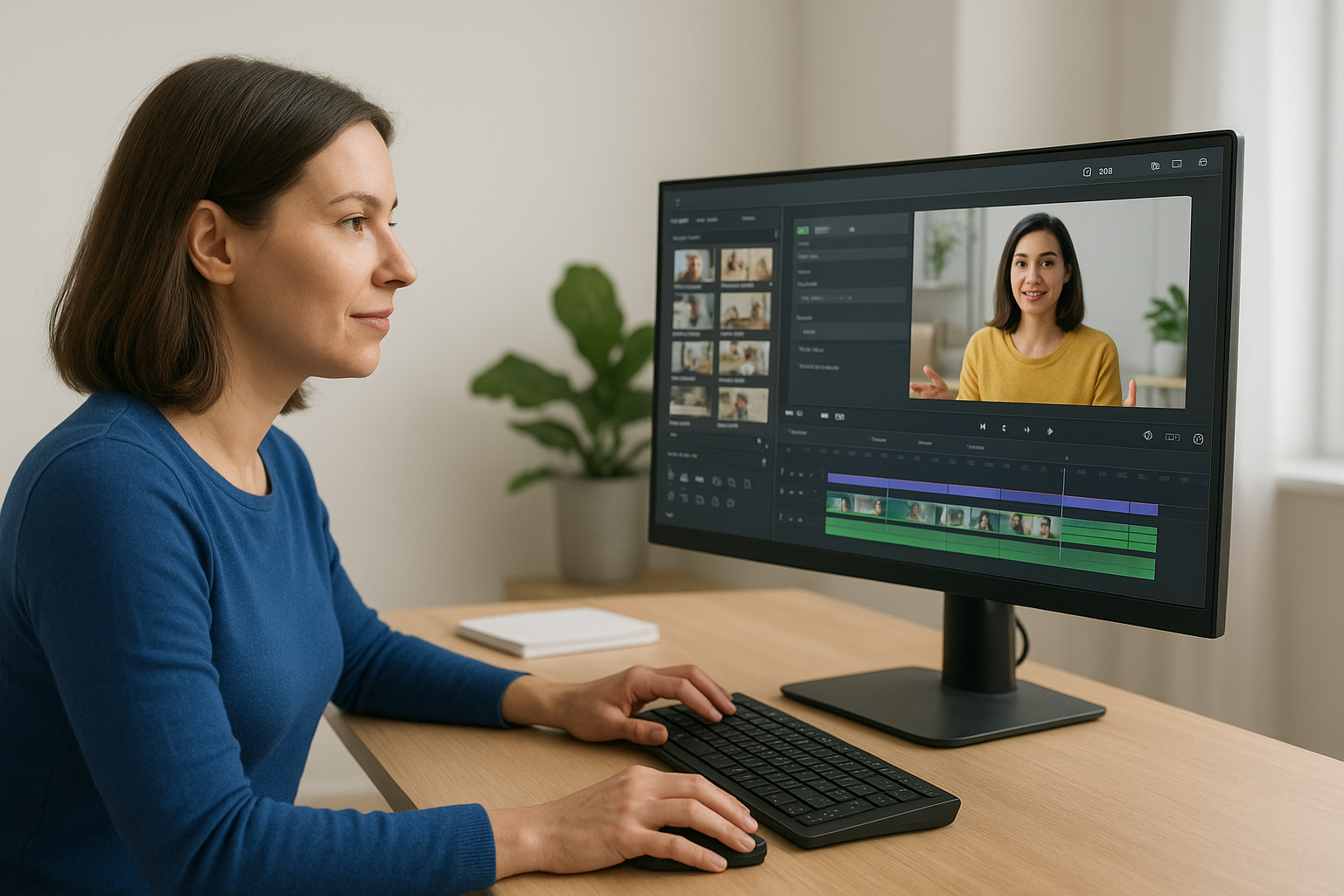
Camtasia captures screen, camera, microphone and system audio, with cursor effects that highlight where learners should look. Then you edit on a timeline. It adds themes and templates for a consistent look, green screen effects, text and avatars, and a royalty-free library of video, music, images and effects.
You can also add interactive elements inside clips and combine many file formats in one presentation. It produces the finished file. You still need a place to host and deliver that file.
Best for
Camtasia suits instructional designers and L&D teams who build scripted courses and reuse them for years. If your videos are a polished asset, such as an onboarding series every new hire watches, the editing depth pays back.
If your trainers need to record ten rough clips a week, it is more tool than they need.
Choose an editor when the video will be watched hundreds of times, and a recorder when it will be watched ten.
Pricing
Camtasia offers a free trial, and discounts apply for education, government and nonprofit buyers. Figures are early 2024 list prices.
- Individual subscription: $179.88 per user, billed annually.
- Perpetual license, individuals and small teams: $299.99 per single-user license, with optional maintenance from the second year.
- Perpetual license, business: $286.85 per user for up to 9 licenses, with graduated discounts at 15, 25 and 50 seats.
Strengths and limits
- Strength: the deepest editing of any recorder here.
- Strength: templates keep a team’s videos looking alike.
- Strength: a one-time license avoids a subscription.
- Limit: some users report the Mac version is buggier than Windows.
- Limit: perpetual licensing means paying for every seat up front.
- Limit: no hosting or learner tracking, so budget for a second tool.
4. Vimeo: a branded home for your training videos
Vimeo is mainly a hosting and playback service. It gives you a clean, customizable player and control over who sees what.
What it does
You upload videos, then share, embed or restrict them. Vimeo offers privacy controls, a custom video player and custom URLs, with playback up to 8K. Interactive touch points can link to related lessons, quizzes and polls. A stock library and AI tools help with creation on higher plans.
One feature matters for training: you can replace a video without changing its URL. When a procedure changes, every embed and bookmark keeps working.
Best for
Vimeo suits teams with an existing intranet, help center or LMS who need reliable, branded video playback. It also suits companies that publish training to customers as well as staff.
It is less suited to teams that want learner-level completion reports out of the box, since that is the job of a learning platform.
Hosting is a separate decision from recording, and Vimeo is strongest when you treat it that way.
Pricing
Figures are early 2024 list prices, billed annually.
- Free: create, store and share up to three videos.
- Starter: $12 per person per month, 60 videos, privacy controls, custom player, captions.
- Standard: $20 per person per month, 120 videos, brand kit, teleprompter, text-based editing, engagement analytics.
- Advanced: $85 per person per month, 500 videos, plus webinars and live events.
- Enterprise: custom pricing with unlimited storage and single sign-on.
Strengths and limits
- Strength: swap videos without breaking links.
- Strength: strong privacy and player branding.
- Strength: 24/7 customer support.
- Limit: plans cap the number of videos, which matters for a big library.
- Limit: some advanced features are hard to find in the navigation.
- Limit: uploads can be slow.
5. Kaltura: one video portal for a large organization
Kaltura is the all-in-one option. It combines capture, editing, hosting, interactivity and analytics in a branded company portal.

What it does
Kaltura’s Video Portal works like a corporate YouTube reserved for your company. It includes a personal capture app and an editing and enrichment suite. You organize content with metadata, categories, playlists, smart search and viewer permissions.
For learning, it adds hotspots, interactive video paths, polls and quizzes, plus a Virtual Classroom and analytics on viewer engagement. Employees can upload video from any device if administrators allow it, which helps build a library of internal expertise.
Best for
Kaltura suits large or distributed organizations that want one controlled place for training video, live sessions and employee-made content. The white-label portal keeps the experience on-brand.
For a small team recording a handful of lessons, the breadth is probably more than you need.
The more video your company produces, the more a single governed portal beats scattered links.
Pricing
Pricing is something you confirm with Kaltura directly, so budget time for a demo and quote request. Ask specifically what is included for capture, interactive tools, the Virtual Classroom and analytics, because these are separate capabilities.
- Confirm user or storage limits.
- Confirm support levels.
- Ask whether LMS integration is included.
Strengths and limits
- Strength: creation, hosting and interaction in one product.
- Strength: fine-grained permissions and metadata for large libraries.
- Strength: mobile app and white-label branding.
- Limit: the number of features means more setup and governance work.
- Limit: price is not self-serve, so comparison takes longer.
- Limit: likely overbuilt for a team of a few trainers.
6. ScreenPal: low-cost recording and editing
ScreenPal, formerly Screencast-O-Matic, is the budget pick. It records, edits and shares from one cloud-based tool.
What it does
ScreenPal records the screen with or without a webcam and edits the result. Editing includes background removal, image blurring, overlays, text and shapes, and you can import images and video. A library of free stock media is built in, and finished videos share by link.
Higher plans add video quizzes and polls, heatmaps and advanced analytics, which is unusual at this price. Automated captions are included from the lowest paid tier.
Best for
ScreenPal suits small teams and solo trainers who want more editing than a basic recorder without a big bill. It is a fit for software walkthroughs, short explainers and refreshers.
Large organizations that need role-based control and learner records will want it paired with a learning platform.
If budget is the main constraint, a low-priced recorder plus a proper LMS beats one expensive tool that does everything badly.
Pricing
Figures are early 2024 list prices, billed annually. A limited free trial is available.
- Solo Deluxe: $3 per month. Screen and webcam recording, scripting, image editing and automated captions.
- Solo Premier: $6 per month. Adds stock media, cloud backup, custom branding and call-to-action buttons.
- Solo Max: $10 per month. Adds quizzes, polls, advanced analytics and heatmaps.
- Team Business: $8 per user per month for three or more users, with collaboration, team management, integrations and single sign-on.
Strengths and limits
- Strength: strong editing for the price.
- Strength: quizzes and heatmaps on the Solo Max plan.
- Strength: edit from any device in a cloud-based platform.
- Limit: you need a paid tier to remove watermarks.
- Limit: analytics are limited to Solo Max and Team Business.
- Limit: only the team plan offers collaboration and single sign-on.
7. Screencastify: simple capture for Google-based teams
Screencastify records from a Chrome extension and saves straight to Google Drive. It is the lightest way to record if your company already runs on Google.
What it does
You click the browser extension, record, and the file lands in Drive for easy storage and sharing. Videos record at up to 1080p, and you can export video or audio, or post to YouTube. Paid plans add viewer analytics, custom branding and a way for people to respond to shared videos.
Screencastify also offers assignments, a feature built for education that works for corporate training too. Learners can submit video responses to a prompt, which is useful for practicing sales pitches or customer scenarios.
Best for
Screencastify suits teams using Google Workspace who want recording without installing heavy software. It also suits trainers who run practice exercises, since assignments give you learner responses to review.
Teams that need advanced editing or formal learning records should look elsewhere.
The easiest tool to adopt is the one that stores files where your team already keeps them.
Pricing
Figures are early 2024 list prices, billed annually.
- Free: 10 videos, 30 minutes each, 10GB of storage, one assignment per user.
- Starter: $7 per user per month. Unlimited videos and length, 25GB of storage.
- Pro: $10 per user per month. 100GB of storage and unlimited assignments.
- Teams and EDU: custom pricing with license management, usage reporting and the education tools.
Strengths and limits
- Strength: recording in a few clicks from Chrome.
- Strength: direct Google Drive saving keeps files centralized.
- Strength: assignments let learners practice on video.
- Limit: most education features sit in the Teams and EDU plan.
- Limit: free YouTube exports carry a watermark.
- Limit: captions and unlimited length need a paid plan.
Pick the job first, then the tool
Start by deciding whether your gap is making videos, hosting them, or proving they worked. Recorders like Loom, ScreenPal and Screencastify get lessons made quickly. Camtasia gives you studio polish. Vimeo and Kaltura control where video lives. A learning management system closes the loop with assignments, completion records and compliance reporting.
If you already have videos and need to know who watched them, who passed, and when certifications expire, see how that works in practice. You can book an Axis LMS admin demo.
