
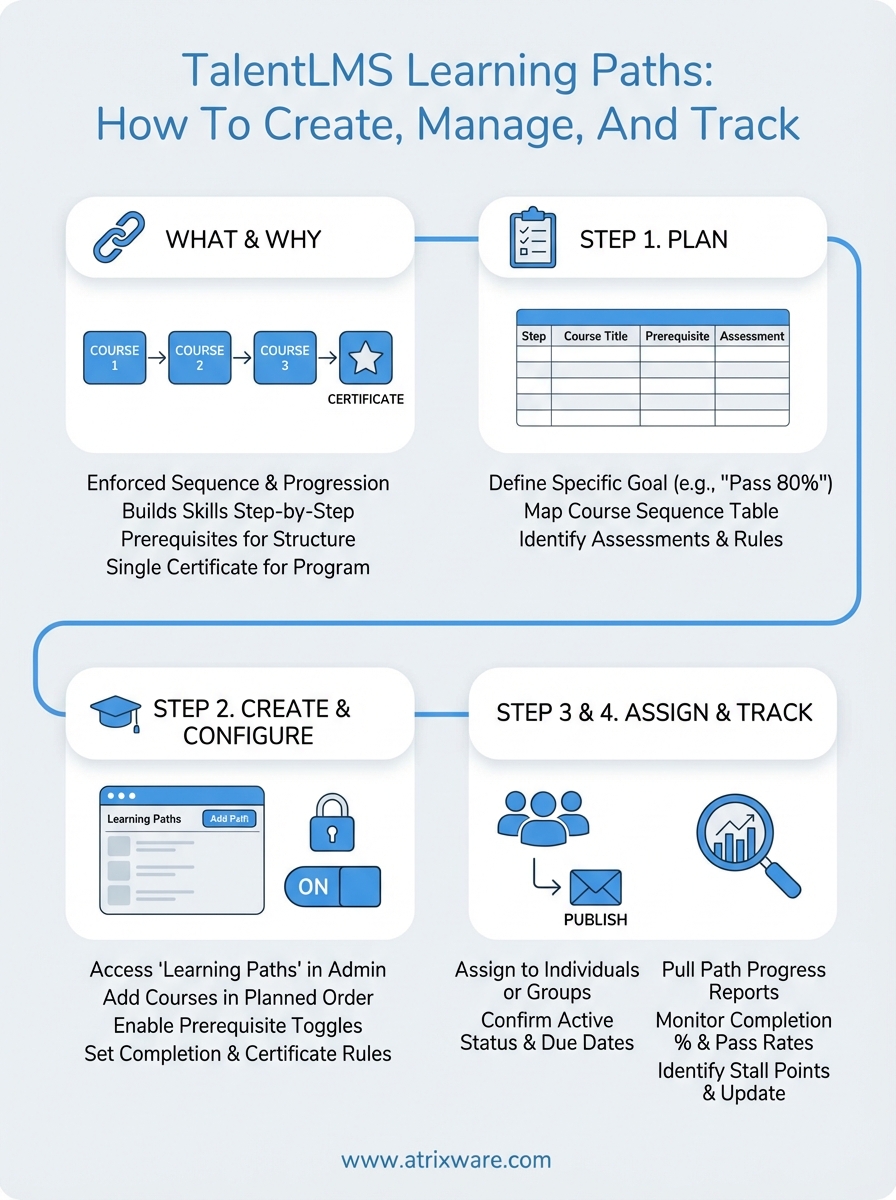
Organizing courses into a structured sequence makes training programs easier to follow and harder to skip. TalentLMS learning paths let administrators group courses together so learners move through content in a defined order, building on skills step by step rather than jumping around randomly.
If you’re evaluating TalentLMS or already using it, understanding how learning paths work is essential to getting the most out of the platform. This guide walks you through what learning paths are, how to create and configure them, and how to use reporting tools to track learner progress across each path.
We’re Atrixware, the team behind Axis LMS, a platform built for businesses that need serious control over training delivery, compliance tracking, and learner management. We write about other LMS platforms because we believe informed buyers make better decisions. Whether you stick with TalentLMS or explore alternatives like Axis LMS, the goal is the same: build training programs that actually work. Let’s get into it.
What TalentLMS learning paths do and when to use them
A learning path in TalentLMS is a container that groups multiple courses into a single, ordered sequence. When you assign a learning path to a learner, they move through each course in the order you define. You control whether they can skip ahead or must complete each step before unlocking the next one. This structure gives you far more control over the training experience than assigning a loose collection of individual courses ever could.
Learning paths work best when content builds on itself, where skipping a step would leave a learner without the foundation they need to succeed in the next course.
How learning paths differ from course groups
TalentLMS separates learning paths from simple course groups. A course group collects courses together for organizational purposes, but a learning path enforces sequence and progression. When you build a learning path, you set prerequisites between courses so learners cannot access Course 3 until they complete Courses 1 and 2. That enforced order is what makes learning paths useful for structured training programs rather than optional content libraries.
At the path level, you can also set completion rules, attach a certificate that triggers when a learner finishes the entire sequence, and track overall path progress separately from individual course completions. These features give you a consolidated view of where each learner stands across the full training program without having to piece together data from multiple course reports.
When to use a learning path
Use TalentLMS learning paths when your training has a clear progression that learners need to follow. Common use cases include:
- New employee onboarding: Guide hires through company policies, role-specific skills, and system training in a logical order.
- Compliance certification: Require learners to complete regulatory modules in sequence before earning a compliance certificate.
- Customer product training: Walk customers through setup, core features, and advanced usage step by step.
- Skills development programs: Build competency tiers where foundational skills unlock intermediate and advanced courses.
Standalone courses work well for one-off training topics. But when completion order matters, when one piece of knowledge depends on another, or when you need to issue a single certificate for an entire program, a learning path is the right tool to reach for.
Step 1. Plan the goal, structure, and content
Before you touch the TalentLMS interface, spend time mapping out what this path needs to accomplish. Rushing into course creation without a clear plan leads to gaps in content, a misaligned sequence, or a path that doesn’t tie back to a measurable outcome. Good planning saves you from rebuilding later and makes the configuration step significantly faster and cleaner.
Define the training goal
Start by writing a single, specific goal for the entire path. "Complete compliance training" is too vague. Instead, write something like: "Learners will understand GDPR data handling requirements and pass a final assessment with a score of 80% or higher." This level of specificity tells you exactly what courses to include, what assessments to build, and what certificate to attach at the end.
A clear goal also makes it easier to measure whether your TalentLMS learning paths are actually working once learners start completing them.
Map out the course sequence
Once you have a goal, list every course that supports it and arrange them in the order a learner should take them. Use a simple planning table like this one before you build anything:
| Step | Course Title | Prerequisite | Assessment Required |
|---|---|---|---|
| 1 | GDPR Basics | None | Quiz (70% pass) |
| 2 | Data Handling Procedures | Step 1 complete | Quiz (75% pass) |
| 3 | Breach Response Protocols | Step 2 complete | Scenario assessment |
| 4 | Final Certification Exam | Steps 1-3 complete | Exam (80% pass) |
Knowing the full prerequisite chain upfront prevents you from having to reconfigure the path mid-build when you realize a course landed in the wrong position.
Step 2. Create a learning path in TalentLMS
With your course sequence mapped out, you’re ready to build inside the platform. TalentLMS keeps the creation process straightforward, but a few configuration decisions early on will determine how much control you have over learner progression, so it’s worth understanding each setting before you click save.
Access the learning paths section
Log into your TalentLMS admin account and navigate to the main menu. Select "Courses" from the top navigation, then look for the "Learning Paths" tab within that section. From there, click "Add Learning Path" to open the creation form. Give your path a clear name that reflects the training goal you defined in Step 1, add a description that learners will see when they access the path, and upload a cover image if your organization requires consistent branding across training materials.
Use the same naming convention across all your TalentLMS learning paths so both learners and administrators can find and sort them without confusion later.
Configure path settings and prerequisites
Once the path is created, add your courses by clicking "Add Courses" inside the path editor. Select each course in the exact order you planned in your sequence table, then enable the prerequisite toggle between each course to enforce progression. TalentLMS lets you set each course as a prerequisite for the next one, which prevents a learner from accessing Course 2 until they fully complete Course 1.
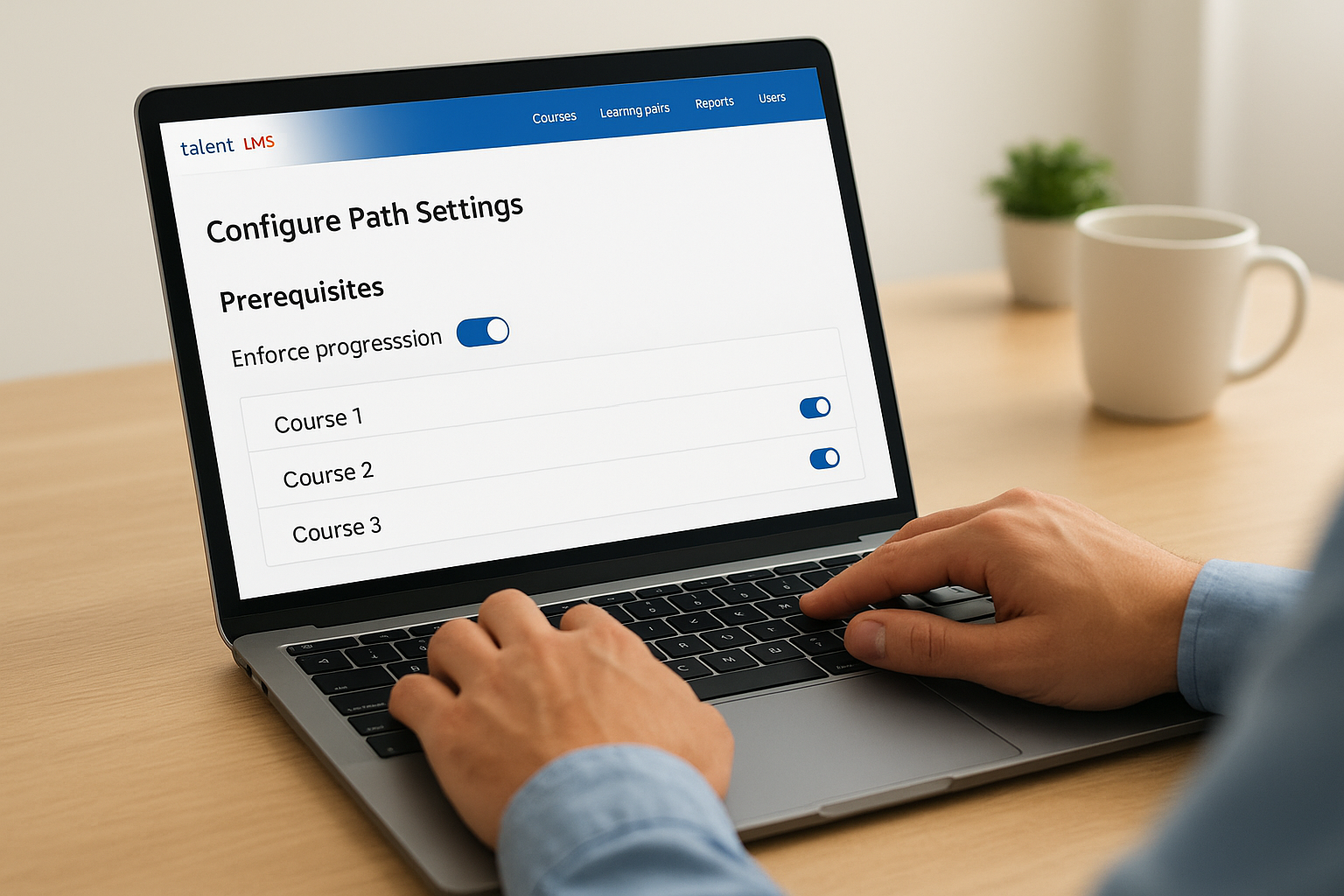
After you add all courses, set a completion rule for the overall path, choosing whether learners must finish every course or only a defined subset. If you plan to issue a certificate when learners finish the entire program, attach it under the "Certification" tab inside the path settings before you publish.
Step 3. Assign learners and manage updates
Once your path is configured and published, the next step is getting learners into it. TalentLMS gives you several assignment methods depending on how your organization manages users, so pick the one that fits your workflow rather than forcing a process that slows you down.
Assign learners to the path
Inside the learning path, click the "Users" tab to open assignment options. You can add individual users by searching their names directly, or you can assign an entire user group in one action, which is far more efficient when you’re onboarding a department or rolling out compliance training to a large team. If your organization uses TalentLMS learning paths as part of an automated workflow, check whether your HR integration or branch rules can trigger automatic enrollment when a user joins a specific group.
Assigning by group rather than individual saves significant time when your training path applies to everyone in a department or job role.
Use this checklist before confirming any assignment:
- Confirm the path is set to "Active" so learners can access it immediately
- Verify the due date is set if your training has a compliance deadline
- Check that the notification email is enabled so learners receive an enrollment alert
Update content without losing progress
Training content changes over time, and you will need to revise courses inside an active path at some point. When you update a course inside a published path, TalentLMS retains existing learner progress by default, so completed steps stay marked complete. However, if you add a new required course to the sequence, existing enrolled learners will see it appear in their path and must complete it before the path counts as finished. Always test path changes on a sandbox user account before pushing updates to your full learner group.
Step 4. Track results with learning path reports
With learners enrolled and working through the sequence, you need to monitor their progress to catch drop-offs early and confirm the path is producing results. TalentLMS includes built-in reporting tools that surface completion rates, assessment scores, and time-on-course data across every learner in a path, giving you a clear picture without manual data collection.
Pull learning path progress reports
Inside the TalentLMS admin panel, navigate to "Reports" in the main menu and select "Learning Paths" from the report categories. This view shows each enrolled learner’s overall path completion percentage, their progress through individual courses, and whether they have hit any prerequisite roadblocks. Filter by user group, branch, or date range to narrow the data down to exactly the team or cohort you want to review.
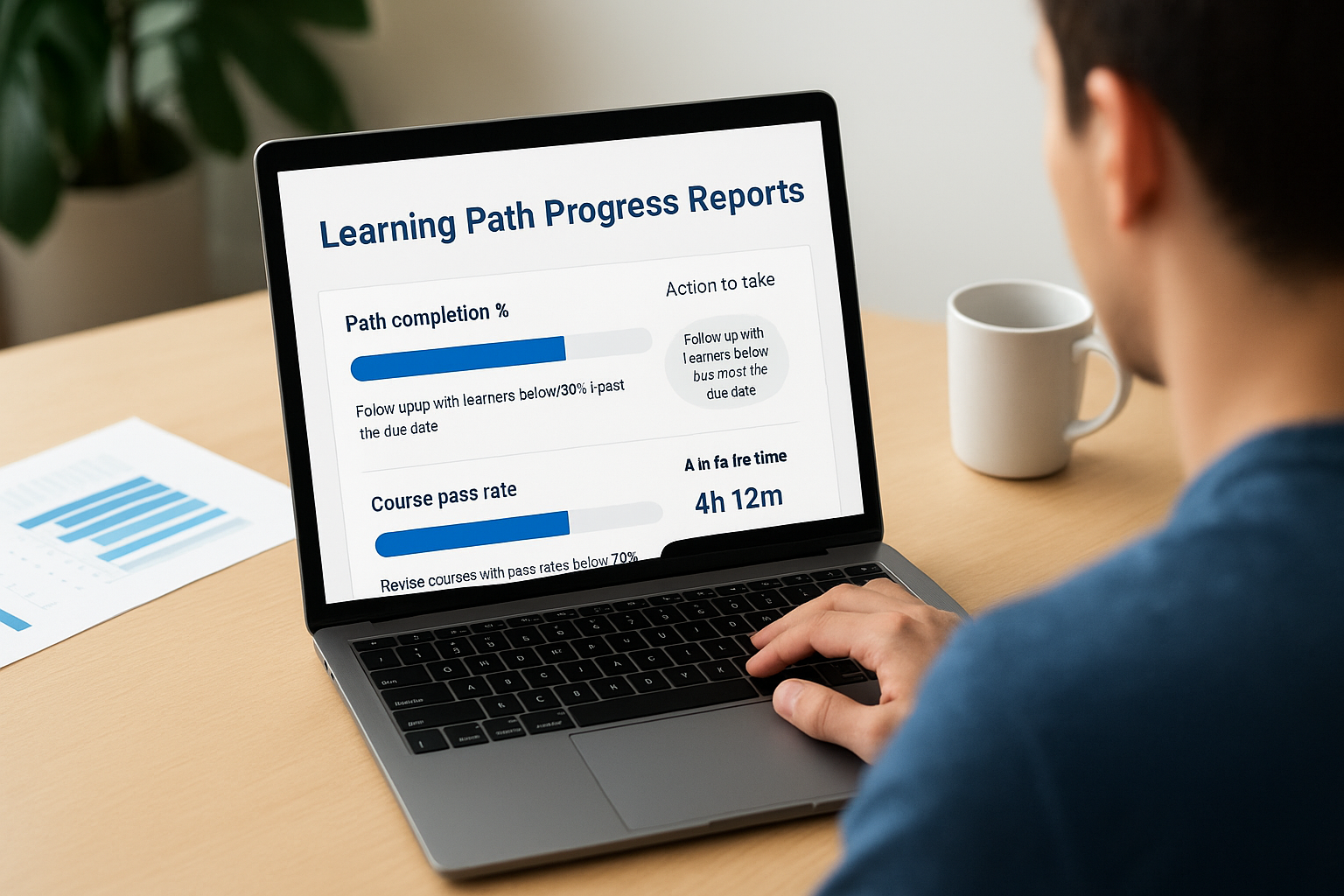
Export your reports as CSV files on a regular schedule so you have a historical completion record available when compliance audits require documentation.
Use this table to understand what each key metric tells you and what action to take:
| Metric | What it shows | Action to take |
|---|---|---|
| Path completion % | Overall learner progress | Follow up with learners below 50% past the due date |
| Course pass rate | Assessment performance per step | Revise courses with pass rates below 70% |
| Average time on path | How long learners spend | Investigate if time is significantly above your estimate |
Identify where learners stall
Completion percentage alone does not tell the full story. Pull course-level reports within each path to pinpoint the exact step where learners repeatedly fail assessments or stop progressing entirely. This granular view is where the real diagnostic value lives.
Once you find a problem step, compare it against your original training goal from Step 1. If Course 2 consistently shows low pass rates across your TalentLMS learning paths, that course likely needs clearer content or a revised assessment before you assign the path to your next cohort.
Keep improving your training paths
Building a learning path is not a one-time task. Treat each path as a living program that you review after every cohort completes it. Pull your completion rates, check where learners stalled, read any feedback they submitted, and update the weaker courses before the next group starts. Small, regular improvements compound over time into a training program that consistently produces results rather than one that slowly loses relevance.
Your data from TalentLMS learning paths will show you exactly which steps to fix and which ones to leave alone. Focus your revision effort on the courses with the lowest pass rates and the highest drop-off points first. Prioritizing the weakest links in the sequence gives you the highest return for the time you invest in updating content.
If you are evaluating whether your current LMS setup is the right fit for your training goals, take the LMS readiness quiz to find out where you stand.
