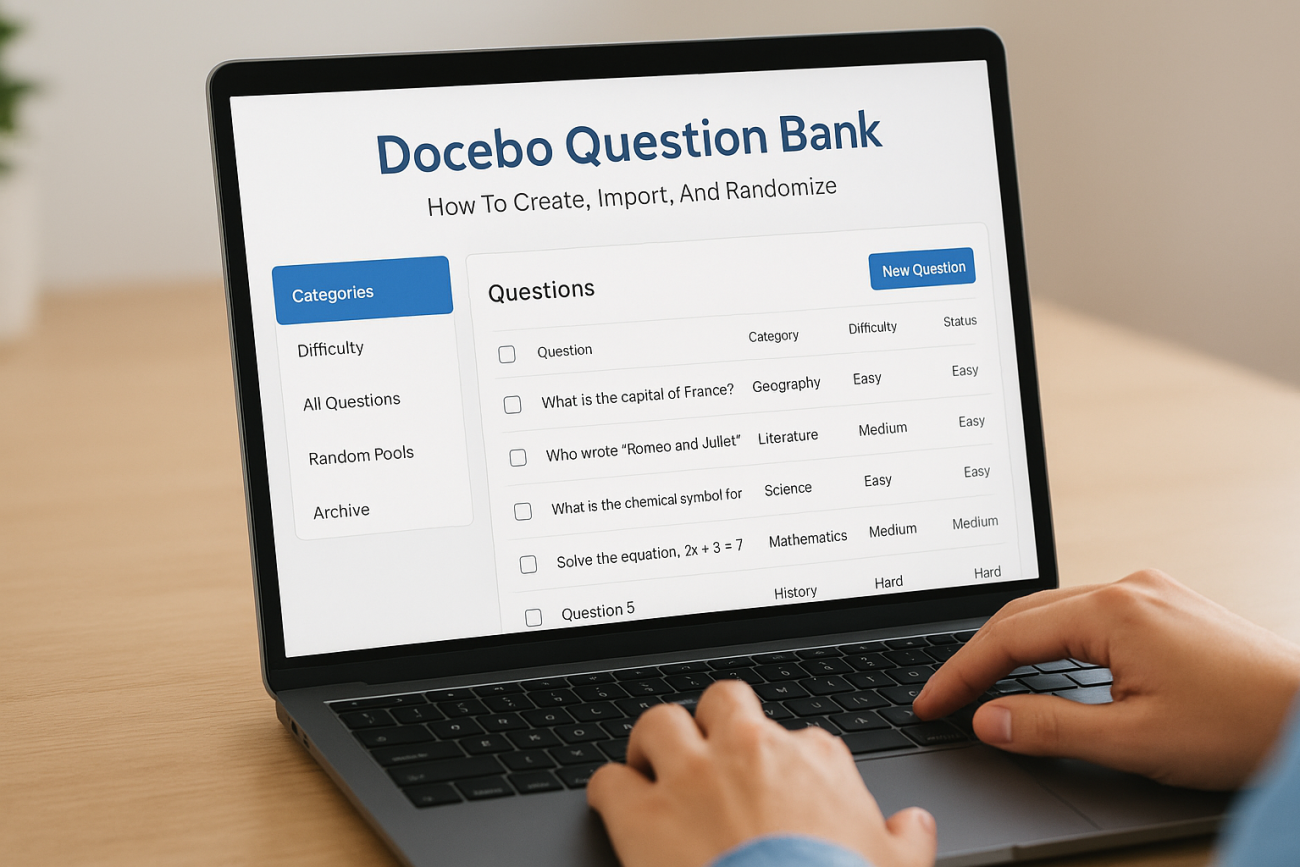
Managing test questions across multiple courses can quickly become chaotic without the right tools. A Docebo question bank gives you a centralized repository to store, organize, and reuse assessment questions, saving time and ensuring consistency in your training evaluations. Whether you’re building compliance tests or product knowledge quizzes, understanding how this feature works is essential for efficient course development.
This guide walks you through creating question banks in Docebo, importing questions from external files, and setting up randomization to prevent test-taking shortcuts. You’ll learn the step-by-step process for each function, along with practical tips to avoid common mistakes that can derail your assessments.
At Atrixware, we specialize in helping organizations build effective training programs through our Axis LMS platform. Our experience with learning management systems gives us a clear view of what works, and what doesn’t, when it comes to assessment management. Use this guide to get the most out of Docebo’s question bank, or reach out if you want to explore how Axis LMS handles these same challenges with a different approach.
What the Docebo question bank does
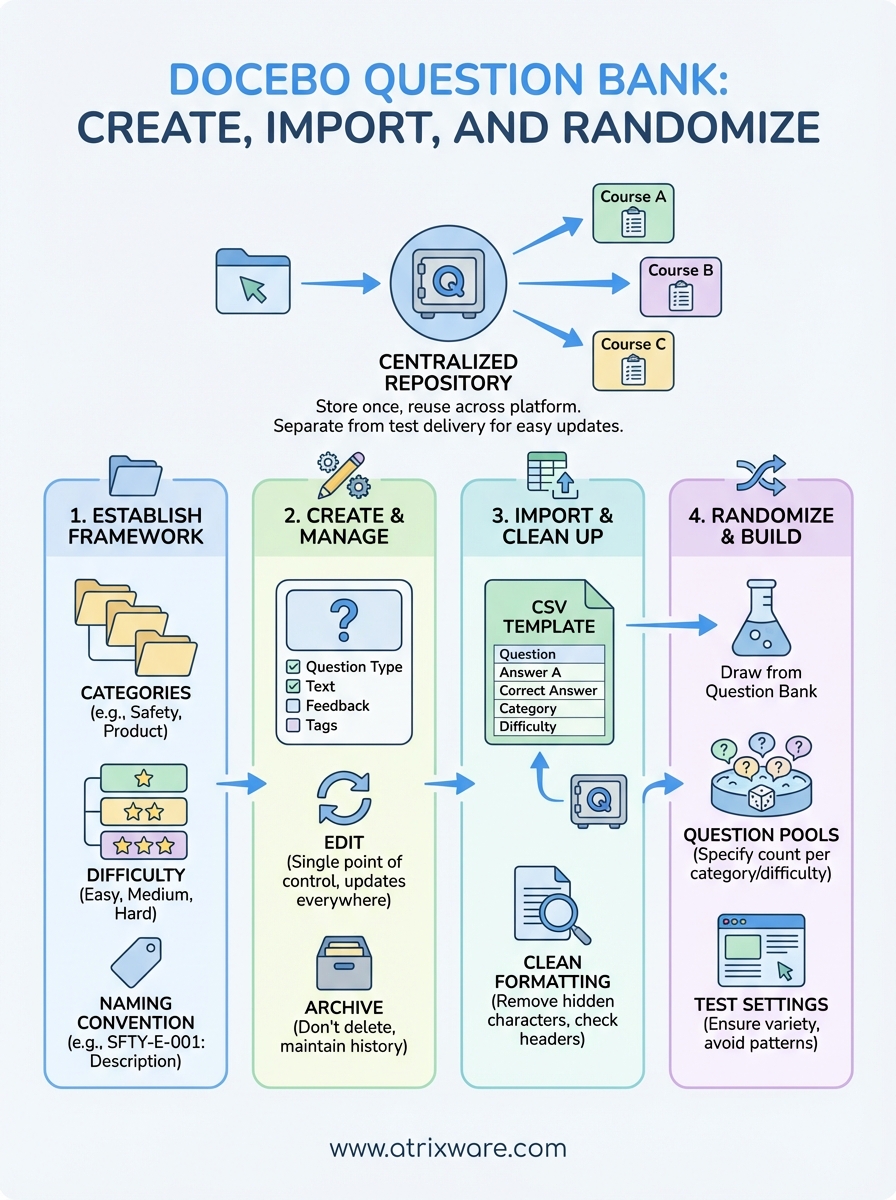
The Docebo question bank functions as a centralized library where you store assessment questions separately from individual courses. Instead of recreating the same question for every test, you build it once and pull it into multiple assessments across your platform. This separation between question storage and test delivery gives you flexibility to update content without hunting through dozens of courses to make changes.
Central storage and reusability
You create questions in the bank with full control over question types, scoring rules, and answer feedback. When you build a test, you select which questions to include from your existing bank rather than starting from scratch. This approach cuts down development time significantly when you need the same assessment content in multiple courses or learning plans.
Questions stay in the bank even after you remove them from a test, which means you can rotate questions in and out based on training needs without losing your work. Updates to a question in the bank automatically reflect in all tests using that question, giving you a single point of control for content accuracy.
The question bank separates question creation from test assembly, giving you better control over assessment content and reducing duplicate work.
Question pooling and randomization
The bank allows you to tag questions with categories and difficulty levels, which you then use to create randomized question pools. You set rules that pull a specific number of questions from designated categories each time a learner takes the test. This randomization prevents learners from sharing answers or memorizing question sequences, making your assessments more secure and harder to game through collaboration.
Docebo draws questions from your pool based on the parameters you define, so every test attempt presents a different combination while maintaining consistent difficulty and topic coverage.
Step 1. Set up categories, difficulty, and naming
Before you add your first question to the Docebo question bank, establish your organizational framework. Categories and difficulty levels control how you filter and randomize questions later, while consistent naming helps you locate specific questions when building tests. Setting these parameters upfront prevents the need to restructure hundreds of questions after your bank grows.
Creating category structures
Navigate to the question bank through your admin menu and create categories that reflect your training content structure. Use categories that match your course topics or compliance requirements rather than vague labels like "miscellaneous" or "general." For example, create categories for "safety protocols," "product specifications," or "customer service scenarios" that directly correspond to assessment objectives.
Setting difficulty levels and naming conventions
Assign difficulty ratings (easy, medium, hard) based on question complexity rather than how many learners get it wrong. An easy question tests basic recall, while hard questions require analysis or application of multiple concepts. Apply a naming convention that includes the category abbreviation, difficulty level, and version number:
SFTY-E-001: What is the first step in emergency evacuation?
PROD-H-023: Calculate the load capacity for combined weight scenarios.
CUST-M-015: How should you handle a refund request over $500?
Structured naming conventions let you search and filter questions quickly as your bank expands beyond initial expectations.
Step 2. Create and manage questions in the bank
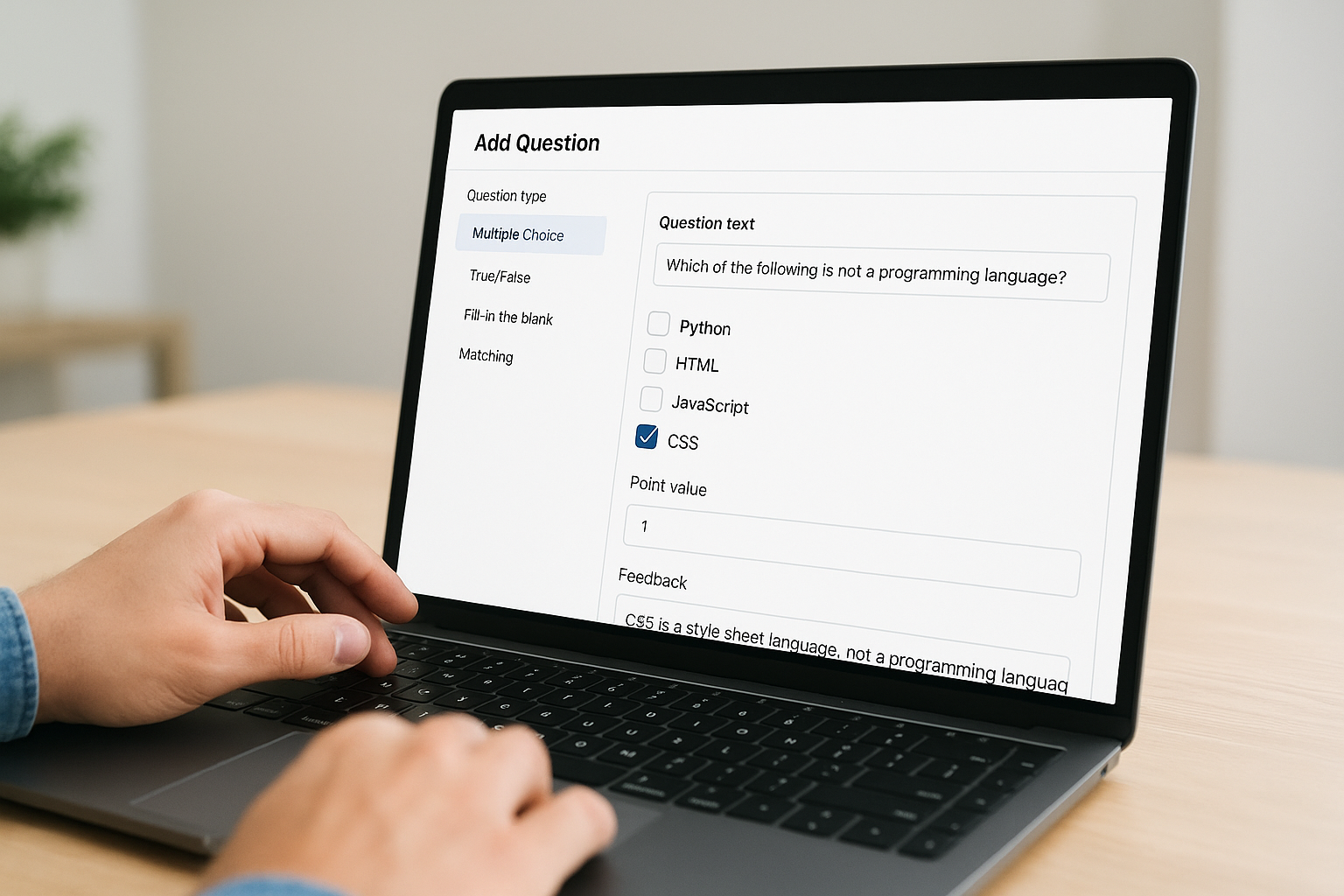
Click the "Add Question" button in your Docebo question bank to start building individual assessment items. You choose from question types like multiple choice, true/false, fill-in-the-blank, or matching questions based on what testing format best measures your learning objectives. Each question requires you to enter the question text, possible answers, correct answer selection, and point values before saving to the bank.
Building individual questions
Select your question type first, then add your question text in the content field. For multiple choice questions, enter each possible answer and mark which options are correct by checking the appropriate boxes. Set the point value for correct answers and add feedback text that explains why the answer is right or wrong, which helps learners understand their mistakes.
Apply the category and difficulty tags you created in Step 1 to each question so you can filter and search effectively later. Add keywords in the question name that describe the specific concept being tested rather than generic labels.
Managing question lifecycle
Return to the question bank when you need to edit existing questions by searching for the question name or filtering by category. Changes you make to a question apply immediately to all tests using that question, so verify your edits carefully before saving. Archive outdated questions rather than deleting them to maintain historical assessment records in learner transcripts.
Edit questions directly in the bank rather than duplicating them across multiple tests to maintain consistency and control updates from a single location.
Step 3. Import questions and clean up formatting
Docebo accepts CSV file uploads for bulk question imports, which saves time when you migrate existing assessments or add large question sets. Download the CSV template from the question bank interface to see the required column structure before you populate your file. The template shows exact column headers for question text, answer options, correct answers, categories, and difficulty levels that match Docebo’s import requirements.
Preparing your CSV file
Format your spreadsheet with one question per row and separate columns for each answer choice (typically A through D or E). Mark the correct answer in a designated column using exact spelling that matches Docebo’s accepted values like "A" or "True" rather than variations. Include your category names and difficulty ratings in their respective columns exactly as you created them in Step 1.
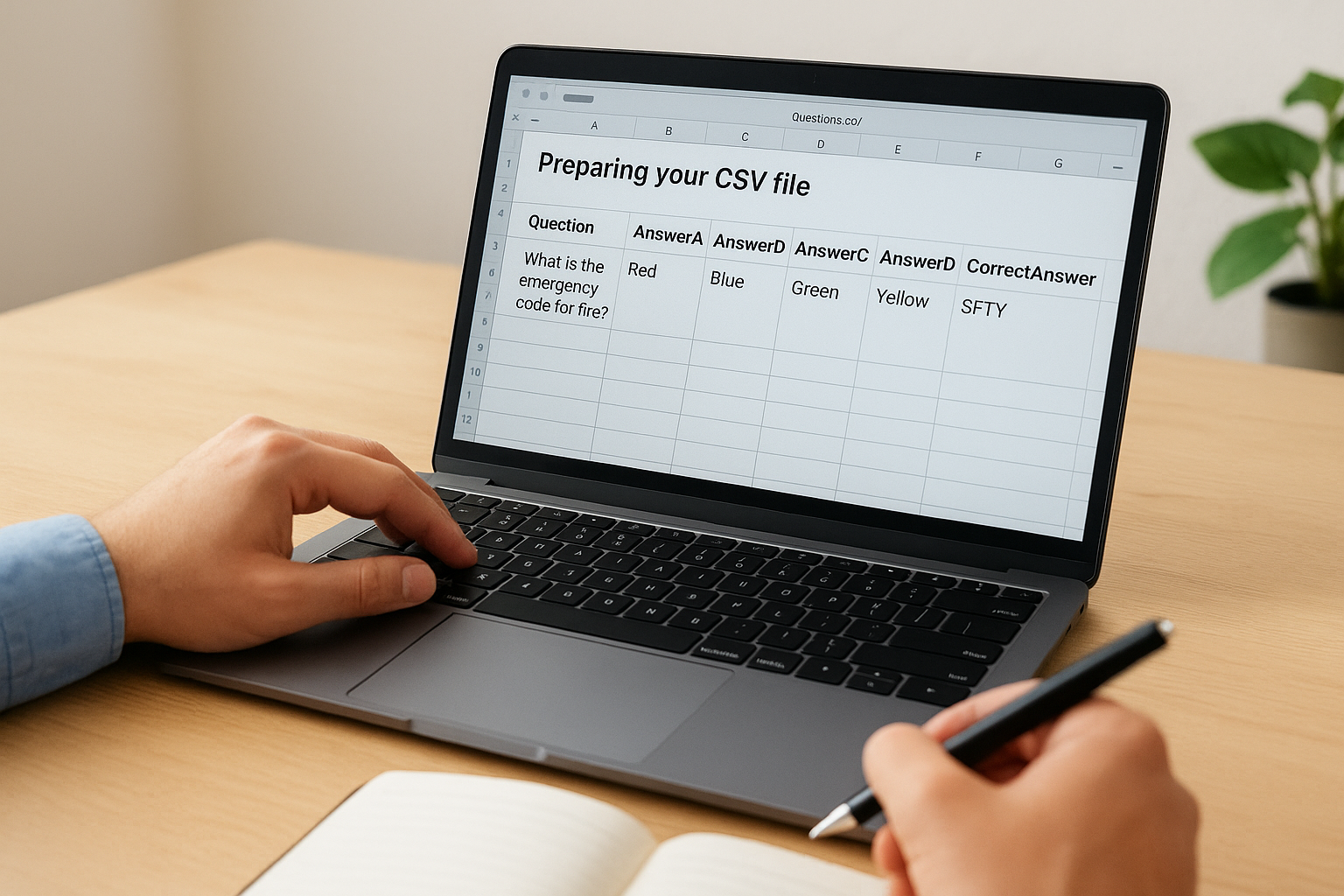
Question,AnswerA,AnswerB,AnswerC,AnswerD,CorrectAnswer,Category,Difficulty,Points
What is the emergency code for fire?,Red,Blue,Green,Yellow,A,SFTY,Easy,1
Fixing common import errors
Upload your CSV through the import function and review the error report that appears if any questions fail to load. Common problems include mismatched category names, special characters that break formatting, or incorrect column headers. Open your CSV in a text editor to remove hidden characters that spreadsheet programs sometimes add, especially line breaks within cells that split questions across multiple rows.
Clean your CSV file in a text editor before importing to catch formatting issues that spreadsheet applications hide from view.
Step 4. Build tests and randomize without surprises
Create a new test object in your course, then select "Draw from Question Bank" instead of adding questions manually. You specify how many questions to pull from each category combination and difficulty level you defined earlier in your Docebo question bank. Set your total question count lower than your available bank questions to ensure randomization has enough variety to prevent repeated patterns across learner attempts.
Setting up question pools
Configure your pool parameters by selecting the categories you want to include in each test section. Specify the exact number of questions to draw from each category rather than pulling all available questions. For example, set your test to draw 5 questions from "safety protocols" marked as easy, 3 from medium difficulty, and 2 from hard to maintain consistent difficulty distribution across all randomized versions.
Section 1: Safety Protocols
- Easy: 5 questions
- Medium: 3 questions
- Hard: 2 questions
Total questions in bank: 40
Testing randomization settings
Preview your test multiple times to verify that questions appear in different orders and combinations with each refresh. Check that your randomization rules pull the expected number of questions from each category without creating impossible scenarios where learners see the same questions repeatedly.
Test your randomization settings with multiple preview attempts before publishing to catch configuration errors that create repetitive question patterns.
Next steps
You now have the complete process for building, importing, and randomizing questions in your Docebo question bank. Start by creating your category structure and naming conventions before you add questions, which prevents reorganization work later. Import your existing assessments through CSV files after cleaning the formatting, then set up randomization rules that pull from your organized categories.
Test your randomization settings thoroughly by previewing multiple attempts and verifying that question distribution matches your configuration. Monitor your question bank size as you add content to ensure you maintain enough variety for effective randomization without overwhelming your assessment library.
If you’re evaluating whether Docebo meets your training needs or exploring alternative platforms, take our LMS readiness quiz to identify which features matter most for your organization. The quiz helps you compare how different systems handle question banks, randomization, and other assessment management functions based on your specific requirements.
