
Building quizzes one question at a time gets old fast, especially when you’re managing multiple courses or need to reuse the same questions across different assessments. That’s where the LearnDash question bank comes in. It gives you a centralized place to store, organize, and pull questions into quizzes without recreating them from scratch every time.
At Atrixware, we build Axis LMS and spend a lot of time thinking about how training tools should work. We know that effective assessments drive real learning outcomes, whether you’re onboarding employees, certifying partners, or testing customer knowledge. So we’ve put together this guide to help you get the most out of LearnDash’s question bank feature.
In this article, you’ll learn how to create and organize your question bank, build quizzes that pull from your stored questions, and set up randomization to keep assessments fresh and prevent answer-sharing. By the end, you’ll have a system that saves time and makes your quizzes more effective.
What the LearnDash question bank is and why it matters
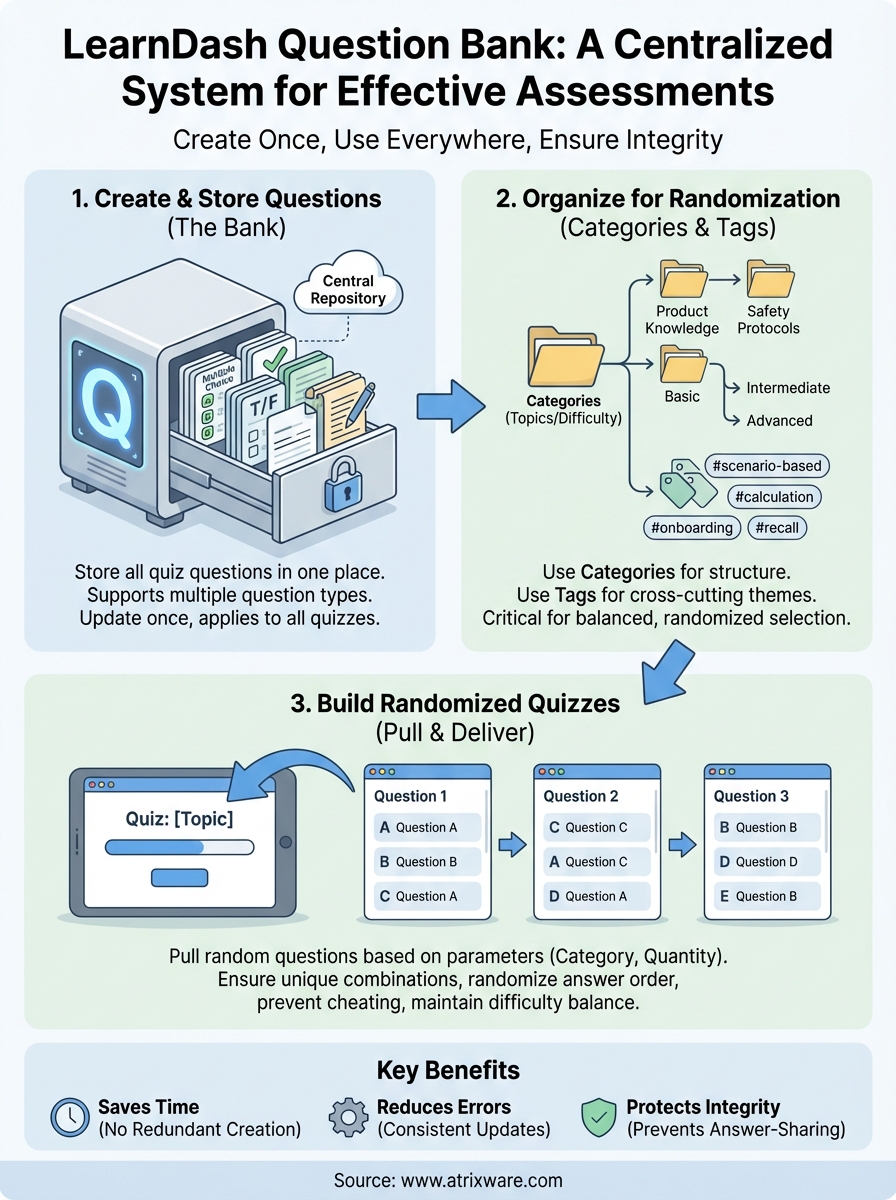
The LearnDash question bank acts as a central repository where you store all your quiz questions in one place. Instead of creating questions directly inside individual quizzes, you build them once in the bank and then pull them into any quiz you need. This means you can reuse questions across different courses, assessments, and certification exams without duplicating your work.
Your question bank supports multiple question types including multiple choice, true/false, essay, fill-in-the-blank, and more. You can also add categories and tags to organize questions by topic, difficulty level, or course module. This organizational structure becomes critical when you start building randomized quizzes that need to pull specific types of questions from your collection.
How the question bank saves time and reduces errors
Building questions in a centralized bank cuts down on repetitive work significantly. When you need to update a question or fix an error, you change it once in the bank and the correction applies to every quiz using that question. This eliminates the need to hunt through dozens of quizzes to make the same edit multiple times.
The bank also lets you create question templates that maintain consistency across your assessments. If you’re building compliance training or certification programs, this consistency ensures every learner gets tested on the same core concepts with the same level of rigor, regardless of which quiz version they receive.
Why randomization protects assessment integrity
Random quiz generation matters because it prevents learners from sharing answers or memorizing question order. When you pull questions randomly from your bank, each learner gets a different combination of questions, making it nearly impossible to cheat through answer-sharing.
Randomized assessments increase the validity of your results because they measure actual knowledge rather than pattern recognition or memorization.
You can set parameters for randomization based on categories, ensuring each quiz version maintains the same difficulty balance and topic coverage. This approach works especially well for high-stakes assessments where you need both security and fairness in your testing process.
Step 1. Create your question bank and add questions
You start building your learndash question bank by navigating to LearnDash LMS > Questions in your WordPress dashboard. This takes you to the main question bank interface where you’ll create and store all your assessment content. Click Add New to begin creating your first question, just like you would when adding a new post or page.
Set up your question structure
Each question requires you to fill out several core fields that determine how it functions in your quizzes. Enter your question text in the main editor, then select a question type from the dropdown menu (multiple choice, single choice, free choice, sort answer, matrix sort, fill in the blank, assessment, or essay). Below that, you’ll configure answer options and assign point values.
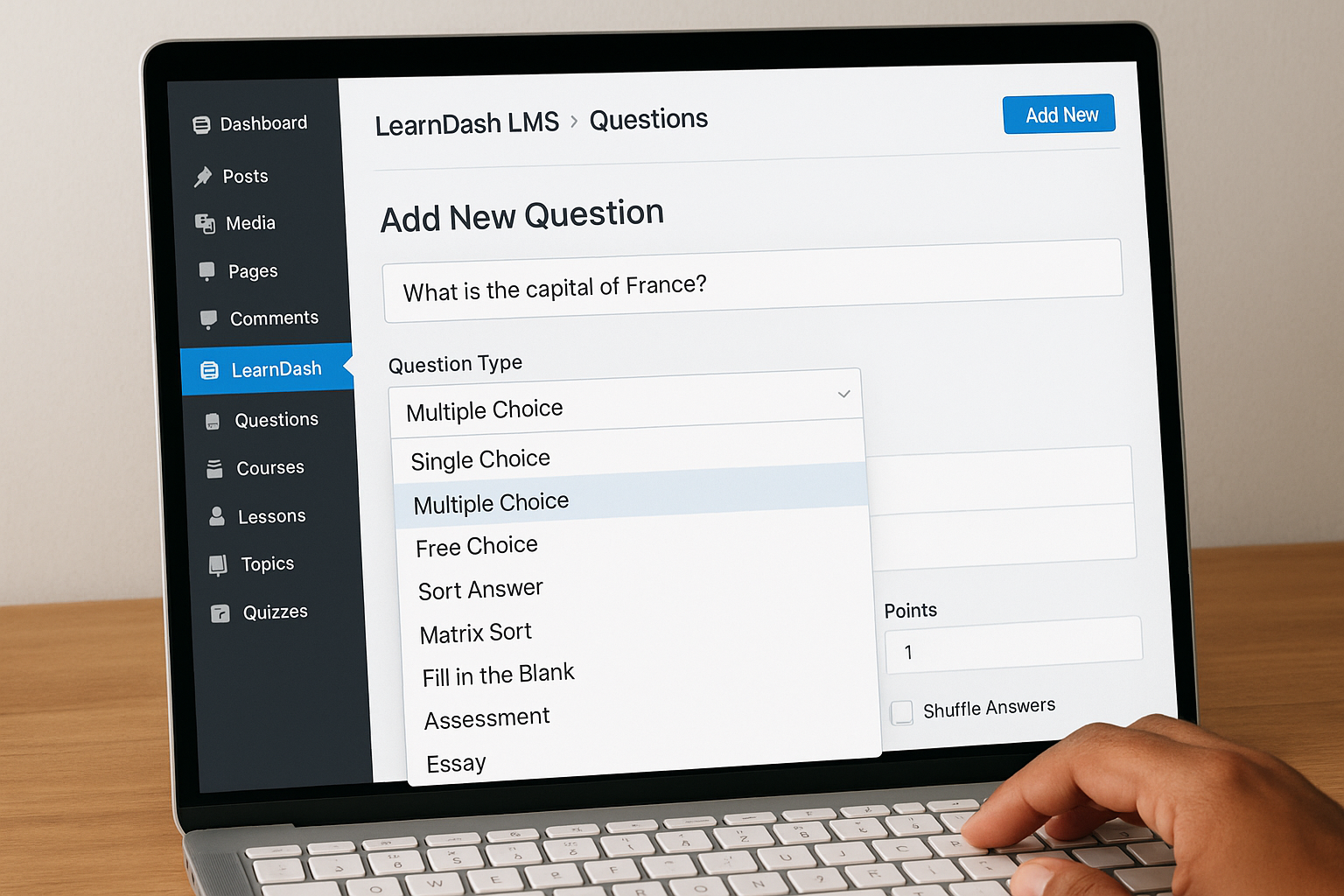
For multiple choice questions, add your answer options in the Answers section and check the box next to the correct answer. You can also enable features like answer shuffling to randomize the order of choices each time the question appears. Set the point value based on difficulty or importance (most questions use 1 point, but you can assign higher values for more challenging items).
Configure point values consistently across similar question types to maintain fair scoring throughout your assessment.
Add metadata for better organization
Fill in the Categories and Tags fields on the right sidebar to organize your questions by topic, course module, or difficulty level. These classifications become essential later when you build randomized quizzes that need to pull specific question types from your bank. Use descriptive category names like "Product Knowledge" or "Safety Protocols" rather than generic labels like "Module 1."
Step 2. Organize questions for better randomization
Your learndash question bank becomes truly powerful when you organize questions systematically. Without proper organization, you’ll struggle to pull the right questions for randomized quizzes and end up with assessments that test learners unevenly. You need a clear taxonomy that groups questions logically while making them easy to filter and select.
Create categories that match your quiz structure
Set up categories based on your course topics or learning objectives rather than arbitrary divisions. Navigate to LearnDash LMS > Question Categories and create categories that reflect actual content areas like "Safety Procedures," "Product Features," or "Regulatory Compliance." This structure lets you pull questions from specific topics when building randomized quizzes.
You can also create difficulty-based categories like "Basic Concepts," "Intermediate Application," and "Advanced Scenarios" to ensure each quiz version maintains consistent challenge levels. When you categorize by difficulty, you can specify that each randomized quiz pulls exactly two basic questions, three intermediate questions, and one advanced question, maintaining the same difficulty balance across all versions.
Organize your question categories around how you’ll actually use them in quizzes rather than how you initially created the content.
Use tags for cross-cutting themes
Tags work differently from categories because they identify characteristics that span multiple topics. Add tags like "scenario-based," "calculation," or "recall" to indicate question format, or use tags like "onboarding" and "annual-review" to mark when specific questions should appear. This dual-layer organization gives you maximum flexibility when building randomized assessments that need to meet multiple criteria simultaneously.
Step 3. Build a randomized quiz from your bank
You create a randomized quiz by navigating to LearnDash LMS > Quizzes and either adding a new quiz or editing an existing one. Scroll down to the Quiz Questions section where you’ll see options for adding questions directly or pulling them from your learndash question bank. Click the Load Questions from Question Bank button to access your stored questions.
Configure randomization settings
The randomization panel lets you specify exactly how questions get selected from your bank. Enable the "Random Questions" option, then set the total number of questions you want each quiz version to include. You can pull questions from all categories or restrict selection to specific categories by choosing them from the dropdown menu.
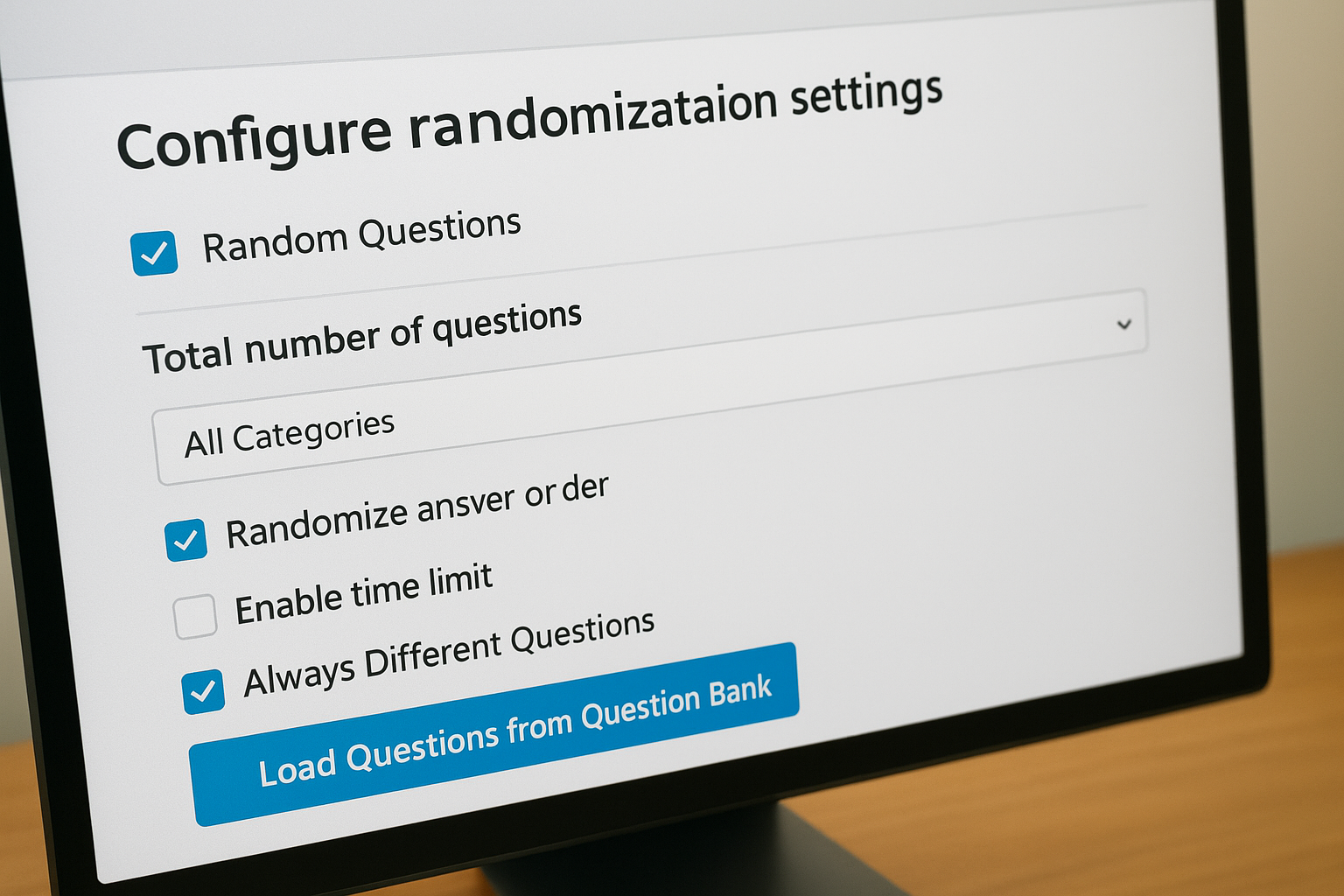
Below the category selection, you’ll find options to randomize answer order and enable time limits. Turn on "Always Different Questions" to ensure each learner receives a unique combination of questions rather than the same subset appearing repeatedly. This setting works best when your question bank contains significantly more questions than you’re pulling for each quiz.
Configure your randomization to pull at least 50% more questions than you need so learners who retake the quiz encounter mostly new content.
Set question quantity and category filters
Specify how many questions to pull from each category by using the Questions Per Category field. Enter values like "Safety:3, Compliance:2, Operations:5" to ensure every quiz version tests the same topic distribution. This approach maintains assessment consistency while still randomizing which specific questions appear.
Step 4. Test, analyze results, and fix common issues
You need to verify your randomized quiz works correctly before launching it to learners. Testing reveals configuration errors, identifies questions that don’t randomize properly, and shows you whether the point distribution remains consistent across different quiz versions. Log in as a test user or use a staging site to take the quiz multiple times and examine how questions appear.
Run test quizzes with different user roles
Create test user accounts with the same permissions as your actual learners and complete the quiz at least three times. Note which questions appear in each attempt and verify that you’re seeing different combinations rather than the same questions repeating. Check that answer choices shuffle correctly if you enabled that option, and confirm the total point value stays consistent across all versions.
Check quiz results and question performance
Navigate to LearnDash LMS > Reports and examine the statistics for your randomized quiz. Look for questions that learners answer incorrectly at unusually high rates, which might indicate confusing wording or incorrect answer keys in your learndash question bank. Review the average completion time to ensure your randomization settings don’t accidentally create quiz versions that take dramatically different amounts of time to complete.
Test quiz versions should maintain the same difficulty level and completion time, even when questions vary.
Fix common randomization problems
If the same questions keep appearing, verify you have enough questions in each category to support true randomization. Add more questions if your bank contains fewer than double the number you’re pulling per quiz. When questions from the wrong category appear, return to your question bank and confirm the category assignments are correct.
Wrap up and keep improving
Your learndash question bank becomes more valuable as you add questions and refine your organization system. Start small by creating 50-100 core questions that cover your essential content, then expand your collection as you identify gaps in your assessments. Review quiz analytics quarterly to spot questions that need clarification or categories that need better balance.
Keep testing your randomization settings after you add new questions to ensure each quiz version maintains consistent difficulty and topic coverage. Update question wording based on learner feedback and retire questions that no longer align with your current training objectives. This ongoing maintenance keeps your assessments relevant and effective.
If you’re looking for an LMS with more robust quiz features and better reporting capabilities, take our LMS readiness quiz to see which solution fits your training needs best.
