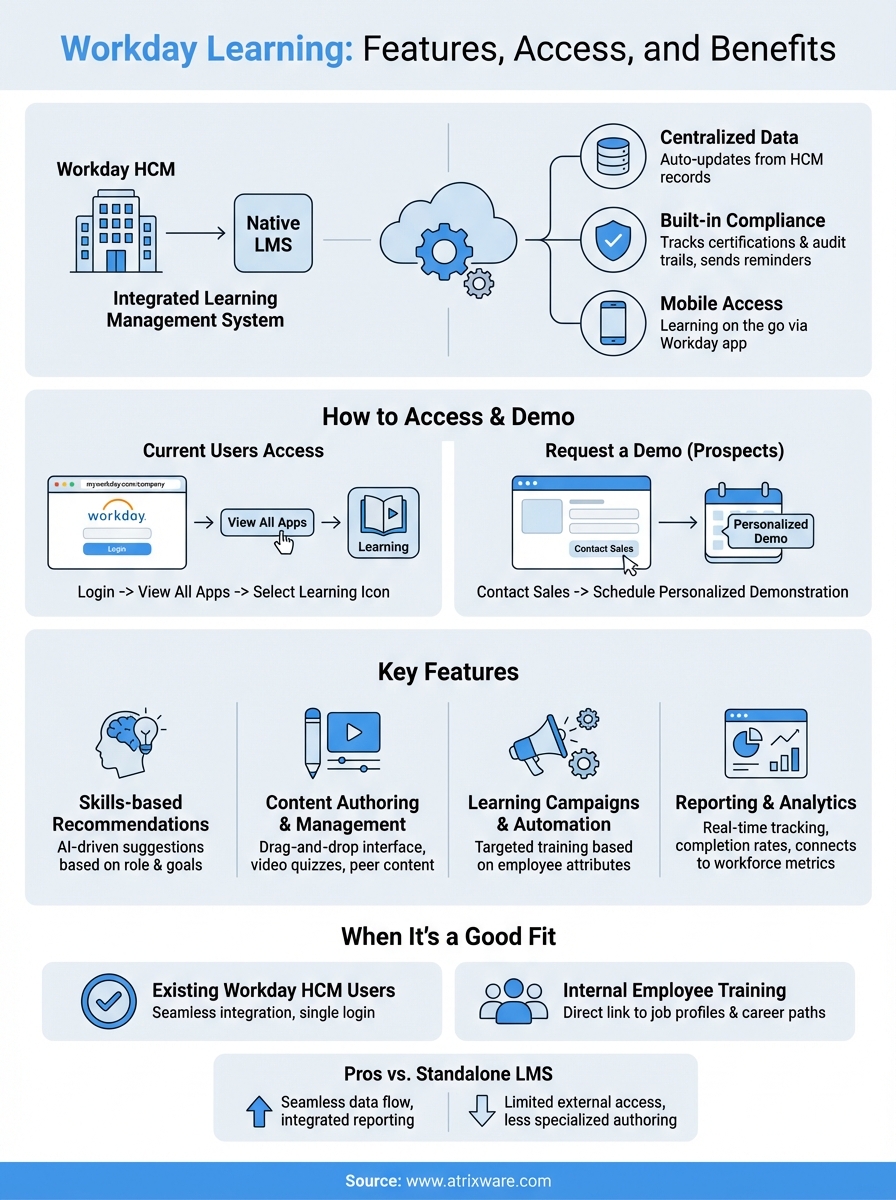
Workday Learning is the native learning management system built into Workday HCM. If your organization uses Workday for human resources and payroll, you already have access to its training and development tools. The platform lets you create courses, assign training, track compliance, and measure learning outcomes without switching to a separate LMS.
This guide walks you through what Workday Learning offers and how to use it. You’ll learn about its core features, how to log in and navigate the system, and when it makes sense as your training solution. We’ll also cover how to request a demo if you’re evaluating options, and what to expect when you compare it to standalone learning platforms. Whether you’re an administrator setting up training programs or an employee trying to complete required courses, you’ll find the practical information you need to get started.
Why Workday Learning matters
Your organization already stores employee data in Workday. When you add training to the same system, you connect learning directly to job roles, performance goals, and career development plans. This integration removes the friction of juggling separate platforms and manually updating records across systems. You gain a complete view of each employee’s skills, certifications, and training history in one place, which helps you make better decisions about promotions, assignments, and workforce planning.
Centralized data eliminates manual work
Workday Learning pulls employee information automatically from your HCM records. When someone changes departments, gets promoted, or joins a new team, the system updates their training requirements without admin intervention. You don’t export CSV files, reconcile user lists, or worry about outdated records. Automated enrollment rules assign the right training based on job profile, location, or any other employee attribute you track in Workday. This saves hours each week that would otherwise go toward administrative tasks.

When your learning system shares the same database as your HR platform, you eliminate the data sync problems that plague most training programs.
Built-in compliance tracking
Compliance training becomes simpler when you track it in the same system that manages employee certifications and audit trails. Workday Learning records every completed course, quiz result, and certificate earned. You can pull reports that show exactly who needs recertification, who missed deadlines, and which departments have gaps in required training. The system sends automatic reminders to employees and managers before certifications expire, reducing the risk of compliance violations.
Mobile access for distributed teams
Employees access Workday Learning through the Workday mobile app, which means they complete training on their phones during breaks or commutes. This matters for retail staff, field technicians, healthcare workers, and anyone who doesn’t sit at a desk all day. The mobile interface adapts to smaller screens and lets people pause training mid-lesson, then pick up where they left off later. Push notifications alert users to new required courses or upcoming deadlines, keeping training visible even when people work remotely or across multiple locations.
How to access Workday Learning or get a demo
You access Workday Learning differently depending on whether your organization already uses Workday HCM or whether you’re evaluating it as a potential solution. Current users log in through their existing Workday accounts, while prospects need to contact Workday’s sales team to schedule a demonstration. The access process takes minutes for existing users but requires advance planning if you’re exploring the platform for the first time.
Access for current Workday users
Your organization’s Workday administrator controls who can access the learning module. If you work for a company that uses Workday HCM, you likely already have login credentials. Open your web browser and navigate to your organization’s Workday login page, which typically follows the format myworkday.com/yourcompanyname. Enter your username and password, complete any two-factor authentication steps, and you’ll reach the Workday homepage.
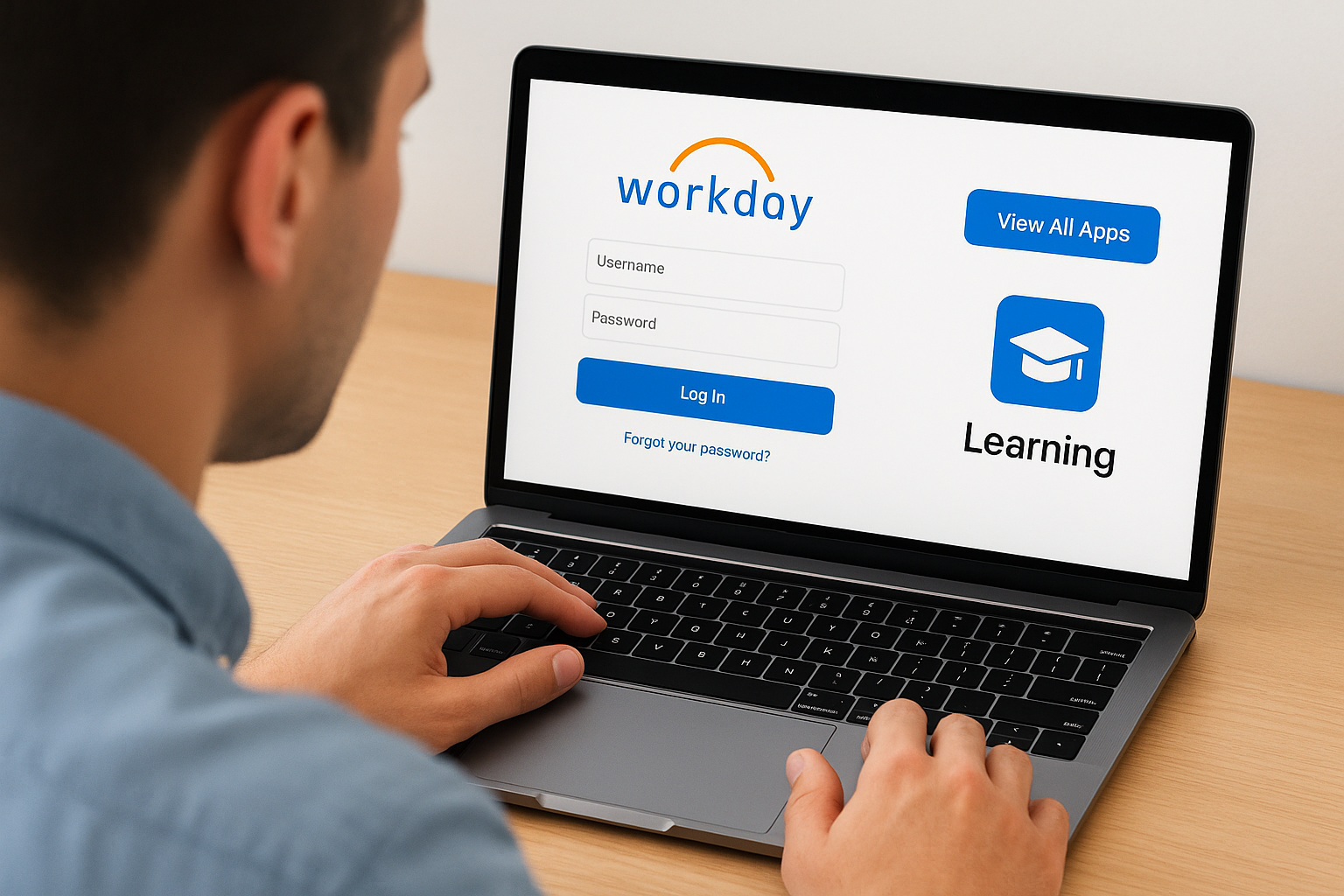
Look for the “View All Apps” button on the main screen. Click it to see the full list of Workday applications available to you. Find the “Learning” icon and select it to open Workday Learning. Some organizations pin the Learning app to the homepage for quick access. If you don’t see the Learning icon at all, contact your HR department or Workday administrator to request access permissions for your account.
You need proper permissions assigned by your administrator before the Learning module appears in your Workday account.
Request a demo if you’re evaluating Workday
Prospects who want to see Workday Learning in action must go through Workday’s sales process. Visit the Workday website and look for the “Contact Sales” or “Request a Demo” option. Fill out the form with your company information, number of employees, and specific training needs. A Workday sales representative will contact you to schedule a personalized demonstration.
The demo typically covers core LMS features, integration capabilities, and pricing based on your organization’s size. Plan to discuss your current training challenges, compliance requirements, and any existing systems you need to connect with Workday Learning. Sales calls usually last 30 to 60 minutes and give you the chance to see the platform’s interface and ask technical questions before making a purchasing decision.
Key features of Workday Learning
Workday Learning includes several features that distinguish it from standalone learning platforms. These tools work together with your existing Workday data to deliver targeted training, automate administrative tasks, and give you visibility into learning outcomes across your organization. Understanding what each feature does helps you decide whether the platform matches your training needs and whether you need supplemental tools to fill any gaps.
Skills-based course recommendations
The system analyzes employee profiles and suggests relevant training based on their current role, skills gaps, and career aspirations. When an employee browses available courses, Workday Learning surfaces content that matches their job responsibilities and professional development goals. The algorithm considers factors like completed training history, performance reviews, and the skills required for positions they’ve expressed interest in.
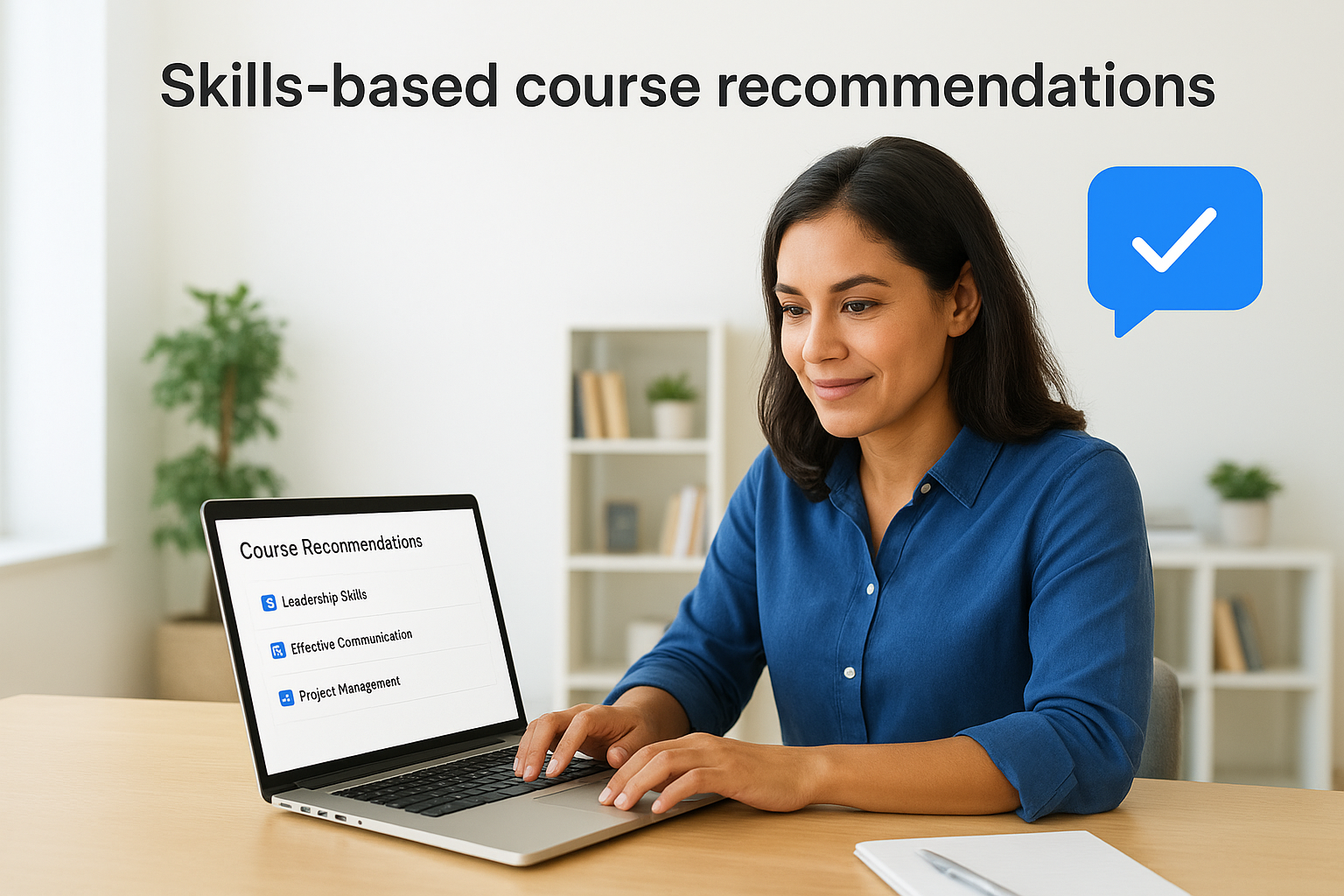
Managers see these same recommendations when they review their team members’ development plans. You can override automated suggestions and assign specific courses when you identify training needs that the system might miss. The recommendation engine learns from employee behavior over time, so it becomes more accurate as people complete courses and provide feedback through ratings and reviews.
Content authoring and management
You build courses directly in Workday Learning using a drag-and-drop interface that requires no technical expertise. Upload videos, documents, presentations, and SCORM packages to create lessons, then organize them into courses and learning paths. The platform supports quiz questions embedded within video content, multiple-choice assessments, and open-response formats that let you test knowledge at specific points during training.
Workday Learning also enables peer-to-peer content creation, where employees record and share their own training videos. You control this process through an approval workflow that reviews user-generated content before it becomes visible to other learners. This feature helps you scale training by tapping into subject matter experts across your organization without relying solely on your learning and development team to produce every piece of content.
When you let employees create and share training content, you build a knowledge base that reflects real-world expertise from people doing the work every day.
Learning campaigns and automation
Campaigns let you push targeted training to specific groups based on employee attributes stored in Workday. Create a campaign that automatically enrolls all new managers in leadership training, or send safety refresher courses to field workers in particular regions. The system checks employee records continuously and enrolls people as soon as they meet your criteria, which means you don’t manually add users to courses every time someone changes roles.
You set enrollment rules using any data point available in Workday, including department, location, hire date, job level, and custom fields your organization tracks. Campaigns can also trigger when specific events occur, such as a promotion or transfer. Automated reminders go out before course deadlines, and the system sends follow-up notifications to employees who haven’t completed required training by the due date.
Reporting and analytics
Workday Learning provides real-time dashboards that show completion rates, time to completion, and assessment scores across your organization. Filter reports by department, location, course type, or any employee attribute to identify patterns and problem areas. You track which courses get the highest engagement, where employees struggle with specific material, and which teams consistently miss compliance deadlines.
The platform generates automated reports on a schedule you define, delivering them to managers and stakeholders via email. You export data to Excel or PDF for presentations or deeper analysis outside Workday. Compliance tracking features highlight upcoming certification expirations and show you exactly which employees need recertification before audit deadlines. The reporting connects directly to employee records, so you see how training correlates with performance metrics, retention rates, and other workforce analytics you track in Workday HCM.
Access and login help for everyday users
Your Workday Learning experience starts with a successful login, but the exact steps vary depending on how your organization configured the system. Most login problems stem from incorrect URLs, forgotten passwords, or permission settings that haven’t been properly assigned to your account. This section addresses the most common access issues employees face and gives you practical solutions to get into the system quickly.
Finding your organization’s login page
Your company uses a unique Workday URL that differs from other organizations. The standard format follows myworkday.com/companyname, where “companyname” gets replaced with your organization’s specific identifier. Check your welcome email from HR or IT when you first joined the company, as it typically includes your exact login address. You can also search your email inbox for “Workday” to find previous messages containing the correct link.
Some organizations set up custom domains that don’t follow the myworkday.com pattern. Your company might use something like workday.yourcompany.com or people.yourcompany.com instead. If you can’t locate the URL through email, contact your HR department or IT help desk directly. They can send you the correct link and verify that your account exists in the system. Save the URL as a bookmark in your browser once you find it to avoid searching for it each time you need to log in.
Troubleshooting common login issues
Password problems account for most login failures. When you can’t remember your password, look for the “Forgot Password” link on the login screen. Click it and follow the prompts to reset your credentials through email verification or by answering security questions. Your organization sets password requirements like length, special characters, and expiration periods, so your new password must meet those standards.
Two-factor authentication adds another layer of security that trips up some users. After entering your username and password, the system sends a verification code to your phone or email. You need to enter this code within a few minutes before it expires. If you don’t receive the code, check your spam folder or verify that your contact information in Workday matches your current phone number and email address. Contact your administrator to update these details if they’re outdated.
If you repeatedly fail to log in after multiple attempts, the system may temporarily lock your account to prevent unauthorized access.
Account permissions cause access problems when you can log into Workday successfully but can’t find the Learning module. Your administrator controls which Workday applications appear in your account. Missing permissions mean you need to submit a request through your company’s access management process. Reach out to your manager or HR representative to initiate this request, as they can approve access to workday learning based on your training needs and role requirements.
Navigating to the Learning module
You reach the Learning module through the Workday homepage after logging in successfully. Look for the “View All Apps” button, typically located near the center or top of your screen. Click it to display every Workday application available to you, including Learning, Performance, Career, and other modules your organization uses.
The Learning icon appears in this list if your administrator granted you access. Click the icon once to open Workday Learning, which loads in the same browser tab. Your organization might customize the icon’s appearance or position, but the label clearly says “Learning” underneath. Some companies pin frequently used apps to the homepage, so you might see Learning available without clicking “View All Apps” first. This shortcut saves you a step each time you access training content.
How to use Workday Learning every day
Your daily interaction with Workday Learning becomes routine once you understand where to find courses, how to enroll, and what steps lead to completion. The platform organizes training into clear categories that help you identify required courses, recommended content, and learning opportunities you choose based on personal interests. You navigate through these sections using the menu on the left side of the Learning homepage, which remains consistent whether you access Workday through a desktop browser or the mobile app.
Finding and enrolling in courses
Start by clicking the “Learning Home” tab to see your personalized training dashboard. This screen displays courses your organization requires you to complete under the “Required for You” heading, along with suggested content based on your role and skills profile. You also see popular courses among people in similar positions and topics aligned with interests you selected in your learning preferences. This curation saves you time by surfacing relevant training without forcing you to search through hundreds of courses.
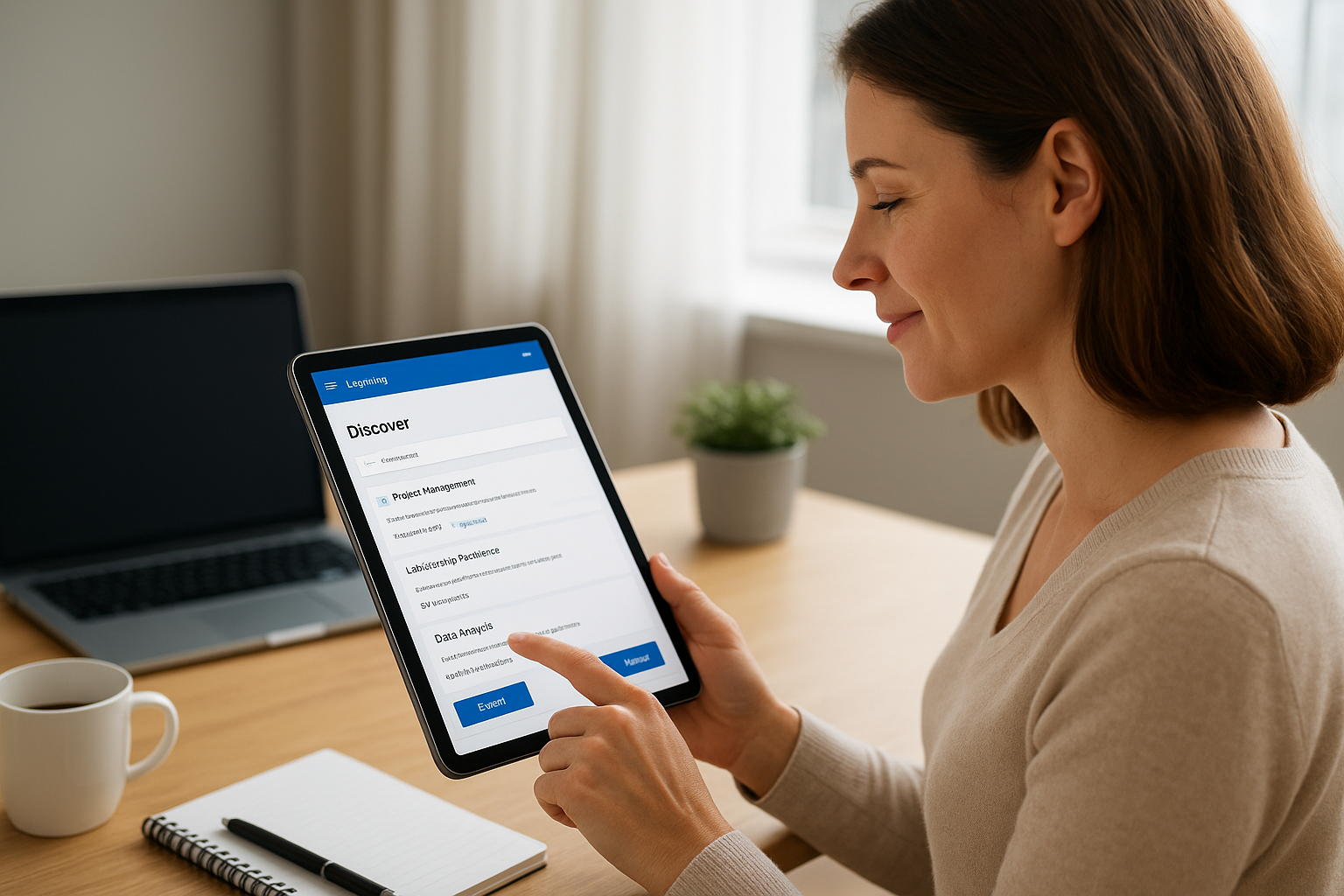
Browse the full course catalog by selecting the “Discover” tab from the left menu. You can search by keywords, filter by topic area, or sort courses by recently added, most popular, or duration. Each course listing shows you the estimated completion time, instructor or content provider, and ratings from other employees who completed it. Click on any course title to read the full description, see prerequisites, and check whether manager approval is required for enrollment.
When you find a course that matches your development goals, you can save it to a custom learning path to take later or enroll immediately if it fits your schedule.
Enroll in a course by clicking the “Enroll” or “Select Offering” button on the course details page. For self-paced online courses, enrollment happens instantly and you can start the first lesson right away. Instructor-led courses require you to choose a specific date and time from available sessions, which works like booking a meeting room. The system adds approved courses to your calendar and sends confirmation details to your email.
Completing training on your schedule
Access your active courses through the “My Learning” tab, which lists everything you’re currently enrolled in along with your progress percentage for each. Click any course title to resume where you left off. Workday Learning remembers your position in videos, presentations, and multi-lesson courses, so you can complete training in short sessions that fit between other work tasks.
Video-based courses let you pause and rewind as needed, and most include interactive quiz questions embedded at key points. You must answer these questions correctly to continue, which reinforces important concepts before moving forward. The platform also generates automatic transcripts for video content, allowing you to search for specific topics within a lesson or read along if you prefer text to audio.
Complete required assessments at the end of each course to earn credit. These typically include multiple-choice quizzes, scenario-based questions, or short written responses. You see your score immediately after submitting, and the system records your results in your learning transcript. Passing scores vary by course, but you can usually retake assessments if needed.
Tracking your progress
Monitor your overall training status through the “My Learning” dashboard, which shows completion percentages for active courses and upcoming deadlines for required training. The system sends email reminders when you have courses due within the next week, and your manager receives notifications about your team’s completion rates. This visibility keeps everyone accountable without requiring constant check-ins about training status.
View your complete learning history by accessing your learning transcript from the “My Learning” section. This record includes every course you’ve completed, assessment scores, certificates earned, and the dates you finished each program. You can download or print this transcript when you need documentation for professional certifications, compliance audits, or internal promotion discussions. The transcript updates automatically as you complete new courses, giving you a permanent record of your professional development within the organization.
How Workday Learning compares to standalone LMSs
Workday Learning operates differently than dedicated learning management systems because it sits inside your existing HR platform rather than functioning as a separate application. This architectural difference creates both advantages and constraints that affect how you deliver training. Standalone LMSs like Axis LMS and others focus exclusively on learning, which means they often include more advanced instructional design tools and learner engagement features. You gain convenience with Workday Learning’s integration, but you trade some specialized functionality that purpose-built systems offer.
Integration advantages and limitations
Your biggest benefit comes from seamless data flow between learning records and employee profiles. When you use Workday Learning, completed courses automatically update performance reviews, skill inventories, and succession planning documents without manual data entry. Standalone systems require you to build and maintain API connections or export files regularly to sync information between platforms. These integrations cost money, break occasionally, and create opportunities for data errors when employee records don’t match across systems.
However, this tight integration limits your flexibility if you train people outside your Workday HCM database. Many organizations need to train customers, contractors, channel partners, or temporary workers who don’t have employee records in Workday. Standalone LMSs handle these external learners easily through simple registration forms and guest access options. Workday Learning requires you to create sponsored accounts with specific access levels, which adds administrative overhead and might exceed your Workday license limits depending on your contract terms.
When your training audience extends beyond employees in your HR system, the integration advantages of Workday Learning can become constraints that complicate your program delivery.
Feature depth and specialization
Standalone learning platforms typically offer more sophisticated course authoring tools because they compete primarily on learning features rather than HR functionality. You find advanced branching scenarios, gamification elements, social learning communities, and mobile-first design in systems built specifically for training delivery. Workday Learning provides basic content creation and video quiz capabilities, but you might need to develop complex courses in external authoring tools and import them as SCORM packages if you want interactive simulations or adaptive learning paths.
Reporting in Workday Learning connects directly to workforce analytics, which gives you powerful insights into how training correlates with retention, promotion rates, and performance scores. Dedicated LMSs rarely offer this level of business intelligence because they don’t access your payroll, time tracking, or performance management data. You see learning metrics isolated from other employee outcomes, which makes it harder to calculate training ROI or prove that specific programs drive measurable business results.
Cost and implementation considerations
Organizations using Workday HCM already pay for the platform, so adding workday learning feels like a natural extension rather than a separate purchase. You avoid the duplicate costs of licensing another system, though Workday typically charges additional fees based on your active learner count. Standalone systems often cost less per user and offer more flexible pricing tiers for smaller organizations or companies with fluctuating training needs throughout the year.
Implementation timelines favor Workday Learning when you already have the HCM system configured and employees trained on the interface. Your team doesn’t learn a new platform, and your IT department doesn’t manage another vendor relationship or security review. Standalone LMSs require separate procurement processes, security assessments, and user adoption efforts that can take months before you deliver your first course.
When Workday Learning is a good fit
Workday Learning works best when your organization already operates on Workday HCM and your training needs align with its core capabilities. You benefit most from the platform when you prioritize data integration over specialized learning features, and when most of your learners already have accounts in your HR system. The platform delivers value quickly for companies that want to consolidate tools rather than manage multiple vendors and authentication systems.
When you already have Workday HCM
Your organization gains immediate value from Workday Learning if you currently use Workday for HR and payroll. You skip the integration challenges that plague organizations running separate learning systems, and your employees access training through an interface they already know. Your IT team avoids another security review, and your finance department doesn’t negotiate with additional vendors. The learning module activates quickly because your employee data, organizational structure, and user permissions already exist in Workday.
Organizations that already invested in Workday HCM often find that adding the learning module costs less than licensing and maintaining a separate LMS.
When your training audience is primarily employees
Workday Learning fits naturally when you train current employees rather than external audiences like customers, contractors, or partners. The system tracks training tied directly to job profiles and career paths within your organization, which makes it ideal for onboarding, compliance training, and professional development programs. Your workforce doesn’t create separate accounts or remember different passwords, and you link training completion directly to performance reviews, promotions, and succession planning without exporting data between systems.
Final thoughts
Workday Learning gives you a straightforward path to training when you already use Workday HCM for human resources and payroll. The platform removes friction by connecting learning records directly to employee profiles, performance data, and career development plans without requiring separate logins or manual data transfers. You get basic content authoring, automated enrollment rules, compliance tracking, and reporting that ties training outcomes to broader workforce metrics.
However, the platform works best for organizations training primarily employees rather than external audiences, and it lacks some specialized features that dedicated learning systems offer. Your choice depends on whether tight HR integration matters more than advanced instructional design tools, gamification, or flexible pricing models. Consider your training audience, content complexity requirements, and whether you need to train people outside your Workday database before committing to the platform.
If you’re evaluating whether Workday Learning or a standalone LMS better fits your needs, take our LMS readiness quiz to identify which features matter most for your training programs and where you stand in the decision process.
